 ChatGPT,
  Claude,
  Gemini,
  Grok — all four for
How to Transfer A Domain Name To Us
To transfer a domain means moving a domain name from one registrar to another, such as transferring from GoDaddy to Bluehost. There are several reasons why you may decide to do this. You may want to consolidate all your domains under one registrar, get better pricing, take advantage of additional features offered by the new registrar, or simplify management by having your domain and hosting in one account.
When transferring your domain to Bluehost, you only need to remember one login password to access all components of your website, thus simplifying management and saving you time. It also allows you to easily monitor your website's performance and make any necessary changes. Please check your BH Portal for the current one-time service fee associated with your domain transfer.
Please do not change the IPS or registrar tag to Bluehost, as this action is not supported and may cause issues with domain access or control.
If you currently have a .uk domain, it will need to remain with your existing registrar for management and renewal.
This article provides step-by-step instructions on how to transfer a domain name to Bluehost.
Here is a video guide that will walk you through the process of transferring your domain to Bluehost.
To transfer a domain between Bluehost accounts, check out the How to Transfer a Domain from One Account to Another article.
Want to make your business look professional and impactful online? Register your ideal domain with us now!
Is My Domain Eligible for Transfer?
Transferring a domain name can be easy, depending on a few factors. The first thing to consider is whether or not your domain is eligible for transfer. In most cases, domains can be transferred if they have been registered for more than 60 days and are not subject to legal disputes or holds.
- If there is a change of registrant, there will be a 60-day transfer lock (as per ICANN). This means the domain will be stuck with us for 60 days before it can be transferred out again.
- Transferring a domain does not automatically move your DNS records. You'll need to set them up again in your Bluehost BH Portal to keep your website running properly.
How to Prepare for a Domain Name Transfer
After confirming that your domain is eligible for transfer, you must take a few steps to prepare for the transfer process.
Pre-Transfer Checklist
- Update your domain contact information: Your contact information listed in the Registration Data Directory Services (RDDS) database, formerly known as WHOIS, will be used to receive notifications to verify that you own your domain. Please note that changing your registrant info may place your domain in a 60-day lock. To avoid this during the transfer process, contact your current registrar for help before you update your RDDS contact information.
- Update your nameservers: Nameservers direct the traffic for your domain to the host server. If you've already moved the website to your Bluehost account, you'll want to update your name servers to minimize downtime during the transfer; otherwise, you'll have to wait until the transfer is complete. It would help if you did it now because you cannot make DNS changes while the transfer is in progress.
- Unlock the domain: Unlock your domain to make it available for transfer. The domain's lock status can be viewed in your RDDS (formerly known as WHOIS) information. Some registrars allow you to unlock your domain manually, while others will do it for you.
- Obtain the EPP code: You'll need the EPP code, also called the Authorization Code, Authorization key, or Auth code. It's essentially a unique password for the domain, made up of letters, numbers, and special characters required to authorize the transfer—for example, 1e20459-438b211db# or N7HS-V24-T16-B81. If you're unsure how to get your EPP code, don't hesitate to contact your current registrar for assistance.
- Verify your domain's expiration date: It can take up to seven days to transfer a domain. If your domain expires during the transfer process, it may be locked again, causing the transfer to fail.
- Ensure the domain is not in redemption: If you transfer a domain that has expired, make sure it is within 30 days of expiration. If it has expired for more than 30 days, it cannot be transferred without being renewed.
How to Transfer a Domain to Bluehost
Once you're done with the pre-transfer checklist, you can begin to transfer the domain to Bluehost.
Step 1: Initiate the Domain Transfer
There are two methods to initiate a domain transfer.
Via the Bluehost Website
- In your browser, go to https://www.bluehost.com.
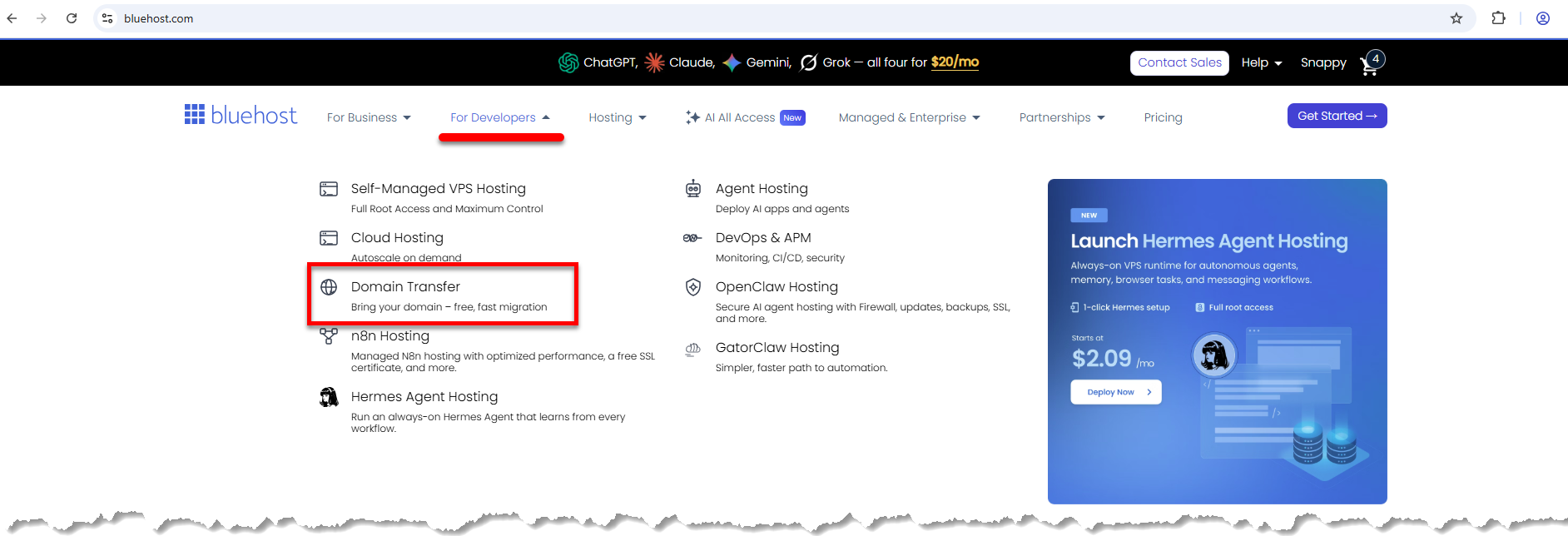
- Click the For Developers tab in the top menu, then select Domain Transfer.
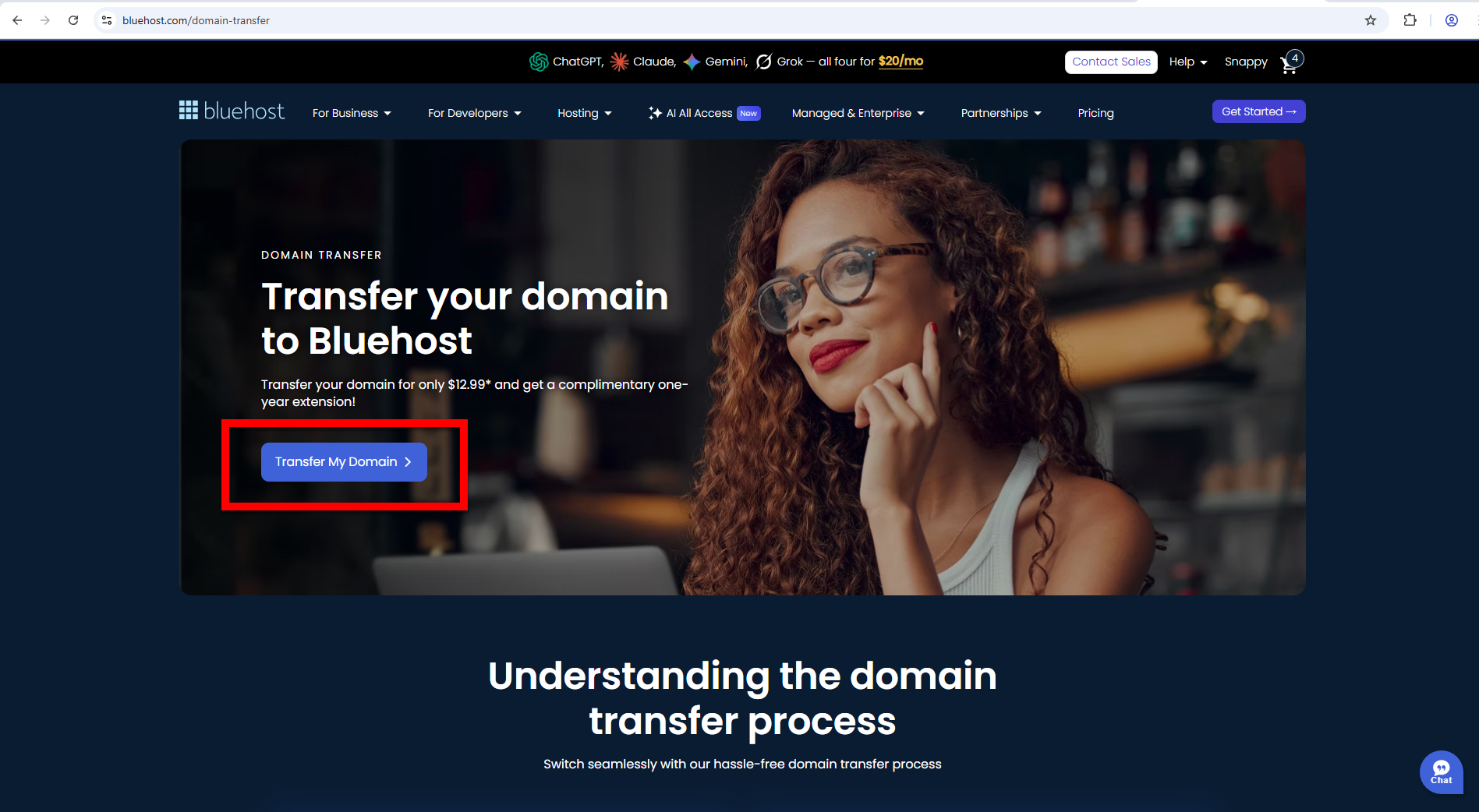
- Click Transfer My Domain.
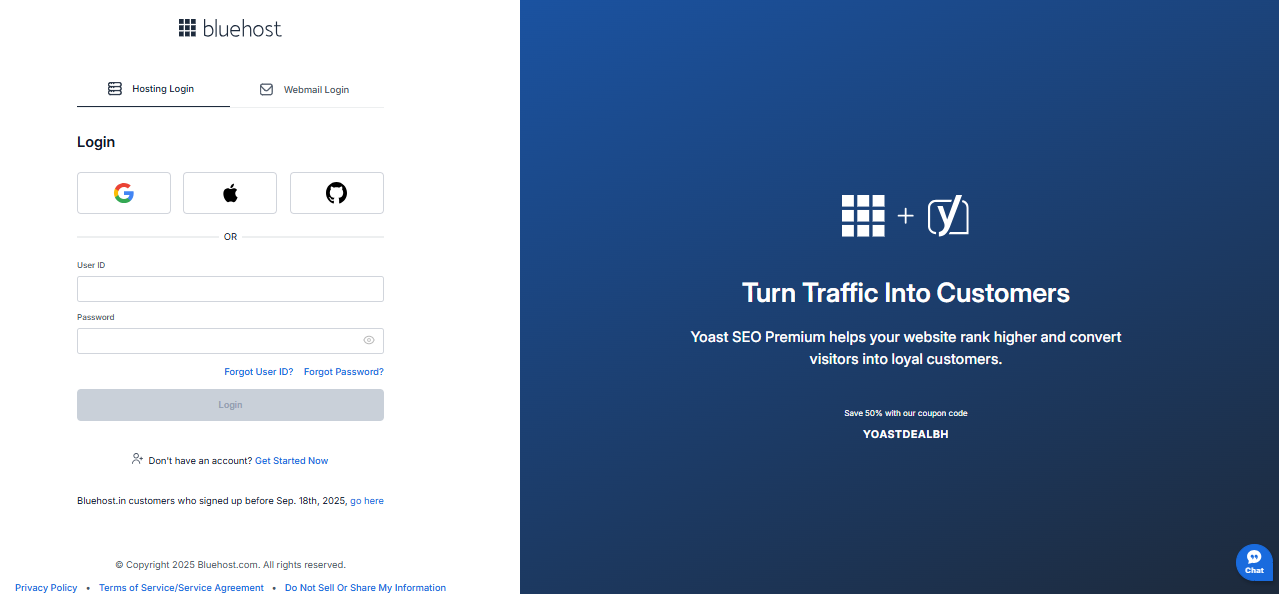
- You'll be directed to the Bluehost login page. If you're not logged into your Bluehost account, you will be prompted to sign in.
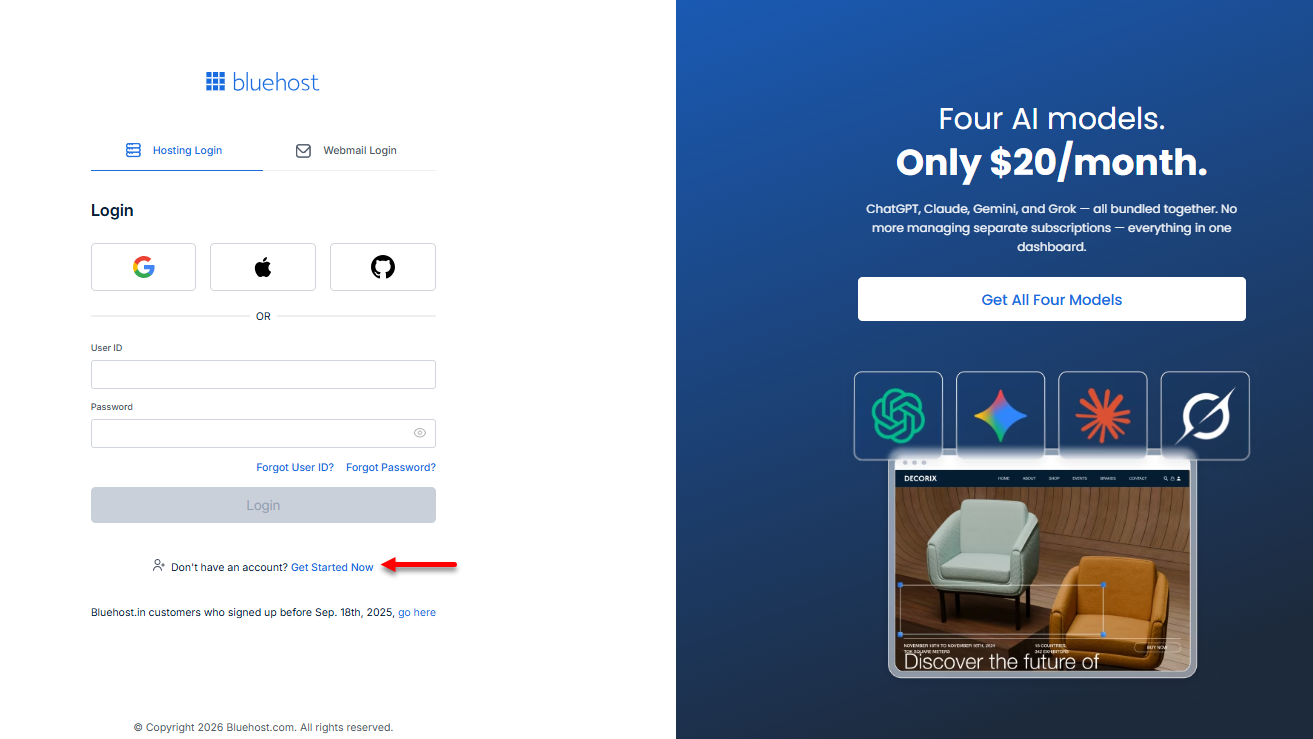
If you don't have a Bluehost account yet, you can create one by clicking the Get Started Now link.
- On the Start Transfer In page, enter the domain you want to transfer to Bluehost, then click Submit.
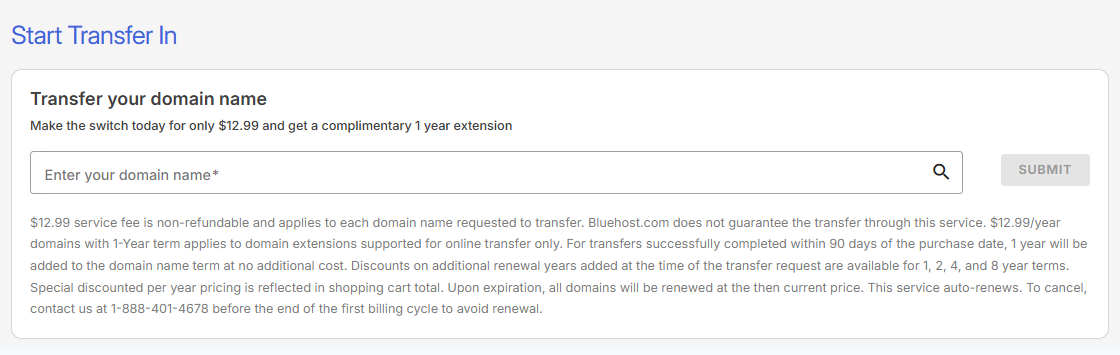
- The system will check your domain's eligibility for transfer. If eligible, it will be added to your Shopping Cart.
- On the Checkout page, you can add a hosting plan or Google Workspace as addons.
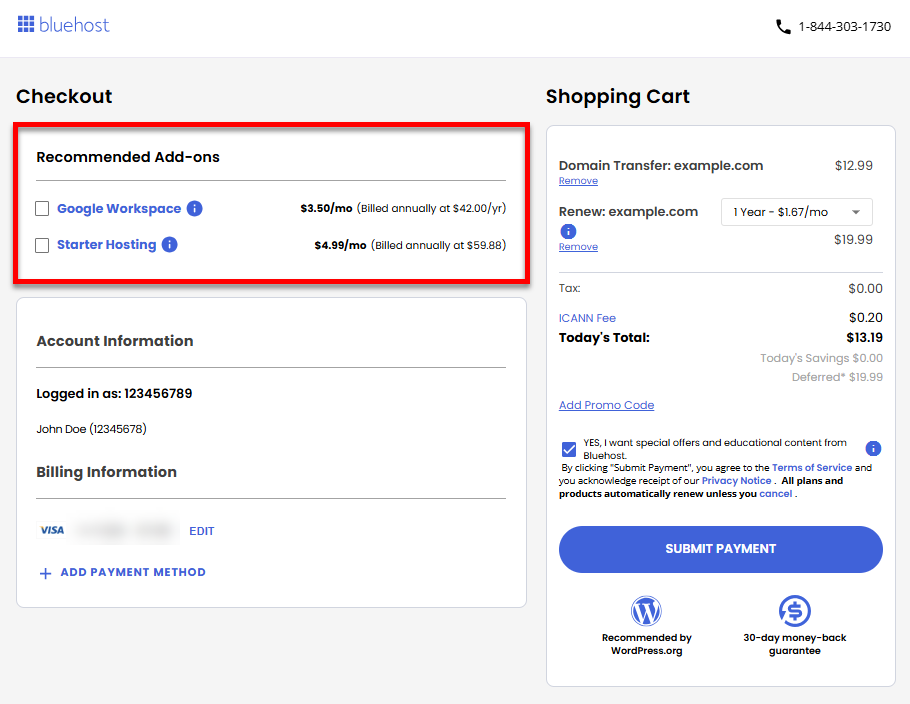
- Review the items in your cart. Add a Promo Code if available, then click Submit Payment.
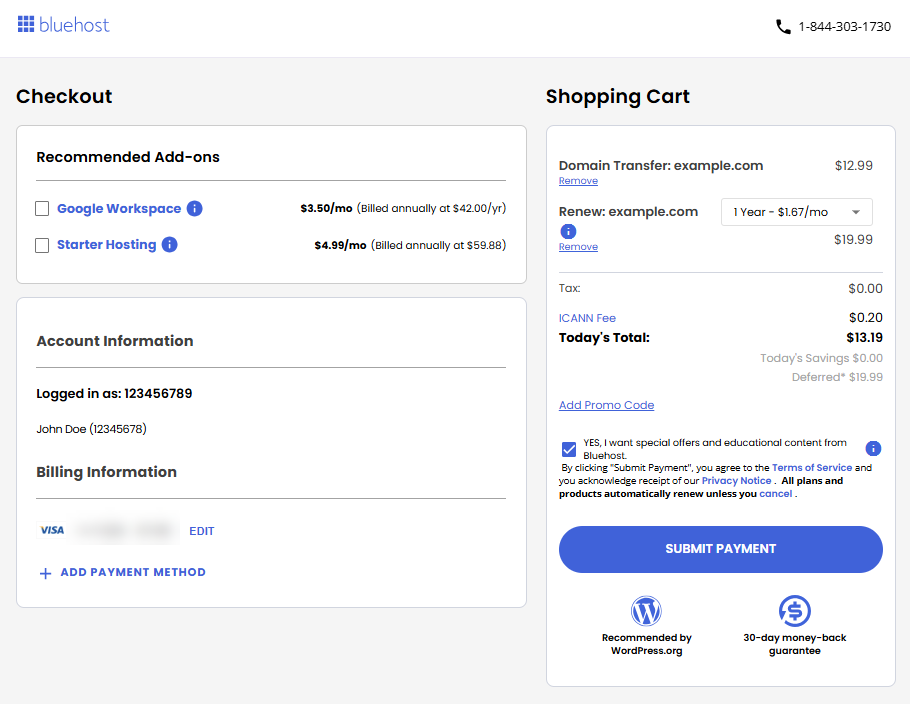
- Proceed to Step 2. Ensure you have your domain's authorization (EPP) code. You can request this from the domain's registrar if needed.
Via the Bluehost Portal
- Log in to your Bluehost Portal.
- There are several ways to initiate a domain transfer within your Bluehost Portal.
Domains tab
- Click Domains on the left menu.
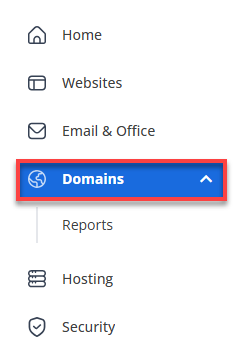
- On the Domains page, you have two options:
- Option 1: Click the Add a Domain menu on the top-right pane and select Transfer in a domain to Bluehost.com.
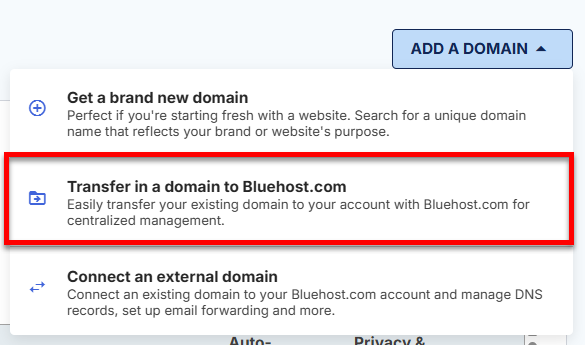
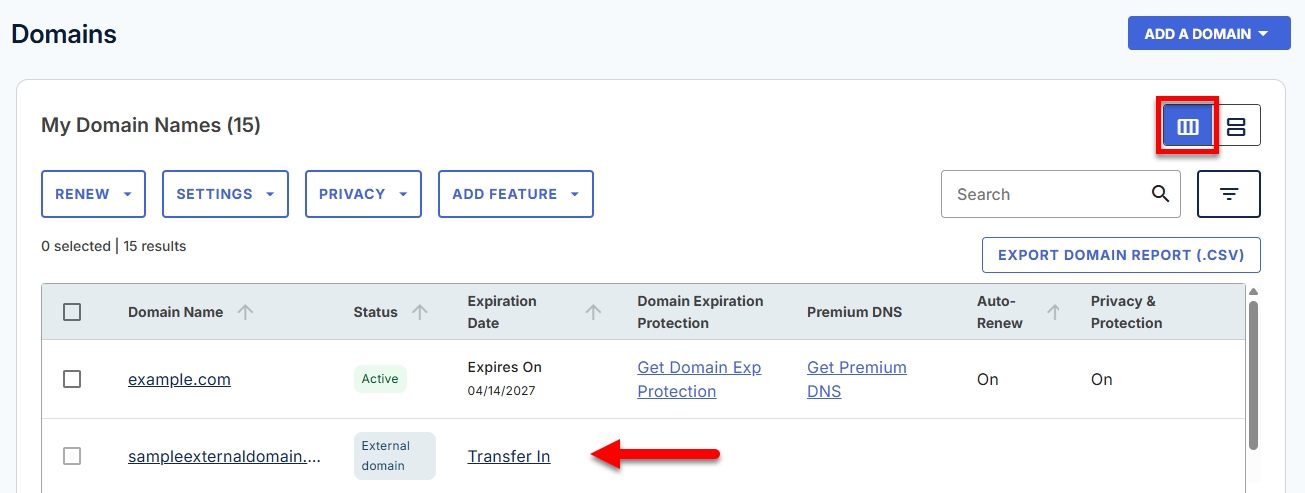
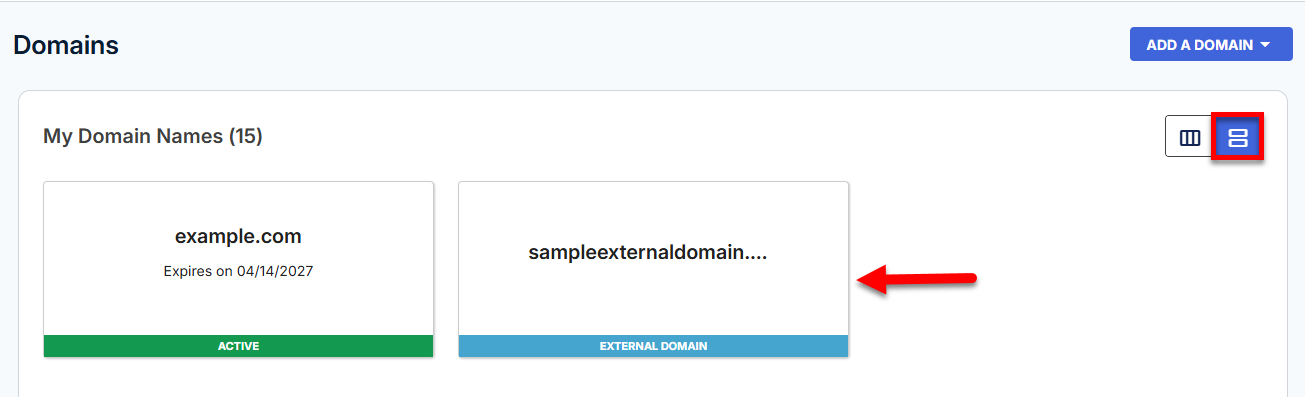
- Option 2: If the domain is already added to your Bluehost Portal as an External Domain:
- List View: Click the Transfer In link next to the "external domain" to initiate the process of domain transfer.
- Card View: Click the "external domain" card you want to transfer to your Bluehost account.
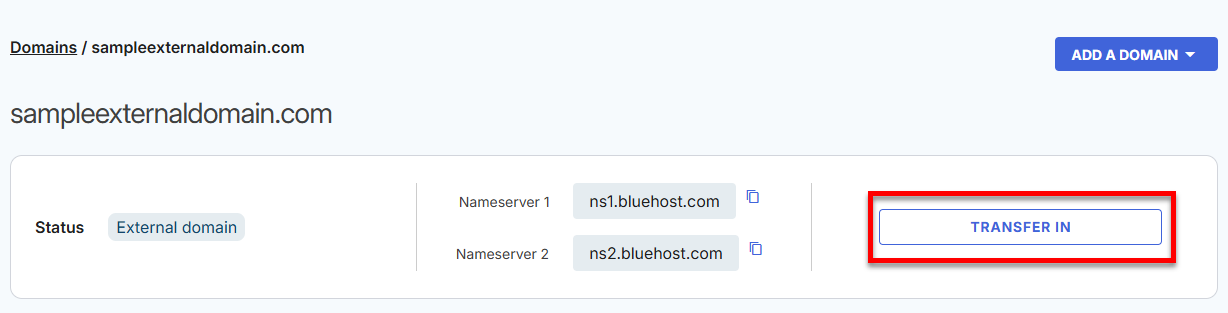
Click the Transfer In button.
- List View: Click the Transfer In link next to the "external domain" to initiate the process of domain transfer.
- Option 1: Click the Add a Domain menu on the top-right pane and select Transfer in a domain to Bluehost.com.
Via the Marketplace
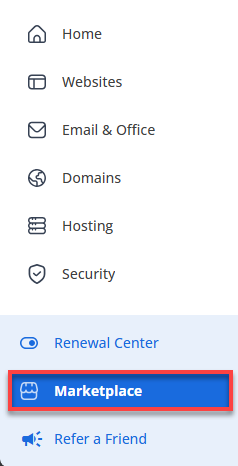
- Click Marketplace on the left menu.
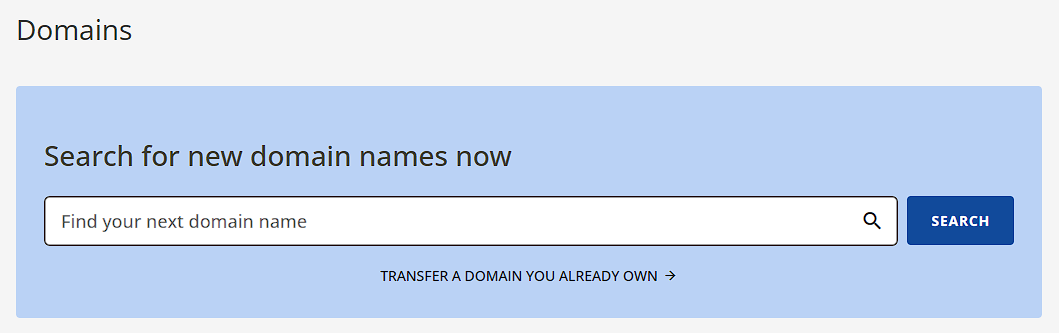
- Under the Domains category, you have two options:
- Option 1: Click the Transfer a domain you already own link under the search bar.
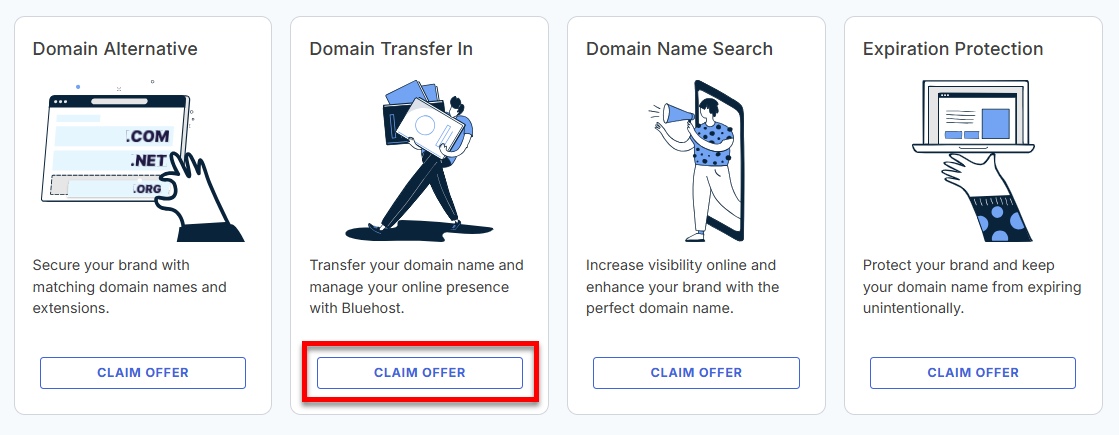
- Option 2: Click the Claim Offer button under the Domain Transfer In card.
- Option 1: Click the Transfer a domain you already own link under the search bar.
- Click Domains on the left menu.
- On the Start Transfer In page, enter the domain name you want to transfer (without the 'www'). Click Submit.
- The system will check the domain's eligibility for transfer. If eligible, it will be added to your Shopping Cart.
- On the Checkout page, you can add a hosting plan or Google Workspace as addons.
- Review the items in your cart. Add a Promo Code if available, then click Submit Payment.
- You can now proceed to Step 2. Ensure you have your domain's authorization (EPP) code. You can request this from the domain's registrar if needed.
Step 2: Submit the EPP Code (Post-Purchase)
After submitting the request for the domain transfer and settling the one-time service fee, your next step is to submit your domain's EPP code.
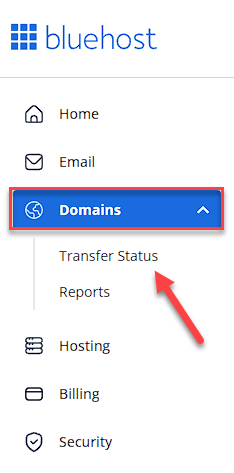
- Within your Bluehost Portal, click Domains on the left menu, then select Transfer Status.
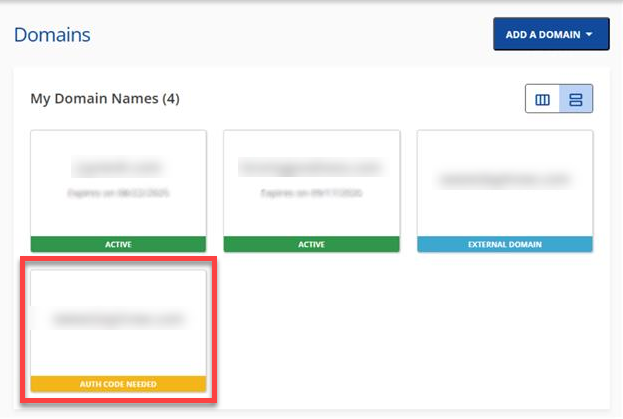
In Card View, you can click on the domain with the "AUTH CODE NEEDED" status to transfer.
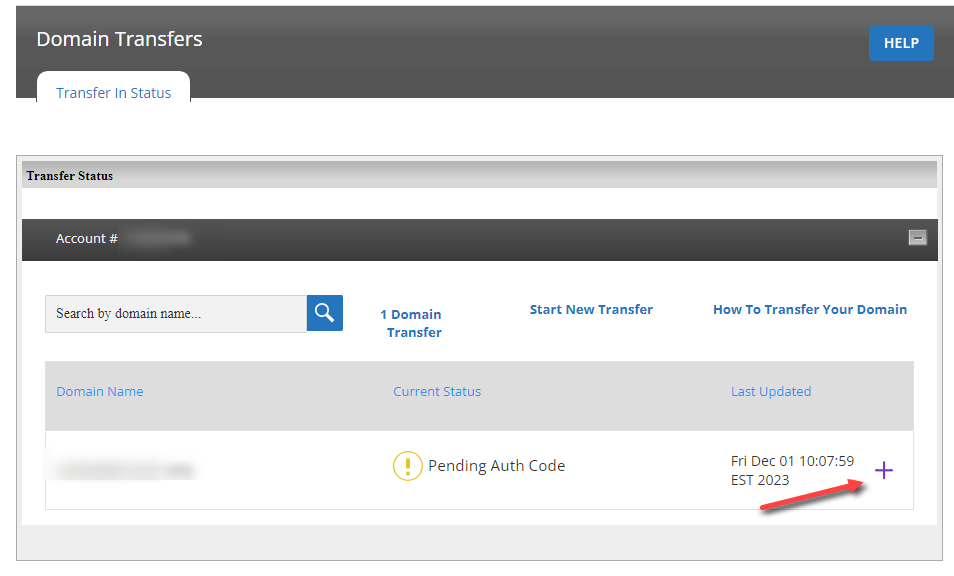
- On the Domain Transfers page, click the plus ("+") icon next to Pending Auth Code.
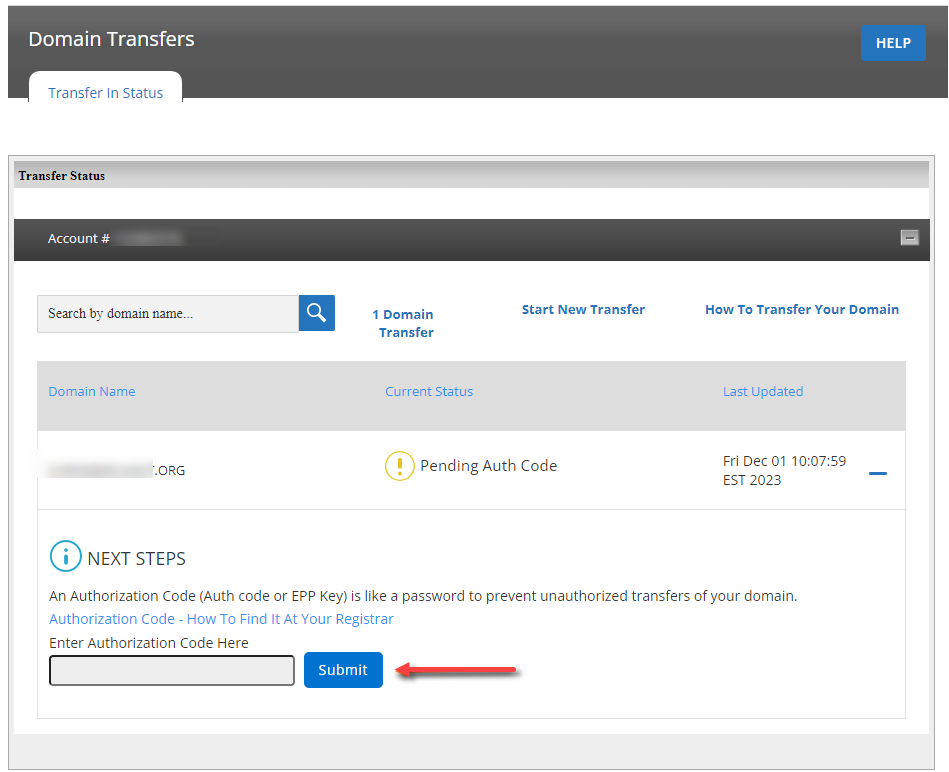
- Enter your EPP code (also known as the authorization code or key), and then click Submit.
- After submitting, the system will verify your domain and its EPP code. The Transfer Status page will display the image below after your submission.
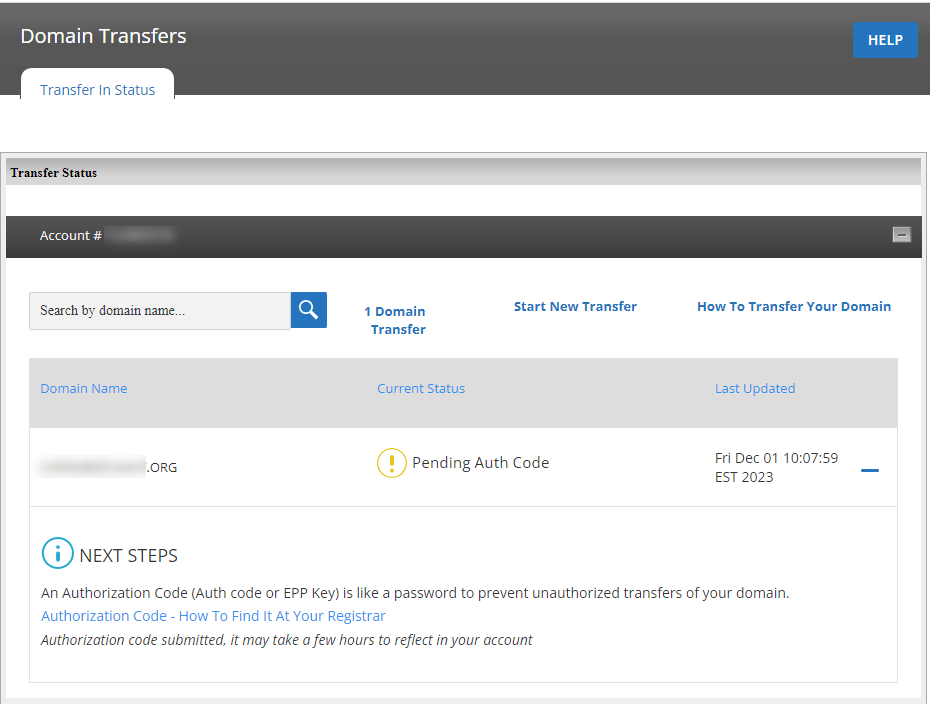
- Allow some time for the system to check your domain and its EPP code. You can check your domain's status in the Bluehost Portal later.
Summary
Learn how to transfer a domain to Bluehost with this step-by-step guide. This article discusses domain transfer eligibility requirements, preparation steps, and the complete transfer process. Discover the advantages of simplified hosting account management, centralized domain control, and improved performance monitoring. This also outlines important considerations, like domain lock periods, EPP codes, DNS setup, and restrictions (including unsupported .uk domains) to ensure a smooth and successful domain transfer.
If you need further assistance, Bluehost Chat Support is available 24 hours a day, 7days a week while Bluehost Phone Support is available 7 days a week from 7 am-12 midnight EST.
- Chat Support - While on our website, you should see a CHAT bubble in the bottom right-hand corner of the page. Click anywhere on the bubble to begin a chat session.
- Phone Support -
- US: 888-401-4678
- International: +1 801-765-9400
You may also refer to our Knowledge Base articles to help answer common questions and guide you through various setup, configuration, and troubleshooting steps.