 ChatGPT,
 Claude,
 Gemini,
 Grok — all four for
Key highlights
- Learn how to install SSL certificate on domain: addon vs parked differences.
- Discover multi-domain SSL certificates for unlimited addon domain security.
- Master step-by-step cPanel SSL installation for addon domains.
- Uncover WordPress-specific SSL configurations for addon domain setups.
- Understand advanced SSL certificate troubleshooting and renewal techniques.
Are you managing multiple domains and wondering how to keep them all secure? Learning how to install SSL certificate on domain setups especially addon or parked domains is essential for protecting sensitive data and building visitor trust. An SSL certificate encrypts your website data, enhances credibility and boosts your search engine rankings.
In this guide, you’ll discover exactly how to purchase and install an SSL certificate on addon or parked domains, even if you’re just getting started with website security.
What is a parked domain?
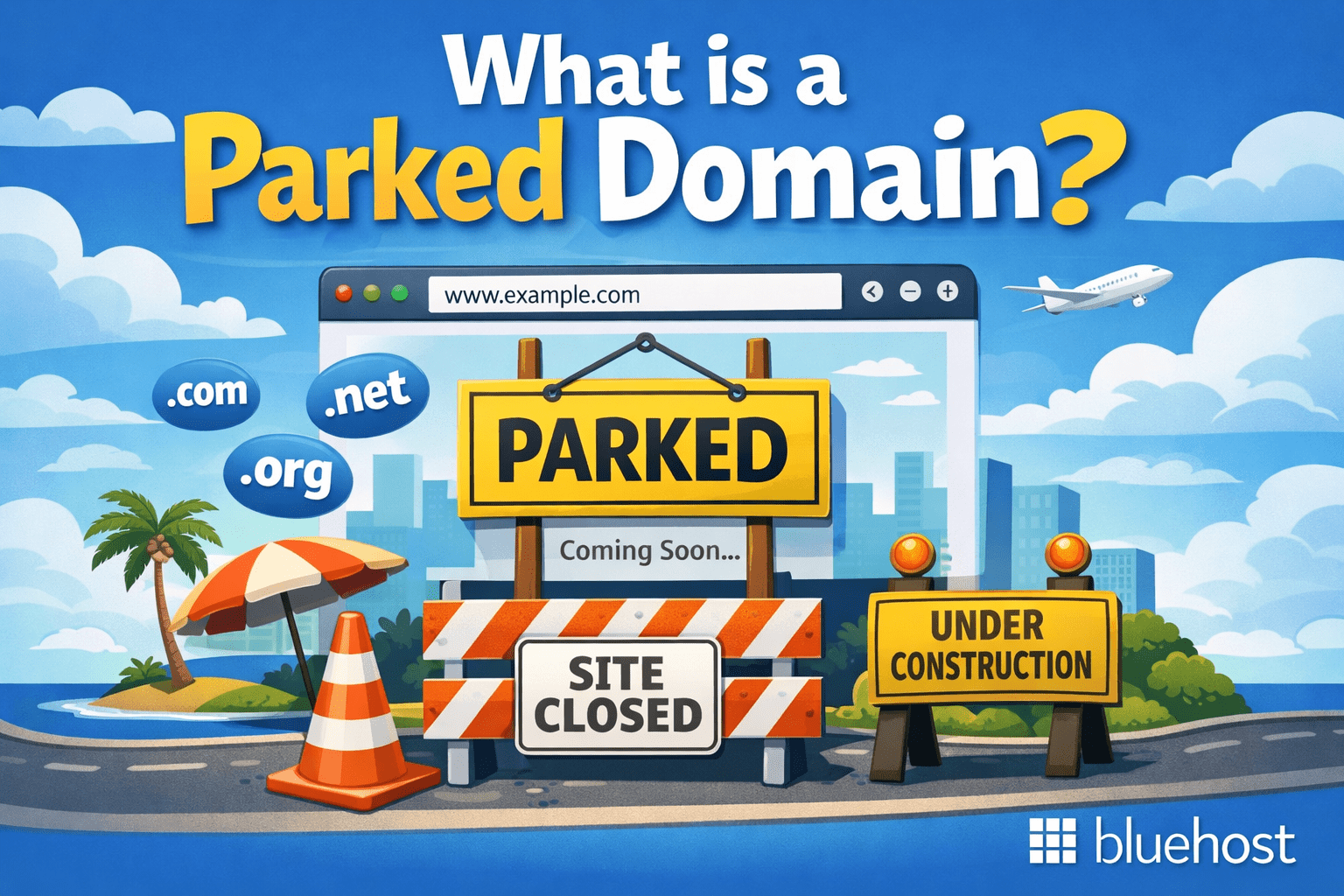
A parked domain is essentially a domain name that you own but don’t actively use for a website. Think of it like reserving a parking spot for your car, you’re holding onto valuable digital real estate for future use. Small business owners often park domains to protect their brand names, while content creators might reserve catchy domain names for upcoming projects or blog ideas.
Unlike your primary domain (your main website), addon domains (additional websites on the same hosting account) or subdomains (sections of your main site like blog.yoursite.com), parked domains typically don’t host their own content.
Instead, when visitors type in your parked domain, they’ll usually see one of three things: an automatic redirect to your main website, a simple “coming soon” page or a basic holding page. For example, if you own both [yourbusiness].[com] and [yourbusiness].[net], you might park the .net version to redirect visitors to your main .com site.
Even though parked domains don’t host full websites, SSL certificates still matter because they secure the connection during redirects. When someone visits your parked domain and gets redirected to your main site, having an SSL certificate prevents browser security warnings and maintains visitor trust throughout the entire journey.
How does domain parking actually work?
Domain parking works by directing a domain’s DNS settings to point to the same hosting account as your primary domain, essentially creating an alias that shares the same server resources.
When you park a domain through your hosting control panel, the system maps that domain to your existing hosting space without creating separate files or directories. This means both your primary domain and parked domain resolve to the same IP address and server location.
When visitors type in your parked domain, they typically encounter one of three scenarios: an automatic redirect to your main website, a basic “coming soon” placeholder page or a simple holding page displaying your hosting provider’s branding.
The redirect process happens instantly at the server level, so users are seamlessly transferred from the parked domain to your primary site without realizing they’ve been redirected.
SSL certificates play a crucial role in parked domain functionality by securing the connection during redirects. Without proper SSL coverage on your parked domain, visitors may encounter browser security warnings before being redirected to your main site, which can damage trust and cause visitors to abandon their journey.
By ensuring your parked domain has SSL protection, the entire redirect process remains secure and invisible to users, maintaining a professional experience while protecting your brand reputation and preventing potential security alerts that could deter customers.
Why would you park a domain?
Domain parking serves several strategic purposes for bloggers and small business owners looking to secure their digital presence. The most common reason is brand protection, registering variations of your main domain name (like your business name with different extensions or common misspellings) prevents competitors or domain squatters from grabbing them later.
For example, if you run a bakery called “Sweet Dreams,” you might park [sweetdreamsbakery].[net] and sweetdreamsbakery.org even if your main site uses the .com version.
Many entrepreneurs also park domains to reserve future project ideas or business expansions. A food blogger might park domains for potential recipe books, cooking courses or regional variations of their brand before they’re ready to launch those ventures. This forward-thinking approach ensures you can secure the perfect domain name at today’s prices rather than paying premium rates later when someone else owns it.
Planning ahead with SSL certificates makes the transition from parked to live domain much smoother. When you eventually activate your parked domain as a functioning website, having SSL infrastructure already in place means visitors won’t encounter security warnings during the launch process, maintaining trust and professionalism from day one.
How to get an SSL certificate?
Getting an SSL certificate is easier than you might think, with several options to fit your specific needs. Free SSL certificates are often included with hosting plans, making them the most accessible choice for basic website security.
These certificates secure your site by encrypting data exchange and improve your SEO rankings and customer trust. For sites with multiple addon or parked domains, you can also obtain free certificates through providers like Let’s Encrypt, which automatically handle installation and renewal.
When deciding between free and paid SSL options, consider your site’s complexity and business needs. Free certificates work perfectly for personal blogs and small business websites with standard security requirements.
However, if you’re managing multiple domains or need advanced validation levels for eCommerce sites, paid multi-domain or wildcard certificates offer broader coverage and additional trust indicators that customers recognize.
The process is straightforward: first, determine whether you need coverage for a single domain or multiple addon domains, then log into your hosting control panel to request the appropriate certificate type.
Most hosting providers offer one-click SSL installation that automatically configures your certificate and handles the technical details, so you can focus on running your website rather than managing security certificates.
Commercial SSL certificates
Commercial SSL certificates become worthwhile when you’re managing multiple addon and parked domains or have specific business requirements that free certificates can’t meet. If you’re securing numerous domains, a multi-domain SSL certificate can cover up to 100 domains under a single certificate, simplifying management and potentially reducing costs.
For businesses with multiple subdomains, wildcard SSL certificates automatically secure your main domain and all its subdomains with one installation.
Choose single-domain certificates when you only need to secure one specific addon domain, multi-domain certificates when managing several unrelated domains and wildcard certificates when you have multiple subdomains under one primary domain.
Commercial certificates also offer enhanced management dashboards, longer validity periods and dedicated support that can be valuable for business-critical sites. Once you’ve selected the right certificate type for your domain setup, the installation process follows the same steps outlined in the sections below, whether you’re securing addon domains or parked domains.
Free SSL certificates and Let’s Encrypt options
Most hosting providers offer free SSL certificates through automated services like Let’s Encrypt. These certificates provide basic encryption for your primary domain, addon domains and parked domains without any additional cost.
The installation process is typically automated, your hosting provider detects when you add a new domain and automatically generates and installs a free SSL certificate within a few hours.
Free SSL certificates offer significant advantages: they’re completely free, renew automatically every 90 days and provide the same level of encryption as paid certificates. This makes them perfect for most websites, blogs and small business sites.
However, they do have limitations, shorter validity periods require more frequent renewals and they only cover single domains rather than multiple subdomains or domain variations.
While free SSL certificates work excellently for individual addon and parked domains, you might prefer a commercial multi-domain or wildcard SSL certificate if you’re managing numerous domains or need advanced features like extended validation or warranty protection.
Multi-domain certificates can secure multiple addon domains under one certificate, simplifying management, while wildcard certificates cover all subdomains automatically. For most users getting started with SSL on addon or parked domains, free Let’s Encrypt certificates provide reliable security without the complexity or cost.
Types of SSL certificates for addon and parked domains

Before you purchase an SSL certificate, it’s important to understand the different types available:
- Single-Domain SSL certificate: Secures one specific domain.
- Wildcard SSL certificate: Secures your primary domain and all its subdomains under a single certificate.
- Multi-Domain SSL certificate (SAN): Secures multiple domains and subdomains, making it ideal if you have multiple addon domains.
For addon domains, consider a multi-domain SSL certificate or wildcard SSL certificate if you need to secure several domains within your hosting account.
Install a free basic certificate provided by Let’s Encrypt
Enabling a free Let’s Encrypt SSL certificate on Bluehost is straightforward since most hosting providers automate the issuance and renewal process. To get started, log into your control panel and navigate to the SSL/TLS or Security section, then select your addon or parked domain from the dropdown menu. Look for the “Free SSL” or “Let’s Encrypt” option and click to enable it.
The certificate typically activates within a few minutes to a few hours. Verify successful installation by checking for the padlock icon in your browser’s address bar when visiting your domain or use an online SSL checker tool for detailed validation.
While Let’s Encrypt certificates provide solid encryption, they offer basic domain validation only and don’t include extended validation features or warranty protection that premium certificates provide.
These certificates renew automatically every 90 days, but it’s wise to monitor your SSL status regularly to ensure continuous coverage, especially for addon and parked domains that may not always be included in automatic renewal notifications.
Why SSL protection matters for parked domains and addon sites?
SSL certificates are essential for encrypting data transferred between your website and visitors. Without SSL, browsers could flag your site as insecure, leading to a loss of trust and potential traffic.
SSL on addon domains ensures that your entire online presence, including any domains added to your account, is protected. Whether managing a blog, an eCommerce store or a portfolio, adding SSL certificates to your addon domains is critical for ensuring security and trustworthiness.
How to install SSL certificate on addon or parked domains?
- Log into your Bluehost Account Manager.
- Purchase/Activate the SSL certificate. Bluehost includes a free SSL certificate with all hosting plans, or you can choose a paid certificate if you need advanced coverage.
- Once you’ve purchased the certificate, follow the installation instructions; if you buy from third-party providers, install it in your cPanel.
- After installation, visit your addon domain and check if the padlock icon appears next to the URL in your browser’s address bar. This indicates the SSL is correctly installed.
How to renew free SSL (Let’s Encrypt)?
Free SSL certificates from providers like Let’s Encrypt typically renew automatically every 90 days and most hosting providers handle this process behind the scenes without any action required from you.
However, it’s important to regularly check your hosting dashboard to confirm your SSL certificate status and verify the renewal date, especially for addon and parked domains that may not always be included in automatic renewal processes.
If automatic renewal fails, you’ll usually see a warning in your dashboard or receive an email notification. To trigger a manual renewal, navigate to your SSL management section and look for a “Renew” or “Force Renewal” option.
After any renewal, verify that all your addon and parked domains still show valid SSL certificates by checking the padlock icon in your browser when visiting each domain. If any domains lose SSL coverage, you may need to reapply the certificate or contact support to ensure all domains remain properly secured.
Generating CSR for SSL certificates on addon and parked domains
A Certificate Signing Request (CSR) is a digital file containing your domain and organization information that you submit to a certificate authority to obtain an SSL certificate. You’ll typically need to generate a CSR when purchasing SSL certificates from third-party providers or setting up multi-domain certificates that secure multiple addon or parked domains under a single certificate.
To generate a CSR through your hosting control panel, access the SSL/TLS section and locate “Generate CSR” or similar option. Select the specific domain you want to secure, then complete the required fields including your organization details, location and contact information.
The system will create both a CSR file and private key, copy the CSR text to provide to your certificate authority while keeping the private key secure on your server for the installation process.
How to upload your SSL certificate?
Once you have your SSL certificate files, access your hosting control panel and navigate to the SSL/TLS management section. You’ll need to upload three key components: the SSL certificate, private key and CA bundle (intermediate certificate).
When applying the certificate, carefully select the correct addon or parked domain from the dropdown menu to ensure proper installation. Each domain requires its own certificate assignment, so if you’re securing multiple addon domains, repeat this process for each one.
Before saving your changes, double-check that the certificate details match your domain names exactly, including any parked domains that will redirect securely to your primary site. Verify that there are no typos in the domain list and that the certificate covers all intended domains.
Once everything looks correct, save the configuration and allow a few minutes for the changes to take effect across your hosting environment.
How to set up SSL for addon and parked domains?
Setting up SSL for addon and parked domains follows a straightforward process that ensures all your domains maintain secure connections. The journey begins with choosing the right certificate type, whether you need individual certificates for each domain or a multi-domain SSL certificate that covers multiple addon domains under one certificate.
Next, you’ll request or activate the certificate through your Bluehost control panel, validate domain ownership to prove you control each domain and install the certificate on the correct domains. Finally, you’ll force HTTPS in your WordPress settings or site configuration to ensure all traffic uses secure connections.
For addon and parked domains on your Bluehost account, pay special attention to certificate assignment, each addon domain needs its own SSL coverage, while parked domains require SSL to secure the redirect process and prevent browser warnings. The detailed step-by-step instructions below will guide you through each phase to ensure your entire domain portfolio stays secure and professional.
Add SSL/TLS certificate in cPanel
To add an SSL certificate through cPanel, navigate to the SSL/TLS section in your hosting control panel and locate “Manage SSL sites” or similar option. Select the specific addon or parked domain from the dropdown menu, this step requires manual selection as certificates aren’t automatically applied to all domains.
If you have certificate files from a third-party provider, paste the SSL certificate, private key and CA bundle into their respective fields. For free certificates, many hosts automate this process, but you’ll still need to manually assign the certificate to each addon domain.
Before saving your changes, carefully verify that the certificate details match your exact domain name, including any parked domains used for redirects. Even small typos can cause SSL errors. Once configured, allow a few minutes for the changes to propagate, then test each domain to ensure the padlock icon appears correctly in browsers.
Installing SSL certificates for Plesk-hosted parked domains
Installing an SSL certificate in Plesk follows a similar process to cPanel but with Plesk’s unique interface. Log into your Plesk control panel and navigate to “Websites & Domains” from the main dashboard. Select your specific addon or parked domain from the domain list, then click on “SSL/TLS Certificates” or look for it under “Hosting Settings.”
For free certificates, click “Install a free basic certificate provided by Let’s Encrypt” and Plesk will automatically generate and install it. If you have a commercial certificate, choose “Upload certificate files” and paste your certificate, private key and CA bundle into the respective fields.
Once installed, assign the certificate to your domain by selecting it from the certificate dropdown menu. Enable the “Redirect from HTTP to HTTPS” option if available to force secure connections. Verify successful installation by visiting your domain, you should see the padlock icon in your browser’s address bar, confirming your addon or parked domain now has SSL protection just like your primary site.
Key considerations when installing SSL on addon or parked domains
- Limitations on SSL certificates: While you can install an SSL certificate on addon or parked domains, most hosting accounts allow only one SSL certificate per domain. If you need to secure multiple domains, consider using a multi-domain or wildcard certificate, which can cover several domains or subdomains under a single certificate.
- Compatibility with parked domains: SSL certificates are for active websites and parked domains that redirect to your primary site. When securing a parked domain, the SSL certificate ensures that users visiting the parked domain will still have a secure connection before being redirected. Even though the domain is not actively hosting content, securing the redirection ensures safety and trust.
Common issues with SSL installation and how to fix them
Sometimes, users encounter issues when installing SSL certificates. Here are a few common problems and troubleshooting tips:
- The SSL certificate isn’t showing as active:
Ensure the SSL is applied correctly through. If the padlock icon doesn’t appear in the browser, it could be a sign the certificate wasn’t installed properly. Try reinstalling the certificate or contact our support team for help. - Mixed content warning:
After installing the SSL certificate, some pages can still load up insecure content- for example, images or scripts- that load over HTTP instead of HTTPS. To avoid this, edit your website to use HTTPS or an SSL plugin for WordPress to force a secure URL everywhere. - SSL certificate expired:
SSL certificates expire, typically after one year. If you’re nearing the expiry date, renew your certificate to avoid any security warnings for visitors.
How a firewall works with SSL certificates?
Think of SSL certificates and firewalls as your website’s dynamic security duo working together to protect your addon and parked domains. SSL certificates encrypt data exchange between your visitors’ browsers and your server, improving SEO rankings and customer trust, while a web application firewall acts as an intelligent bouncer at your server’s door.
When visitors access your site, SSL creates an encrypted tunnel for their data to travel through, but once that information reaches your server, the firewall takes over to analyze every request, even the encrypted ones, looking for suspicious patterns, brute-force attacks and malicious bots before they can harm your site.
Even with SSL enabled, additional security layers like firewalls help protect your site by filtering malicious traffic before it reaches your website. This is why you still need a firewall even when HTTPS is enabled, SSL protects data in transit, but your firewall protects your server from the actual content of those requests.
For addon and parked domains, this security layer becomes especially important because it secures the redirect process from parked domains to your main site, preventing attackers from exploiting those redirects to inject malicious code or steal visitor data.
By combining SSL certificates with firewall protection across all your domains, you create a comprehensive security shield that builds visitor confidence and protects your business reputation. Small business owners and content creators benefit from this dual protection because it ensures seamless, secure experiences whether visitors arrive at your main site or through parked domain redirects, reducing bounce rates and maintaining the professional image that’s essential for online success.
SSL certificates help
When SSL certificate issues arise with your addon or parked domains, gathering the right information upfront can help you resolve problems quickly or get faster support assistance.
Before reaching out for help, note your specific domain name, any error messages you’re seeing (take screenshots if possible), when the problem started and whether the affected domain is an addon or parked domain. This information helps support teams diagnose issues more efficiently and provide targeted solutions.
You can often resolve common SSL problems yourself with a few quick checks. Use an online SSL checker tool to verify your certificate is properly installed and covers the correct domain. Confirm that your website redirects from HTTP to HTTPS automatically, if not, you may need to force HTTPS in your settings.
Clear your browser cache and cookies, as outdated cached data sometimes causes SSL warnings to persist even after the certificate is properly configured. Check that your domain’s DNS settings are pointing correctly to your hosting account.
Contact support when you encounter persistent browser warnings that don’t resolve after clearing your cache, certificate renewal failures or certificate mismatch errors where the SSL certificate doesn’t match your domain name.
These issues typically require server-level troubleshooting or certificate reissuance. Don’t hesitate to reach out if you’ve tried the basic troubleshooting steps above—our support team can quickly identify whether the problem requires advanced configuration or if there’s a simple setting that needs adjustment.
Final thoughts
Installing an SSL certificate on your addon or parked domains isn’t just a technical checkbox, it’s a critical step in protecting your website and your visitors. Throughout this guide, we’ve explored the importance of SSL certificates for securing multiple domains, the different types of certificates available and how to install an SSL certificate on your domain with ease.
Ready to secure your addon and parked domains? Bluehost makes it simple by including a free SSL certificate with all hosting plans. You won’t need to worry about purchasing separate certificates or dealing with complex installation processes.
Get started with Bluehost today and protect your domains with enterprise-grade SSL encryption at no additional cost because your website security shouldn’t come with a premium price tag!
FAQs
Yes, parked domains benefit from SSL certificates because they encrypt data exchange between users and servers while improving SEO rankings and customer trust. Even through parked domains typically redirect to your primary site, securing the redirect process prevents browser security warnings and maintains a professional user experience.
The number depends on your certificate type. A single-domain SSL covers one domain only, while multi-domain SSL certificates can secure multiple domains and subdomains under one certificate. For multiple parked domains, consider a multi-domain or wildcard SSL certificate as discussed in our certificate types section above.
Parked domains themselves don’t directly impact SEO since they redirect to your main site. However, SSL certificates on parked domains can improve your overall SEO rankings by ensuring secure redirects and preventing potential trust issues that could affect your primary domain’s performance.
Security warnings on parked domains can damage visitor trust and potentially impact your main site’s reputation. If you encounter SSL-related security warnings, revisit our installation steps above or use online SSL checker tools to diagnose and resolve certificate issues promptly.

Write A Comment