 ChatGPT,
 Claude,
 Gemini,
 Grok — all four for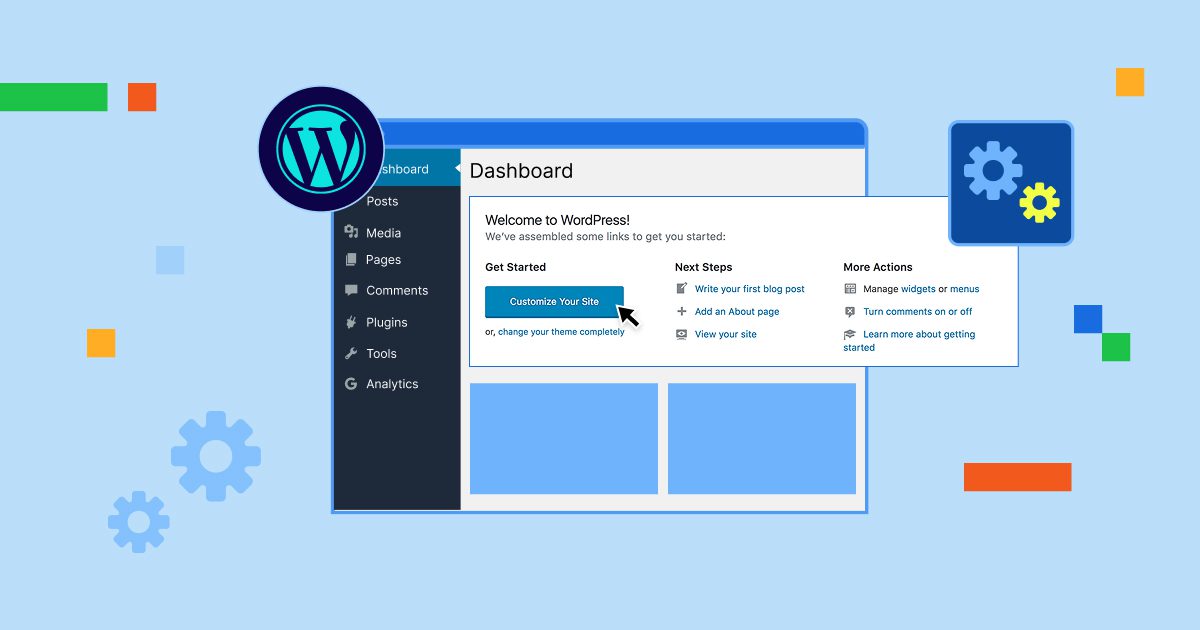
Key highlight
- Discover what makes WordPress the world’s most popular platform and how to gettting started with WordPress. Over 40% of websites choose it for flexibility and ease.
- Learn to navigate the WordPress dashboard with confidence. Manage posts, pages and install plugins that transform your site.
- Understand the step-by-step process to create a professional WordPress website. Choose hosting, select themes and configure optimal setup.
- Explore why Bluehost is the top WordPress hosting provider. It offers WordPress.org recommendations, one-click installation and 24/7 expert support.
- Uncover essential tools to launch your WordPress site successfully. Includes security features, backup solutions, SEO optimization and performance enhancements.
WordPress is the world’s most popular content management system (CMS), powering over 810 million websites globally. This powerful platform allows you to create and manage websites without needing extensive coding knowledge, making it the perfect choice for beginners and professionals alike.
Whether you’re looking to start a blog, build a business website or launch an online store, WordPress provides the flexibility and tools needed to bring your vision to life. In this comprehensive guide, we’ll walk you through everything you need to know about getting started with WordPress, from understanding what it is to launching your first website.
What is WordPress?
WordPress is an open-source content management system (CMS) that simplifies the process of building and managing websites. Originally launched in 2003 as a tool for blogging, it has evolved into a versatile platform that now powers over 43% of the web globally. Today, you can use WordPress to build virtually any type of site, from personal blogs to large corporate portfolios and complex eCommerce stores.
As you get started, it is important to understand the difference between the two versions of the platform:
- WordPress.com: A fully hosted solution where the platform manages the technical backend for you, similar to renting an apartment.
- WordPress.org: The self-hosted version that gives you complete ownership and control over your website, similar to owning a home.
For maximum flexibility and customization options, most users choose WordPress.org. While this version requires you to purchase your own web hosting, it grants you the freedom to build your site exactly the way you want without any restrictions.
What can you build with WordPress?
- Personal blogs: Ideal for writers, hobbyists and thought leaders looking to share their ideas, stories or expertise with a dedicated audience using intuitive publishing tools.
- Business websites: Establish a credible professional presence for your company with customized pages for services, team members and contact information that align with your brand identity.
- eCommerce stores: Transform your site into a fully functional online shop using WooCommerce to sell physical or digital products, manage inventory and process secure payments.
- Portfolios: Create visually stunning galleries and layouts to showcase creative work, making it the perfect solution for photographers, designers and artists seeking clients.
- Membership sites: Build exclusive communities or educational platforms by offering restricted content, online courses and subscription-based services to registered members.
WordPress has evolved far beyond its origins as a simple blogging tool into a robust content management system capable of powering virtually any online project. Its open-source nature and extensive ecosystem of themes and plugins allow you to build everything from a single-page website to a complex enterprise application without needing advanced coding skills. Whether you want to create a WordPress website for a hobby or a large corporation, the platform offers the versatility to match your vision.
How does WordPress work?
WordPress simplifies website creation by handling the complex technical details for you. It operates on a powerful yet accessible foundation that works in the following ways:
1. Runs on a web server using PHP and MySQL
WordPress relies on PHP software to build your pages and a MySQL database to store your content. When someone visits your website, the platform automatically retrieves the right information from the database and displays it as a complete web page. You do not need to know how to code to use these tools effectively.
2. Lets you manage content through a dashboard
The dashboard serves as the command center for your website. This user-friendly interface allows you to publish posts, upload images, manage comments and customize your site settings. It is designed to be intuitive for beginners while offering the flexibility that advanced users need.
3. Uses themes to control design
Themes determine the look and feel of your website. You can choose from thousands of free and premium themes to change your site’s appearance instantly without affecting your actual content. Most themes are fully customizable, allowing you to align the design with your brand perfectly.
4. Uses plugins to add features without coding
Plugins work like apps for your website and extend its functionality. Whether you want to add a contact form, improve SEO or launch an online store, there is likely a plugin available for it. The official WordPress repository currently hosts over 60,000 free plugins to help you build exactly what you need.
What are the benefits of using WordPress?
WordPress has become the preferred choice for millions of website owners due to its numerous advantages:
1. Free and open source
WordPress software is completely free to download, use and modify. This open-source nature means a global community of developers continuously improves the platform, ensuring it stays current with web standards and security requirements.
2. Easy to use with a short learning curve
You can publish your first blog post or page within minutes of setting up WordPress. The intuitive interface resembles familiar word processors, making content creation straightforward for users of all skill levels.
3. Highly customizable with themes and plugins
WordPress offers unlimited customization possibilities through its extensive ecosystem of themes and plugins. You can create virtually any type of website, from photography portfolios to membership sites, without touching a line of code.
4. Strong SEO support
WordPress generates SEO-friendly URLs, allows easy meta tag management and integrates seamlessly with popular SEO plugins like Yoast SEO. This built-in SEO foundation helps your website rank better in search engine results.
5. Large community and documentation
With millions of users worldwide, WordPress has an extensive support community. You’ll find countless tutorials, forums and documentation to help solve any challenges you might encounter.
Who uses WordPress?
WordPress serves a vast spectrum of users, scaling effortlessly from absolute beginners to enterprise-level developers. Its open-source flexibility makes it the ideal foundation for anyone looking to build a unique corner of the internet, regardless of their technical skill level.
The platform is particularly valuable for three core groups:
- Small business owners: Entrepreneurs who need to establish a credible, professional presence quickly without navigating unnecessary technical complexity or coding requirements.
- Content creators and bloggers: Digital storytellers focused on audience growth, creative control and monetization strategies who need a platform that scales alongside their traffic.
- Agencies and web professionals: Developers and designers who require robust tools to customize code and manage multiple client sites efficiently from a central workflow.
How to get started with WordPress
Getting started with WordPress involves several key steps that we’ll guide you through systematically:
Step 1: Choose your platform
When getting started with WordPress, we recommend choosing WordPress.org (self-hosted WordPress) for maximum flexibility. This version gives you complete ownership of your site and allows you to:
- Install any custom theme or plugin to enhance functionality
- Monetize your website freely without platform restrictions
- Access and modify your server files for advanced customization
- Use a professional custom domain name
While WordPress.com offers a convenient starting point, the self-hosted option provides the freedom and scalability that most business owners and creators need for long-term success.
Step 2: Choose a domain name
Your domain name is your website’s address on the internet (like [yourbusiness].com). When you are selecting a domain name, we recommend that you:
- Keep it short, memorable and easy to spell
- Include relevant keywords when possible
- Choose a .com extension for maximum credibility
- Avoid hyphens and numbers that can confuse visitors
You can use the Bluehost AI Domain Name Search to find the perfect web address for your brand. We offer free domain registration with our hosting plans, making it convenient for you to secure both services together.
Step 3: Select a good WordPress hosting provider
Choosing the right hosting provider is crucial for your website’s performance, security and success. The best WordPress hosting services typically offer:
- Easy one-click WordPress installation
- Servers optimized specifically for WordPress speed
- Automated daily backups
- 24/7 expert customer support
- Free SSL certificates for security
- Reliable 99.9% uptime guarantee
Bluehost has been an officially recommended WordPress hosting provider since 2005. Our specific WordPress hosting plans include everything you need to launch your site, from a free domain name to intuitive website building tools.
Step 4: Install WordPress
Most reputable hosting providers offer a streamlined one-click WordPress installation, making this step incredibly simple.
- Log in to your hosting account’s control panel
- Locate the WordPress installation option or setup wizard
- Click the install button and follow the on-screen prompts
- Select your domain name and set up your admin credentials
- Finalize the installation process
With Bluehost WordPress hosting, this process is often automatic or takes just a few minutes with our AI site builder, allowing you to access your dashboard immediately upon completion.
Step 5: Setting up your WordPress site
Once WordPress is installed, Bluehost WordPress builder automatically launches to guide you through the initial setup process. You can also access your WordPress dashboard directly by visiting [yourdomain].com/wp-admin. Here is how to configure your basic settings manually:
General settings
- Update your site title and tagline
- Set your timezone
- Choose your date and time format
Permalink structure
Navigate to Settings > Permalinks and choose “Post name” to ensure your URLs are SEO-friendly and include your post titles.
Choose and customize your theme
Visit Appearance > Themes to browse and install a theme that matches your website’s purpose. Many themes include customization options for colors, fonts and layout.
Step 6: Creating your website content
Now that your WordPress site is technically set up, it is time to bring it to life with content. Your pages and posts are the primary way you communicate with visitors, so focusing on quality here is essential for building trust and engagement.
Publish your core pages
Every professional website needs a foundation of standard pages to help visitors understand who you are and what you offer. These pages are critical for establishing credibility:
- About page: Share your story, mission or history to build a personal connection with your audience.
- Contact page: Provide clear ways for visitors to reach you, such as a contact form, email address or physical location.
- Privacy policy: Explain how you handle user data to comply with global regulations and reassure visitors that their information is safe.
- Products or services: specific pages detailing what you sell or offer, if you are running a business or online store.
Write your first blog posts
Publishing regular blog posts is one of the best ways to improve your search engine rankings (SEO) and keep your audience returning for more. You can use the built-in WordPress Block Editor to easily design articles that feature rich media like images, videos and dynamic layouts without needing any code.
Set up your navigation menu
Create a logical navigation structure under Appearance > Menus to help visitors find important pages easily.
Step 7: Adding functionality with plugins
Plugins extend the capabilities of your WordPress website. Here are the essential plugins that every WordPress site should consider:
- SEO plugin: Yoast SEO for search engine optimization
- Security plugin: Bluehost Malware Protection for website protection and automatic backups
- Caching plugin: WP Rocket or W3 Total Cache for faster loading speeds
- Contact form: Contact Form 7 and Jetpack for easy visitor communication
You can install plugins by navigating to Plugins > Add New in your WordPress dashboard, searching for the plugin name and clicking “Install Now.”
Why choose Bluehost for WordPress?
If you’re looking for a WordPress hosting provider, Bluehost stands out thanks to its long-standing WordPress.org partnership, robust performance infrastructure and user-friendly experience designed for beginners and professionals alike.
1. Officially recommended by WordPress.org since 2005
Bluehost has maintained its official WordPress.org recommendation since 2005. This endorsement demonstrates Bluehost’s consistent commitment to performance standards, robust security measures and WordPress-focused customer support.
2. Easy WordPress setup with automatic installation
WordPress comes pre-installed on all Bluehost plans, allowing you to launch your site immediately without any manual configuration or technical expertise. The platform handles automatic updates to keep your site secure and current at all times.
3. Free domain for the first year
Every WordPress hosting plan includes a complimentary domain name for your first year. This benefit streamlines the setup process and lowers your initial investment, whether you’re registering a new domain or transferring an existing one.
4. Built-in performance and reliability
Bluehost WordPress hosting is powered by enterprise-grade infrastructure, including NVMe SSD storage, LiteSpeed servers, object caching, HTTP/3 protocol support and a global content delivery network. These technologies work together to ensure fast page loads and consistent performance during traffic surges. All plans are backed by a 99.9% uptime guarantee.
5. Security and backups included
Every plan comes with essential security features, including a free SSL certificate, malware detection, web application firewall and DDoS protection. Weekly automated backups are standard, while higher-tier plans offer enhanced backup solutions and advanced malware removal capabilities.
6. Expert WordPress support, 24/7
Bluehost provides round-the-clock WordPress support through live chat on all plans. Business and eCommerce tiers also include phone support. The support team specializes in WordPress-related issues, including site setup, migrations, performance optimization and troubleshooting. Free migration tools are available to help you transfer your existing site.
7. Tools for growth and development
Bluehost includes powerful features like staging environments, SSH access, WP-CLI integration, Git version control and multisite management capabilities. These professional tools make the platform ideal for everyone, from beginners building their first site to developers and agencies managing multiple WordPress installations.
Final thoughts
Getting started with WordPress doesn’t have to be overwhelming. By following this step-by-step guide, you can create a professional website that grows with your needs. WordPress’s flexibility, combined with reliable hosting, provides the foundation for online success.
Remember that building a great WordPress website is an ongoing process. Continue learning, experimenting with new features and creating valuable content for your audience. With WordPress powering your site and the right hosting partner supporting you, there’s no limit to what you can achieve online.
Ready to start your WordPress journey? Choose a hosting plan that includes everything you need to succeed, from free domains to expert support.
FAQs
Beginners should start by choosing a reliable WordPress hosting provider, selecting a domain name and using one-click WordPress installation. Focus on learning the WordPress dashboard, installing essential plugins and creating your first pages before diving into advanced customization.
While ChatGPT can provide guidance, code snippets and troubleshooting help for WordPress development, it cannot directly build a website. You’ll still need to manually implement suggestions, install WordPress, configure hosting and perform the actual website setup steps.
Some users explore alternatives due to security concerns, maintenance requirements or desire for simpler solutions. However, WordPress remains the most popular CMS because its benefits – flexibility, community support and extensive customization options – typically outweigh these challenges for most users.
Yes, WordPress is beginner-friendly with its intuitive dashboard and extensive documentation. While there’s a learning curve for advanced features, beginners can easily create and manage content, install themes and plugins, and build professional websites without coding knowledge.

Write A Comment