 ChatGPT,
 Claude,
 Gemini,
 Grok — all four for
Key highlights
- Learn how to correctly configure PHP timezone settings to prevent scheduling conflicts and timestamp errors on your WordPress site.
- Discover the step-by-step process for modifying WordPress timezone configuration through your hosting control panel.
- Understand common timezone-related issues that affect post scheduling, event management and server timestamps.
- Explore multiple methods to change PHP timezone settings including php.ini modifications and WordPress admin adjustments.
- Know which timezone configuration approach works best for your specific WordPress hosting environment.
If your WordPress site shows the wrong time, the issue usually stems from a disconnect between your server’s PHP timezone settings and your WordPress configuration. When these two systems aren’t aligned, you’ll see incorrect timestamps on blog posts, comments, scheduled content and anywhere else time appears on your site.
The good news is that fixing timezone issues doesn’t require advanced technical skills. This guide will walk you through two essential approaches to get your site displaying the correct time.
In this guide, we’ll walk you through the keyways to fix timezone issues on your site:
- Update the PHP timezone at the server level by modifying your hosting settings. This controls how your server processes time-related functions.
- Adjust the WordPress-specific timezone settings from your dashboard, which determines how timestamps appear on posts, comments, the admin panel and scheduled content.
By the end of this post, you’ll understand both methods and know exactly which approach works best for your specific situation.
Let’s get started to see how you can change WordPress timezone settings in easy steps.
TL;DR: Quick fix to change WordPress timezone
To fix incorrect time in WordPress:
- Go to WordPress Dashboard.
- Navigate to Settings > General.
- Find the Timezone dropdown.
- Select your city or timezone.
- Click “Save Changes.”
Need help setting up your WordPress timezone?
Get expert guidance over a call
? Call 888-401-4678Common WordPress timezone issues and fixes
If your WordPress site displays incorrect timestamps, the issue usually comes from either WordPress timezone settings or server-level PHP timezone configuration. The table below highlights common problems and their quick fixes.
| Issue | Possible cause | How to fix it |
| WordPress shows the wrong time | Incorrect timezone selected in WordPress settings | Go to Settings > General > Timezone and choose the correct city or UTC offset |
| Scheduled posts publish at the wrong time | WordPress timezone not aligned with your local time | Update the timezone in WordPress dashboard settings and verify scheduled posts |
| Blog post timestamps look incorrect | Server PHP timezone differs from WordPress timezone | Configure the correct PHP timezone using the .htaccess or php.ini file |
| Comments display incorrect timestamps | WordPress timezone not configured correctly | Adjust the WordPress timezone setting and save changes |
| eCommerce promotions or events show wrong time | Hosting server timezone differs from site timezone | Update WordPress timezone settings and confirm server-level PHP timezone |
Tip: Always select a city-based timezone like America/New_York instead of a UTC offset. City-based timezones automatically adjust for daylight saving time changes.
Also read: How to Change Reported Time Zone in PHP
If you run into issues while updating your site settings, having a reliable hosting provider can make the process much easier. A dependable host ensures you always have guidance when managing technical configurations like timezone settings, scheduled posts or server-level adjustments. At Bluehost, we provide 24/7 expert human support to help you troubleshoot WordPress issues and keep your site running smoothly.
Still having trouble with your WordPress timezone settings?
How to configure PHP timezone on Bluehost?
Start by logging in to your Bluehost Account Manager then follow these steps:
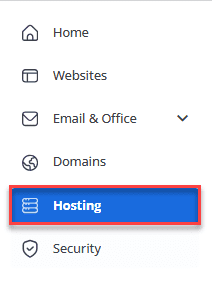
1.Click Hosting from the side navigation menu to the left.
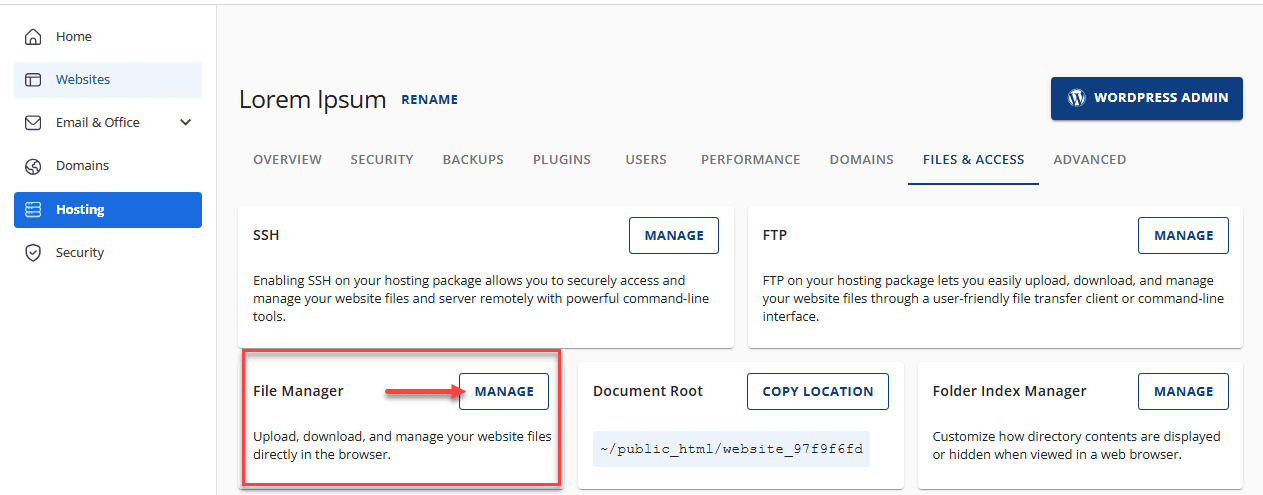
2. Go to the FILES & ACCESS tab and click MANAGE on the File Manager tile.
3. Open the public_html folder.
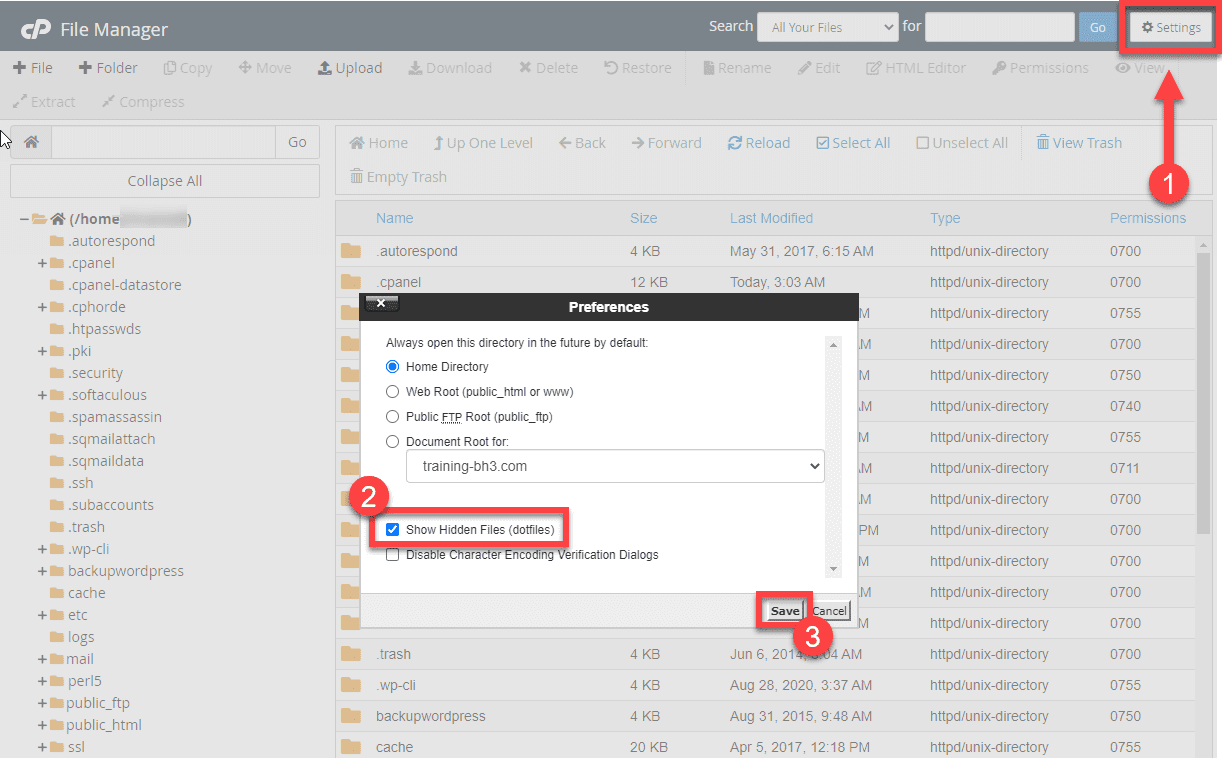
4. Click the Settings button at the top right corner. Make sure that there is a check mark on Show Hidden Files (dotfiles), then hit Save.
5. Navigate to the folder that contains the .htaccess file and click the Edit icon in the Toolbar.
6. Alternatively, you can right-click on the selected file and click on Edit from the drop-down menu.
7. Click on the Edit button again.
8. Press Ctrl+F (Shortcut to find the section easily) and enter the
9. For example, you can add the line php_value date.timezone “America/Denver.” Check the list of supported timezones by PHP at http://php.net/timezones.

10. Click the Save Changes button in the top-right corner of your screen.
When and why should you change your WordPress timezone?
To change WordPress timezone you can do the following:
- WordPress has its own timezone setting that can override how times are displayed in your dashboard and on your site, separate from server-level PHP timezone settings.
- You should change your WordPress timezone when you need accurate post publish times, proper scheduling for future posts, correct comment timestamps and consistent analytics data.
- This is particularly important if your hosting server is located in a different timezone than your target audience or business location.
- WordPress timezone settings primarily control how dates and times appear to visitors and in your admin dashboard, while server-level PHP timezone changes are typically only necessary for custom applications or when WordPress timezone settings aren’t sufficient.
- If you’re experiencing issues with scheduled posts publishing at wrong times, or if timestamps on comments and posts don’t match your local time, adjusting the WordPress timezone is usually the right solution.
- Before you start, ensure you have admin access to your WordPress dashboard, know your local city or UTC offset and confirm which site you’re editing if you manage multiple WordPress installations.
- You’ll also want to check if any scheduled posts might be affected by the timezone change, as this could impact their publication timing.
Now that you know when and why to update your timezone, let’s look at how to set it for your website.
How to set your WordPress site’s timezone?
1.Log in to your WordPress dashboard and navigate to Settings, then click on General Settings.
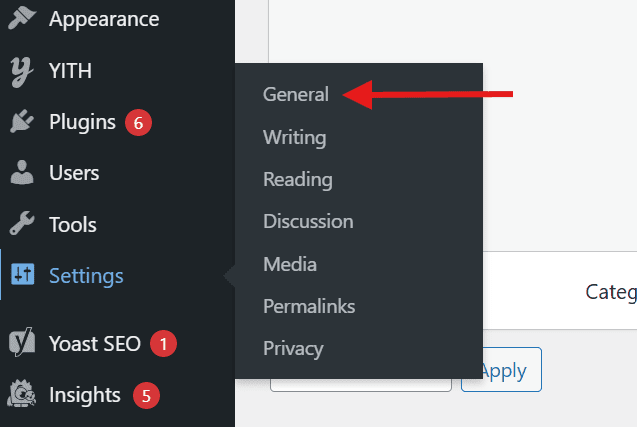
2. Scroll down to the Timezone section and look for the dropdown menu labeled “Timezone.”
3. Choose a city-based timezone when available (such as “New York” or “Los Angeles”) rather than UTC offsets, as these automatically handle daylight saving time changes.

4. If your preferred city isn’t listed, select the appropriate UTC offset that matches your local timezone.
5. Click “Save Changes” at the bottom of the page to apply your timezone settings.
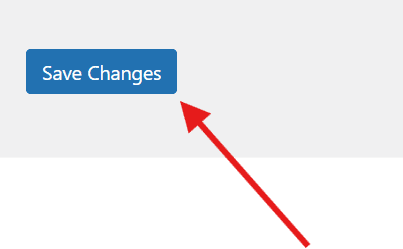
6. WordPress will display a confirmation message once the settings are saved successfully.
After updating your timezone, verify the change by checking the current time displayed in your WordPress dashboard’s “At a Glance” widget. Review any scheduled posts to ensure their timing aligns with your expectations and visit your website’s front end to confirm that post timestamps and comments show the correct time. If you manage an eCommerce site, also check that any time-sensitive promotions or events display accurate timing for your visitors.
How to set the date and time format for your WordPress site?
Your date and time format settings control how visitors see timestamps throughout your WordPress site – from blog post dates and archive pages to comment timestamps and widget displays. These formatting options don’t change your site’s underlying timezone but simply adjust how dates and times appear to your audience.
To customize your date and time format:
- Go to Settings > General in your WordPress dashboard.
- Scroll to the Date Format and Time Format sections.
- Select a format from the available presets or create a custom format using formatting codes.
- For US audiences, formats like March 10, 2026 or 3/10/2026 are commonly used.
- For international audiences, formats such as 10 March 2026 or 10/03/2026 are often preferred.
- Ensure you use the same format consistently across your entire website for clarity and uniformity.
Common format options include:
- Full date with month name (March 10, 2026)
- Numerical date (03/10/2026 or 10/03/2026)
- 12-hour time (3:30 pm) or 24-hour time (15:30)
After saving your changes, verify the formatting by checking a recent blog post, any scheduled posts in your dashboard and theme areas that display dates like your sidebar or footer to ensure everything appears correctly.
Final thoughts
Adjusting the timezone for your PHP application ensures your website displays accurate timestamps for your visitors. By modifying the php_value date.timezone directive in your .htaccess file through your File Manager in the Account Manager, you can successfully configure the correct timezone settings for your PHP environment. This simple configuration change helps maintain consistency across your WordPress site and improves the user experience for your global audience.
If you’re looking for reliable WordPress hosting with easy-to-use control panels and robust file management tools, consider Bluehost WordPress hosting. With optimized performance, 24/7 support and seamless integration with WordPress, Bluehost makes managing your PHP configurations and timezone settings effortless.
Get started with Bluehost WordPress hosting today and power your website with the hosting solution trusted by millions.
FAQs
To change your WordPress timezone, navigate to Settings then General in your WordPress dashboard and locate the Timezone dropdown menu. Select a city in your desired timezone or choose a specific UTC offset, then click Save Changes at the bottom of the page. Changing your wordpress timezone ensures your site’s clock matches your local region or target audience. This is crucial for accurately scheduling posts, managing comments, and running time-sensitive events.
WordPress usually shows the wrong time because your site’s timezone settings do not match your current geographical location or UTC offset. In many cases, users notice the WordPress time incorrect issue because a new WordPress installation defaults to UTC+0, which must be manually updated to reflect your local time. Other reasons for incorrect timestamps include WordPress server time discrepancies or a caching plugin displaying an outdated version of your page. To fix this, you will need to change WordPress timezone settings in your general dashboard configuration.
You should use a WordPress timezone that aligns with your primary audience or your own geographical location for easier content management. Choosing a specific city in your timezone rather than a manual UTC offset is highly recommended because it automatically adjusts for daylight saving time. If your website caters to a global audience, sticking to UTC+0 or setting the clock to match your business headquarters is usually the best approach.
Your .htaccess file is typically located in the root directory of your website. Log in to your Account Manager, access the File Manager and navigate to the public_html folder. If you don’t see the file, make sure hidden files are visible in your File Manager settings.
You should use the standard PHP timezone identifiers such as “America/New_York”, “Europe/London” or “Asia/Tokyo”. A complete list of supported timezones can be found in the official PHP documentation.
Yes, WordPress has its own timezone setting in the WordPress admin dashboard. Navigate to Settings > General and select your timezone from the dropdown menu. This setting controls how WordPress displays dates and times throughout your site.
Changing the PHP timezone setting affects how PHP interprets and displays times, but it doesn’t automatically update existing timestamps in your database. If you’re trying to fix WordPress timestamps, note that your database may have its own timezone configuration that needs to be set separately.
If your .htaccess modifications don’t take effect, check that your hosting provider allows PHP timezone changes through .htaccess files. Some hosting environments may require you to use php.ini or contact support for assistance. You can also try clearing your website cache and browser cache to see the changes.
If your scheduled posts publish at the wrong time, it may indicate a WordPress wrong time issue caused by incorrect timezone settings. Go to Settings > General in your WordPress dashboard and update the timezone to match your location. When the timezone is misconfigured, WordPress runs scheduled tasks based on the wrong local time. If the timezone is correct but posts still miss their schedule, the issue may be related to WP-Cron not triggering properly. Installing a plugin to manage missed schedules or setting up a real server cron job can help ensure posts are published on time. These steps will help you with the “WordPress scheduled posts wrong time” issue.
Your WordPress timezone does not necessarily need to match your server timezone. Server time is typically set to UTC by your hosting provider to maintain standardized system logs and database operations. WordPress operates independently using the timezone you select in the dashboard settings, which overrides the server time for front-end publishing and scheduling. It is perfectly safe and normal to change WordPress timezone settings to your local city while leaving your server set to its default configuration.

Write A Comment