Bluehost Account Manager Security Malware Protection Tab
In today’s digital world, the security of your website plays a crucial role in winning the trust of your visitors as well as safeguarding crucial information. Bluehost, one of the leading web hosting companies, provides a wide array of security solutions to its customers through its highly user-friendly control panel. One of the most significant features within the array of security solutions provided in the control panel is the ‘Malware Protection’ menu under the Security tab. This report focuses on the functionalities, advantages, and best practices of the Malware Protection menu featured in the Bluehost portal.
The Security tab found under the Bluehost users' portal is created with the purpose of helping users efficiently manage the security features for their websites. It houses all the necessary features, such as the “SSL certificates, SiteLock, Spam Protection, & Malware Protection” needed for a strong security defense against cyber threats.
Malware Protection Menu
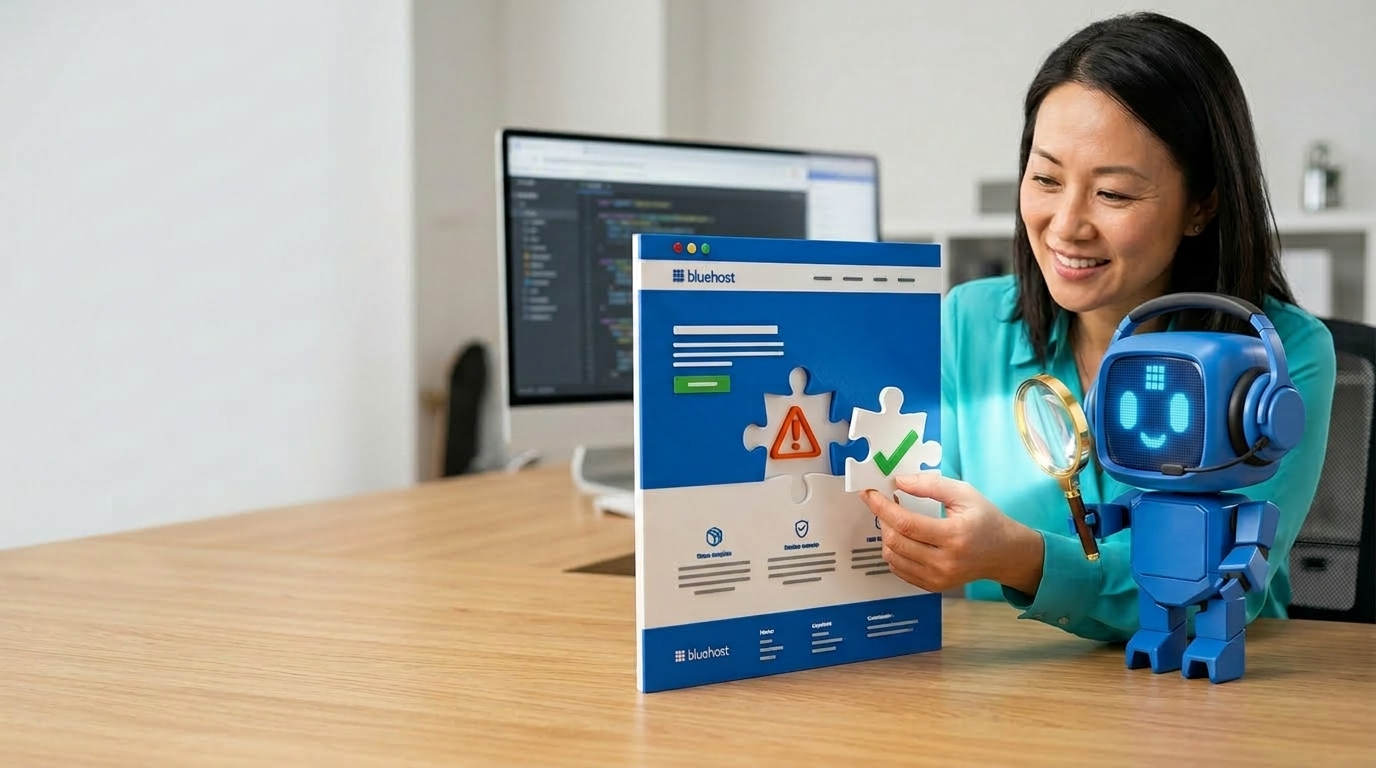
The Malware Protection menu particularly emphasizes detection, prevention, and removal of malicious software that might affect the integrity and performance of your site." Malware is generally known as malicious software, and examples include viruses, worms, trojans, ransomware, and spyware targeting site information and users’ details.
Key Features
- Automatic Malware Scanning: The menu allows users to schedule or initiate on-demand scans that thoroughly examine the website files and database for malicious code.
- Real-time Protection: Plans include continuous monitoring, which alerts users immediately when suspicious activity or malware is detected.
- Malware Removal: Once detected, Bluehost gives users instructions or automatically removes malicious files to remove malware and ensure site safety.
- Security Alerts and Reports: Users can view comprehensive details concerning threats, scan results, and measures taken or recommended.
- Integration with SiteLock: Bluehost partners with SiteLock, a third-party security service, to provide enhanced malware detection and removal tools within the portal.
Purchase Malware Protection
- Log in to your Bluehost Account Manager.
- Click Security on the left-side menu.

- Click the Purchase Malware Protection button under the Malware Protection tab.

- In the pop-up window:

- Select the term.
- Select the customer's preferred plan.
- Check the box to agree with the "By selecting Buy Now, you agree to purchase the selected SiteLock plan with" terms.
- Enter or select the domain to which the customer wants to assign malware protection.
- Click BUY NOW.
Assign Domain
- Log in to your Bluehost Account Manager.
- Click Security on the left-side menu.

- Click Assign Domain under the Malware Protection tab.

- In the Connect a Domain pop-up, enter or select the domain to which the customer wants to assign the protection.
- Click CONNECT.

- You will receive a confirmation that it is connecting to the selected domain. It may take up to 24 hours for it to be ready for use.

How to Upgrade Malware Protection
- Log in to your Bluehost Account Manager.
- Click Security on the left-side menu.

- Click the Upgrade button under the Malware Protection tab.

- In the pop-up window:

- Select the term.
- Select the customer's preferred plan.
- Check the box to agree with the "By selecting Buy Now, you agree to purchase the selected SiteLock plan with" terms.
- Enter or select the domain to which the customer wants to assign malware protection.
- Click BUY NOW.
How to Manage Malware Protection
- Log in to your Bluehost Account Manager.
- Click Security on the left-side menu.

- Look for the domain the customer calls about if they have multiple domains with the malware protection service.
- Click Manage.

- The Malware Protection dashboard will open in a new tab.

Benefits of Using Bluehost’s Malware Protection
- Peace of Mind: There's no longer a risk that malicious code may be hiding undetected on your system.
- Improved Website Performance: Removing malware can ensure optimal performance by avoiding any downtime resulting from security attacks.
- Enhanced SEO Ranking: Infected sites get downranked by search engines; therefore, using a preventative malware system enhances rankings.
- Compliance and Trust: Securing your site helps with following data protection legislation and also helps build consumer trust.
Best Practices for Maximizing Malware Protection
- Keep the software on your website up-to-date to cover any security loopholes.
- Establish a regular schedule for malware scans via the portal.
- Monitor security alerts promptly to address threats without delay.
- Use complex and distinct passwords, and two-factor authorization:
- Back up your website regularly to recover quickly from any security incidents.
Summary
Malware Protection is one of the important options that can be found on the Security page through the Bluehost Portal. Malware Protection can help you keep your website safe from any malicious threats. By utilizing the features that Malware Protection has to offer, Bluehost can help you keep your website not only safe but also fast. This is especially important in today’s volatile online environment.
If you need further assistance, feel free to contact us via Chat or Phone:
- Chat Support - While on our website, you should see a CHAT bubble in the bottom right-hand corner of the page. Click anywhere on the bubble to begin a chat session.
- Phone Support -
- US: 888-401-4678
- International: +1 801-765-9400
You may also refer to our Knowledge Base articles to help answer common questions and guide you through various setup, configuration, and troubleshooting steps.