 ChatGPT,
 Claude,
 Gemini,
 Grok — all four for
How to Host a Domain on Another Bluehost Account
You can host a domain on another Bluehost account when the domain is registered in one account but needs to be connected to a hosting plan in a different account. This is helpful when one person or business owns the domain, while another account manages the website hosting.
To complete this setup, both Bluehost accounts need a user with the same email address and enough permissions to manage the domain and hosting connection. Bluehost recommends using a Technical user when possible, especially for agencies or teams that do not want to give full account access.
Before You Begin
Use this process when:
- The domain is registered in Account A.
- The hosting plan is active in Account B.
- The domain owner wants the domain to stay registered in Account A.
- The domain needs to be connected to a website or hosting plan in Account B.
- A shared user can be added to both accounts using the same email address.
This process is different from moving domain ownership or transferring the domain registration to another Bluehost account. The domain remains registered in the original account unless it is moved separately.
How Shared User Access Works
A shared user allows the same person to access both Bluehost accounts with the proper permissions.
For example:
- Account A owns the registered domain.
- Account B has the hosting plan.
- A user with the same email address is added to both accounts.
- That user has permission to manage domains and hosting services.
- The user can unassign the domain from Account A’s current connection and assign it to the hosting plan in Account B.
Bluehost recommends using a Technical user for this setup when full administrative access is not needed. A user with higher permissions may also work, as long as they have access to manage the domain and hosting connection.
Recommended User Role
A Technical user is usually the best option because it gives the user access to technical tasks without granting unnecessary control over the entire account.
This is especially helpful for:
- Agencies managing websites for clients
- Designers or developers connecting domains to hosting
- Businesses that want to limit access for security reasons
- Teams where one account owns the domain and another account manages hosting
The invited user must accept the invitation before they can access the account.
Step 1: Confirm Access to Both Bluehost Accounts
Before connecting the domain, make sure the shared user has access to both accounts.
The user should be added to:
- Account A, where the domain is registered.
- Account B, where the hosting plan is located.
Step 2: Add the Shared User to the Account with the Domain
The owner of Account A should add the shared user in the Bluehost Portal.
You can refer to the How to Manage Users and Roles in Bluehost Portal article for instructions on how to add an additional user in the Bluehost Portal.
Step 3: Confirm the User Can Access the Hosting Account
Next, confirm that the same user email address has access to Account B, where the hosting plan is located.
The user should be able to:
- Log in to the Bluehost Portal.
- Access the hosting plan in Account B.
- View the account or site where the domain should be connected.
- Manage the domain connection if their permissions allow it.
If the user cannot see the hosting plan, check the user role and permissions in Account B.
Step 4: Unassign the Domain from Its Current Website or Hosting Plan
If the domain is already connected to a website or hosting plan in Account A, it may need to be unassigned before it can be connected to the hosting plan in Account B. You can proceed directly to assigning the domain to the hosting plan in the other account if the domain is not currently connected to a website or hosting plan.
- Log in to the Bluehost Portal as the shared user.
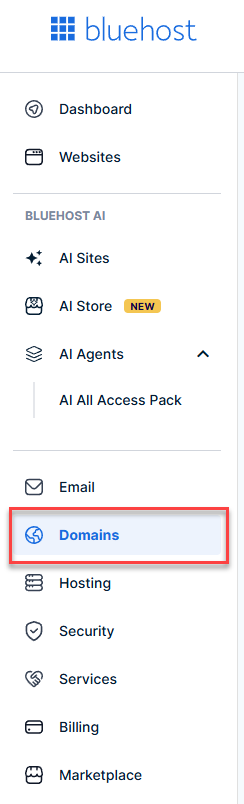
- Click Domains from the left-hand menu.
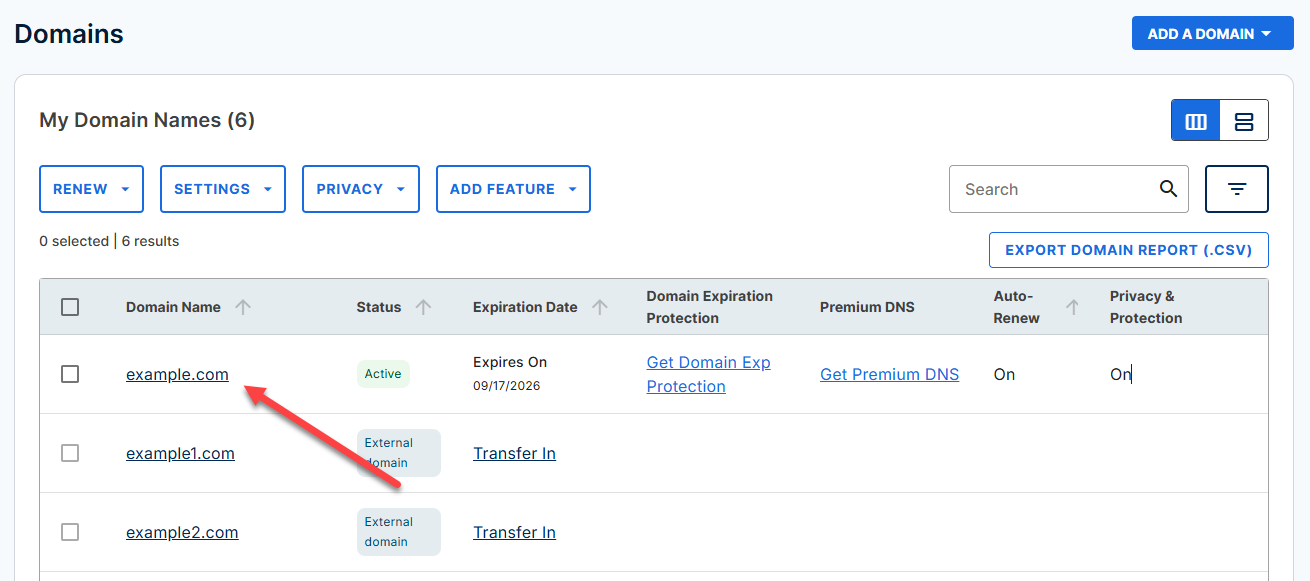
- Select the domain you want to connect to another account’s hosting plan.
- Open the domain management page.
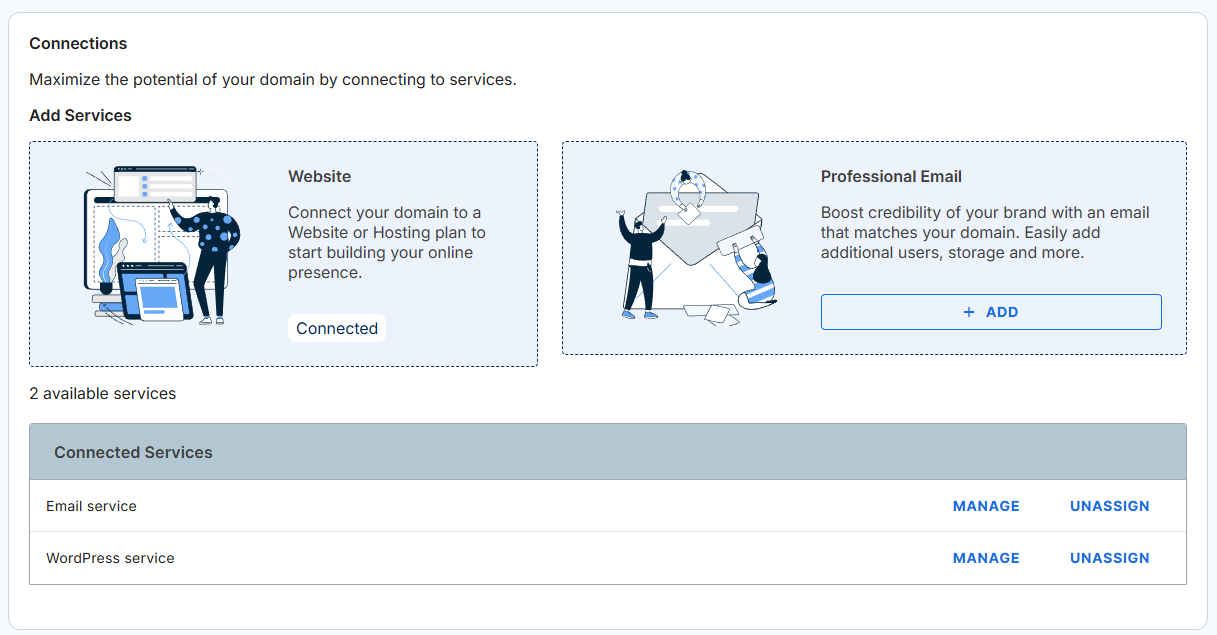
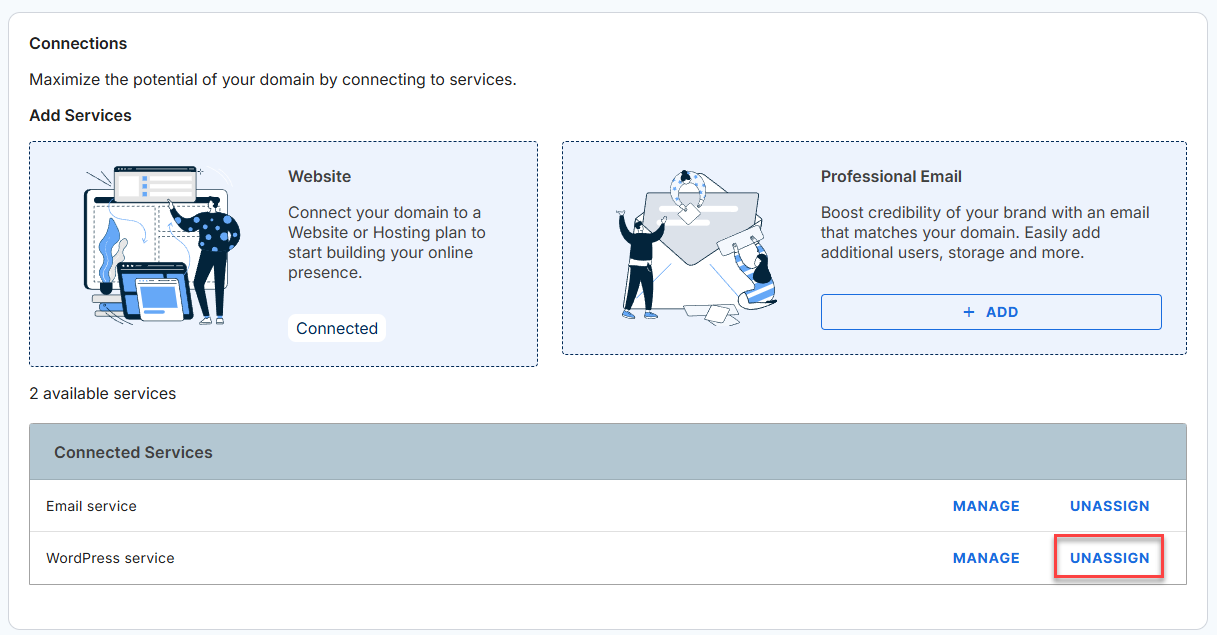
- Go to the Connections section.
- If the domain is already connected to a website, locate the Connected Service.
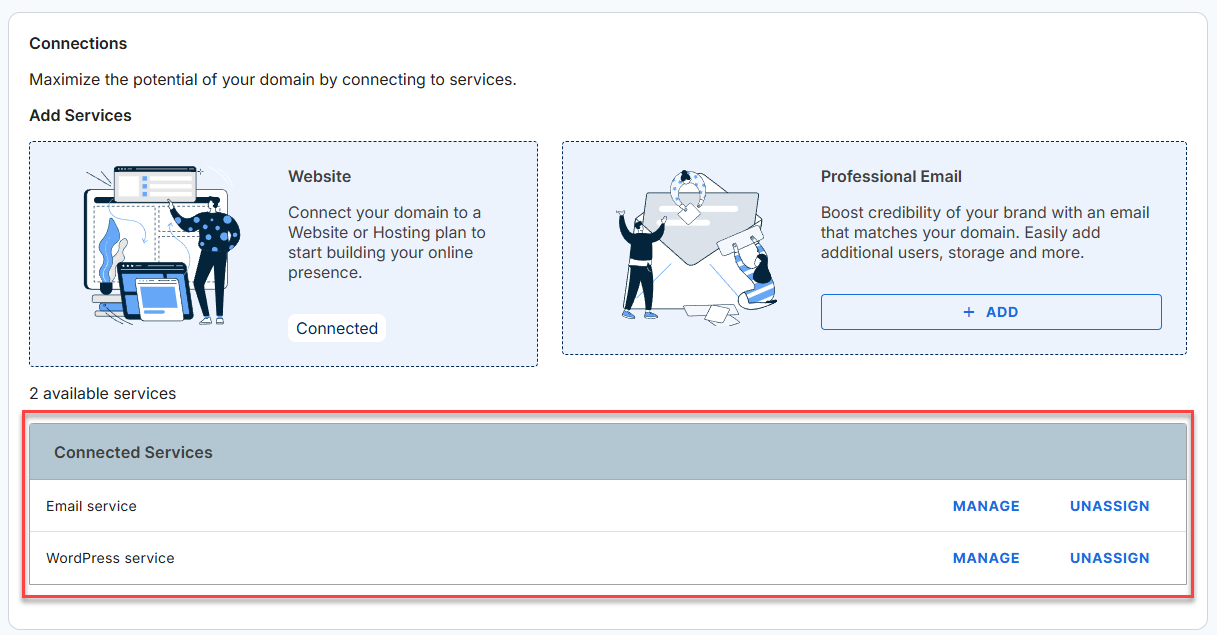
- Unassign the current website connection.
Step 5: Assign the Domain to the Hosting Plan in the Other Account
After the domain is unassigned, the shared user can connect it to the hosting plan in Account B.
- Stay logged in to the Bluehost Portal as the shared user.
- Go to Domains.
- Select the domain registered in Account A.
- Open the Connections section.
- Choose the option to add or connect a website service.
- Select the hosting plan or website from Account B.
- Confirm the connection.
Once connected, the domain will point to the hosting plan in Account B while the domain registration remains in Account A.
Step 6: Check the Website and DNS Settings
After the domain is connected, review the website and DNS settings.
Check the following:
- The correct hosting plan is selected.
- The website loads using the domain name.
- The domain points to the correct Bluehost nameservers or DNS records.
- SSL is enabled for the site.
- Email records are still correct if the domain uses email services.
DNS changes may take time to update across the internet. If the site does not load right away, wait for propagation and check again.
Troubleshooting
The Hosting Plan Does Not Appear as an Option
If the hosting plan in Account B does not appear, confirm that:
- The same email address is used for the shared user on both accounts.
- The user has accepted the invitation for both accounts.
- The user has enough permissions to manage domains and hosting.
- The hosting plan in Account B is active.
- The hosting plan is not already connected to another domain in a way that prevents selection.
The Domain Still Shows as Connected to Account A
If the domain is still connected to a website or service in Account A, unassign the existing connection first. A domain that is already connected may need to be removed from its current website connection before it can be assigned elsewhere.
The Domain Cannot Be Assigned
In some cases, Bluehost Support may need to review or manually assist with assigning or removing the domain connection. This may require account or domain ownership verification before changes can be made.
Contact Bluehost Support if:
- The shared user has access to both accounts but cannot assign the domain.
- The domain does not appear in the Domains tab.
- The hosting plan does not appear as a connection option.
- The domain appears locked to another account or website.
- Ownership verification is needed.
Summary
To host a domain on another Bluehost account, add a shared user with the same email address to both Bluehost accounts and give that user the proper permissions. Bluehost recommends using a Technical user when possible, especially for agencies or teams that want to limit account access.
After the shared user has access to both accounts, they can unassign the domain from its current connection and assign it to the hosting plan in the other account. If the domain or hosting plan does not appear as expected, Bluehost Support may need to assist after verifying account or domain ownership.
Related Bluehost Articles
To learn more, you can check the related articles below:
If you need further assistance, Bluehost Chat Support is available 24 hours a day, 7days a week while Bluehost Phone Support is available 7 days a week from 7 am-12 midnight EST.
- Chat Support - While on our website, you should see a CHAT bubble in the bottom right-hand corner of the page. Click anywhere on the bubble to begin a chat session.
- Phone Support -
- US: 888-401-4678
- International: +1 801-765-9400
You may also refer to our Knowledge Base articles to help answer common questions and guide you through various setup, configuration, and troubleshooting steps.