


Key highlights
- WordPress user roles define what actions users can perform, ensuring secure and efficient website management.
- Default roles include administrator, SEO editor WordPress, author, contributor and subscriber, each with specific permissions..
- Administrators have full control, while Subscribers can only read content.
- Custom roles can be created or modified using plugins like User Role Editor or Members.
- Security measures like two-factor authentication (2FA) and user activity logs help prevent unauthorized access.
- Bluehost simplifies role management with seamless plugin integration, backups and security tools.
As your business grows, managing access to your WordPress website becomes crucial. Assigning the right WordPress user roles ensures that each person—whether a content creator, editor or administrator—has the appropriate level of access. This not only streamlines workflow but also improves collaboration and strengthens site security.
WordPress provides several default user roles, each with specific capabilities. However, you’re not limited to these defaults. You can also customize roles to fit the unique needs of your business.
Whether you’re managing a blog, an eCommerce store or a membership site, understanding WordPress user role management is essential.
In this guide, we’ll cover everything you need to know about customizing and managing roles effectively.
Getting started with WordPress user roles
Think of WordPress user roles as permission levels that control what different people can do on your website. In simple terms, a “role” is like a job title that comes with specific “capabilities” or permissions—such as writing posts, editing pages, installing plugins or managing users. These roles matter because they help you maintain security by ensuring team members only access what they need, while streamlining your workflow by giving everyone the right level of control.
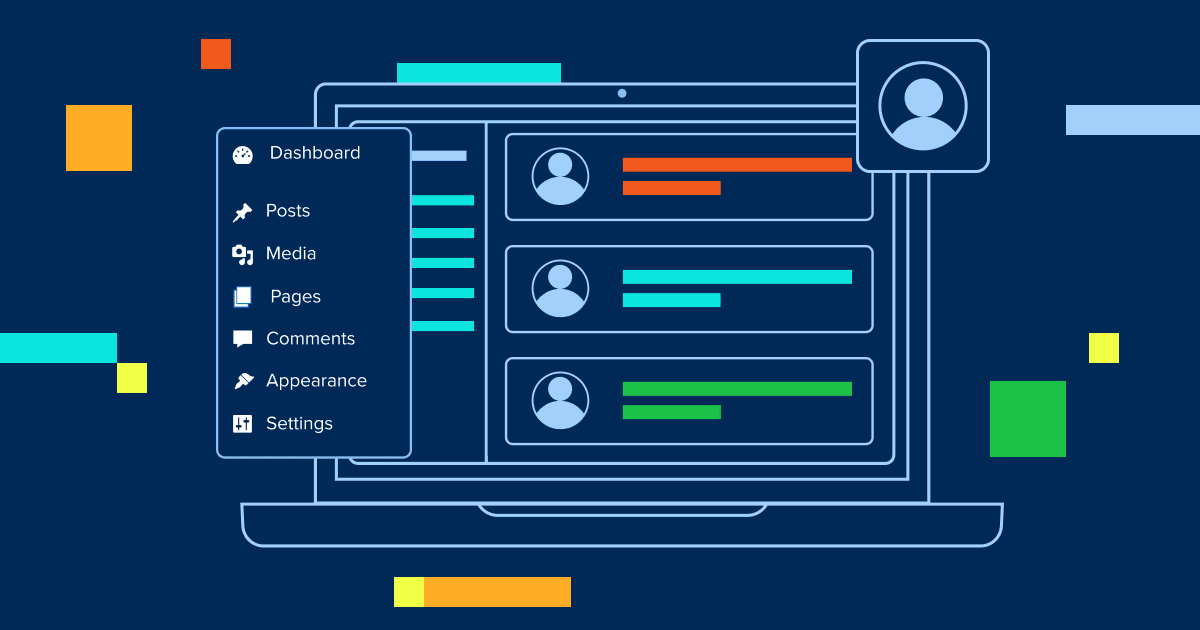
You can manage these roles by navigating to Users → All Users in your WordPress dashboard, where you’ll see each user’s assigned role and can modify them as needed. This system prevents accidents (like someone accidentally deleting important content) and protects your site from unauthorized changes.
You’ll find this guide especially helpful if you’re running a multi-author blog with guest writers, managing client websites as an agency, operating an eCommerce store with different staff responsibilities or building a membership site with varying access levels. Whether you’re adding your first team member or scaling a growing business, understanding user roles ensures everyone can contribute effectively without compromising your website’s security or functionality.
What are the WordPress user roles and permissions?
A user role is defined by a set of tasks that a specific role is given permission to perform on a WordPress site. There are six pre-defined WordPress user roles:
- Administrator
- Editor
- Author
- Contributor
- Subscriber
- Super Admin
An administrator has access to all the possible website tasks, while a subscriber only has the ability to read the website. Each role has a set of tasks or capabilities, like the ability to delete posts, publish pages, update themes and add users.
WordPress also empowers you to add or remove roles and capabilities. You can do this manually or through various plugins.
Learn more: How to Use WordPress: A Beginner’s Guide to Website Building
Here’s a comparison table of what each of the existing roles includes:
| Permissions | Administrator | Editor | Author | Contributor | Subscriber |
| Read site | Yes | Yes | Yes | Yes | Yes |
| Edit posts | Yes | Yes | Yes | Yes | – |
| Deleting posts | Yes | Yes | Yes | Yes | – |
| Publish posts | Yes | Yes | Yes | – | – |
| Upload files | Yes | Yes | Yes | – | – |
| Publish pages | Yes | Yes | – | – | – |
| Delete pages | Yes | Yes | – | – | – |
| Edit pages | Yes | Yes | – | – | – |
| Read, edit or delete private pages | Yes | Yes | – | – | – |
| Manage categories | Yes | Yes | – | – | – |
| Moderate comments | Yes | Yes | – | – | – |
| Activate plugins | Yes | – | – | – | – |
| Create new users | Yes | – | – | – | – |
| Delete plugins, themes or users | Yes | – | – | – | – |
| Edit files, plugins, themes or users | Yes | – | – | – | – |
| Export or import content | Yes | – | – | – | – |
| Install plugins or themes | Yes | – | – | – | – |
| Manage user options | Yes | – | – | – | – |
| Update themes, plugins, dashboard or core | Yes | – | – | – | – |
Note: Super Admin role is an exclusive role which is explained in detail below.
WordPress default user roles
WordPress default user roles are the built-in access levels that come pre-installed with every WordPress website. When you set up a standard single-site WordPress installation, you’ll see five default roles available: Administrator, Editor, Author, Contributor and Subscriber. Each role represents a specific bundle of capabilities or permissions that determine what actions a user can perform on your site—from reading content to managing plugins and themes.
These default WordPress roles provide a structured foundation for managing user access, but they’re not set in stone. You can customize these roles by adding or removing specific capabilities to better match your website’s needs. Understanding these built-in roles helps you assign the right level of access to team members while maintaining security and control over your WordPress site.
The 6 WordPress user roles
WordPress commonly references six user roles, but this creates confusion for beginners. Single WordPress sites actually use five default roles: Administrator, Editor, Author, Contributor and Subscriber. The sixth role, Super Admin, only applies to WordPress Multisite networks where one person manages multiple websites across the entire network.
- Administrator: Complete website control – best for site owners and trusted managers who need full access to all features and settings.
- Editor: Content management and publishing – ideal for content managers who oversee multiple authors and site-wide content strategy.
- Author: Personal content creation – perfect for regular blog writers who create, edit and publish their own posts.
- Contributor: Draft submissions only – suitable for guest writers and new team members who submit content for review.
- Subscriber: Read-only access – designed for community members, customers or users who only need to access restricted content.
- Super Admin: Network-wide control — reserved for top-level administrators who manage the entire WordPress Multisite.
Overview of 5 default WordPress roles and permissions
WordPress is designed with five default user roles built into the software. Each role comes with its permissions.
1. Administrator role
Administrator accounts have full permissions on the WordPress control panel, giving you complete control to publish, edit and delete:
- Blog posts
- Webpages
- Themes
- Plugins
- Code
Administrators are also in charge of updating the permissions and roles of other users.
If you’re the website administrator, you’re running the show. This role is usually reserved for the site owners, who usually have a thorough understanding of how WordPress works.
Besides full admin access, the administrator is responsible for a lot of things. So, it’s vital that you only give administrator permissions to people you trust with your entire website.
You may have come across the term “Super Admin.” However, super admin users are the only appropriate role option for the WordPress Multisite Networks mode.
Some companies manage multiple WordPress websites. The super admin role is reserved for the user who has administrator permissions across all of them. Like an admin, they have full access to the websites they oversee. Super admins can create and delete websites. They also manage the network, including the websites, plugins, users, upgrades, setups and themes.
If you only have one WordPress website, you inherently are the super admin.
2. Editor
The editor has many permissions and is like the second-in-command to the administrator. For example, a user with editor permissions can publish, edit and delete blog posts and website pages.
However, unlike administrators, editors can’t change core components of the website, such as the theme, plugins or users.
If you have an assistant website administrator at your company, this may be a good role option for them.
Editors may oversee content and not website management.
3. Author
An author has minimal permissions but can do enough to run your website’s blog. This user role can edit, write, publish and delete blog posts.
If your company has hired an external content publisher, consider giving them author permissions. This way, they can run your blog daily without having access to the rest of your website.
But, authors cannot edit other users’ posts or pages. They can still tag posts and assign them to categories but cannot create new categories.
4. Contributor
Contributors have minimal user permissions, but, as the name suggests, they can add new posts to the website’s blog. In addition, contributors to the blog can write, edit and delete posts that have been created.
The contributor role permissions are suitable for the website’s writers. This way, the author, editor or administrator can approve upcoming posts before publication, editing or deleting them as they see fit.
A contributor might be a good option for a one-time guest blogger or a new author.
5. Subscriber
The subscriber is the default user role with the fewest permissions. As a subscriber, your only permission is to read the content.
For blogs with an active, engaged following, this WordPress user role is a useful option that lets users create a username, comment on posts and interact with other members.
If you offer subscription-based or members-only content, users can create profiles on your website and log in to specific areas.
Subscribers will also have the ability to update their user profile.
6. Super Admin
Super Admin is a WordPress role exclusive to Multisite networks, where multiple websites share a single WordPress installation. While a regular Administrator manages only one site within the network, the Super Admin governs the entire network—creating and deleting sites, managing network-wide plugins and themes, overseeing all users across sites and configuring network settings. Think of it as the difference between managing a single store versus managing an entire shopping mall.
Consider WordPress Multisite for organizations running multiple related websites, such as universities with departmental sites or businesses with regional branches. However, limit Super Admin access strictly to trusted individuals, as this role can affect every site in the network. Unlike single-site setups where you might have multiple Administrators, Multisite networks should have minimal Super Admins to maintain security and prevent accidental network-wide changes that could impact all connected sites.
Common user roles added by popular WordPress plugins
Popular WordPress plugins often extend the default role system to match real-world business workflows, following the principle of least privilege by creating specialized roles with precisely the permissions users need. Rather than granting broad Administrator access for specific tasks, these custom roles ensure team members can accomplish their responsibilities without unnecessary site access that could compromise security or workflow efficiency.
WooCommerce automatically adds Customer and Shop Manager roles to streamline eCommerce operations. Customers can view order history and manage their account details but cannot access the WordPress dashboard or modify site content. Shop Managers handle inventory, process orders and manage coupons without full Administrator privileges, making them ideal for staff handling day-to-day store operations. Yoast SEO introduces SEO Manager and SEO Editor roles WordPress that focus specifically on content optimization. SEO Editors can optimize individual posts and pages, while SEO Manager users control site-wide SEO settings and keyword strategies—perfect for marketing team members who need SEO control without broader administrative access.
When plugins install new WordPress roles, always verify what capabilities were added by reviewing Users → All Users and checking role permissions through a plugin like User Role Editor. Test changes in your staging environment before applying them live, document which users receive new roles and conduct periodic audits to ensure access remains appropriate as your team evolves. This approach maintains both security and operational efficiency across your WordPress site.
Customizing WordPress roles and permissions
Default WordPress user roles work well for most websites, but some need more control. If your site requires different levels of access, custom WordPress user roles let you assign specific permissions based on user responsibilities, including managing custom post types.
You can modify user roles manually through code or use plugins for a simpler approach. A reliable WordPress hosting provider offers various features to simplify this task.
Bluehost, a trusted WordPress hosting provider, ensures smooth plugin integration and security while making role management more efficient.
How to create custom roles in WordPress?
To create a custom role, you need to follow a few steps from your dashboard. You can also fill in your new user information as needed using the same steps.
- Log in to your Bluehost account and navigate to the WordPress Admin dashboard.
- Go to “Plugins” and click “Add New” to search for a user role management plugin (for example – User Role Editor or Members). You can also fill in your new user information as needed.
- Click “Install Now” and then “Activate” the selected plugin.
- Access the plugin settings from the WordPress dashboard sidebar.
- Create a new role or modify an existing role by adjusting permissions.

- Save changes and test role functionality before assigning it to users.
With Bluehost’s automatic backup via CodeGuard and security features like SiteLock, any misconfiguration can be easily reversed. This ensures site security when modifying WordPress roles and permissions.
Also read: How to Manage Users and Roles in Account Manager
Best plugins for managing WordPress roles and permissions
Several plugins simplify WordPress role management, including:
- User Role Editor – Modify existing roles or create custom ones
- Members – Manage user access and build membership sites
- PublishPress Capabilities – Fine-tune permissions for different user roles
- Advanced Access Manager – Control backend menus and site administration
Plugins like WooCommerce and Yoast SEO add WordPress user roles automatically to streamline store management and SEO tasks. WooCommerce introduces Customer and Shop Manager roles. Customers can track orders, while Shop Managers handle inventory, orders and coupons.
Yoast SEO includes SEO Manager and SEO Editor roles WordPress, enabling better control over meta descriptions, keyword strategies and content optimization without full admin access.
These roles help distribute responsibilities efficiently while maintaining site security. Besides WooCommerce and Yoast SEO, you can also use following:
User role editor
User role editor plugins become essential when default WordPress roles don’t match your workflow needs. Before installing, verify the plugin’s compatibility with your WordPress version and check recent updates. These tools excel at duplicating existing roles, fine-tuning specific capabilities and granting team members precise access without full administrator privileges. Always test changes in a staging environment, create complete backups before modifications and document your customizations for future reference. This approach ensures you can quickly roll back any problematic changes while maintaining your site’s security.
WPFront user role editor
WPFront User Role Editor is another popular option for fine-tuning WordPress capabilities, creating custom roles and restricting admin menu access. Best suited for site owners and agencies managing multiple user permissions, this tool helps you evaluate based on ease of use, clear capability labels, regular updates, WordPress compatibility and export/import functionality for role settings. When choosing any role editor, prioritize tools with intuitive interfaces and comprehensive documentation. Remember to avoid over-permissioning users and always test changes with a temporary account before applying them to live users to prevent access issues.
How to assign or change user roles?
Changing WordPress user roles is straightforward through your dashboard. Before making changes, confirm the user’s responsibilities and apply the principle of least privilege—only grant permissions necessary for their tasks.
- For a single user: Go to Users → All Users, hover over the username, click “Edit,” select the new role from the dropdown menu and click “Update User.”
- For bulk updates: In Users → All Users, check the boxes next to multiple users, select “Change role to…” from the bulk actions dropdown, choose the new role and click “Apply.”
- Pre-change verification: Confirm each user’s current responsibilities and ensure the new role aligns with their duties without granting excessive permissions.
- Post-change testing: Have users log in and verify they can access required features while confirming restricted areas are properly blocked. Test critical workflows to ensure functionality remains intact.
How to create, edit or delete WordPress user roles?
Managing WordPress user roles involves three key actions that require careful handling. When creating new roles, editing existing capabilities or removing outdated roles, always work in a staging environment when possible and test changes with temporary user accounts before applying them to your live site. With Bluehost’s automatic backup via CodeGuard, any misconfiguration can be easily reversed, ensuring site security when modifying WordPress roles and permissions.
To edit existing role capabilities, use plugins like User Role Editor to modify permissions without creating entirely new roles. When deleting roles, first reassign all users from that role to an appropriate alternative, as orphaned users lose access to essential functions. Document all changes you make, including which capabilities were modified and why, to maintain a clear audit trail for your team. Test changes in a staging environment before applying them live to prevent unauthorized access issues.
Creating custom capabilities in WordPress
Capabilities in WordPress are specific permissions that determine what users can do on your website, such as publishing posts, managing themes or accessing certain admin areas. While WordPress roles come with predefined capabilities, you might need custom ones for unique situations like managing custom post types (portfolios, testimonials), restricting access to specific admin functions or creating specialized editorial workflows where users need permissions that don’t fit standard roles.
For most website owners, using reputable role and capability management plugins like User Role Editor or Members is the safest approach. These tools provide user-friendly interfaces without requiring code knowledge. Code-based capability changes should be reserved for experienced developers, as improper implementation can create security vulnerabilities or break site functionality. Always test changes in a staging environment and maintain backups when customizing capabilities to ensure your site remains secure and functional.
How to remove user roles from WordPress?
Removing user roles becomes necessary when cleaning up after uninstalling plugins that created custom roles, streamlining outdated workflows or tightening security by eliminating unnecessary access levels. Before removing any role, follow this essential checklist: first, reassign all users with that role to appropriate alternative roles to prevent orphaned accounts. Next, confirm that no critical workflows, custom post types or automated processes depend on the role’s specific capabilities. Test all essential site functions to ensure removal won’t break functionality.
Common pitfalls include leaving users without assigned roles, which can lock them out entirely and removing roles that control access to custom post types or specialized content areas. Always create a backup before making changes and consider documenting which capabilities the removed role possessed in case you need to recreate similar permissions later.
Managing user roles using WP-CLI
WP-CLI (WordPress Command Line Interface) is a powerful command-line tool that allows developers and site managers to perform WordPress tasks directly from the server terminal. For user role management, WP-CLI becomes particularly valuable when handling bulk user updates, automating role assignments across multiple sites or integrating user management into scripted deployment workflows. This advanced approach can save significant time when managing large user bases or standardizing permissions across multiple WordPress installations.
However, WP-CLI’s power comes with substantial risks since changes execute immediately at scale without the safety nets of the WordPress dashboard. Before using WP-CLI for role management, always create complete backups, test changes in a staging environment and limit access to experienced administrators only. After running any WP-CLI user role commands, verify the changes by checking a sample of affected user accounts through the WordPress dashboard to ensure permissions were applied correctly and no unexpected access issues occurred.
Importance of user role editor plugins
User role editor plugins provide essential granular control over WordPress permissions, allowing you to create custom roles and modify existing capabilities through an intuitive interface. These tools eliminate the need for manual coding, enabling consistent team collaboration and precise access management across your website.
When selecting a role editor plugin, prioritize active maintenance and compatibility with your current WordPress version to ensure security and stability. Look for plugins that offer clear capability descriptions, making it easy to understand what each permission controls. Advanced features like audit logs help track permission changes, while safe role duplication allows you to create new roles based on existing templates without disrupting your current setup. The right plugin streamlines workflow while maintaining robust security standards for your site.
Managing permissions for your WordPress site
Custom WordPress user roles offer flexibility, but improper permissions can create security risks. To keep your site secure while modifying user roles, follow these best practices:
- Test changes in a staging environment before applying them live. With Bluehost’s staging tool, you can safely adjust WordPress roles and permissions without affecting your live site.
- Limit permissions to prevent unauthorized access. Only grant the necessary capabilities to each user role to maintain security.
- Regularly review user roles to ensure a structured access hierarchy. Removing unnecessary permissions reduces vulnerabilities.
A well-structured WordPress user role system improves both security and workflow. Choosing Bluehost as your hosting provider supports seamless integration and automated backups. We help maintain stability when managing custom roles.
Managing users on WordPress Multisite Network
WordPress Multisite Network enables you to manage multiple websites from a single WordPress installation, making it an ideal solution for organizations, agencies, educational institutions and businesses running several related sites. Instead of maintaining separate WordPress installations, Multisite allows you to control everything from one centralized dashboard.
User and role management in WordPress Multisite differs significantly from single-site WordPress. While traditional WordPress roles operate within one website, Multisite introduces network-level user management where users can be assigned to multiple sites with different roles on each. The Super Admin role becomes crucial here, providing network-wide control over all sites, users, themes and plugins. Site administrators have limited control compared to Super Admins, managing only their specific site within the network.
To effectively manage users across your WordPress Multisite Network, follow these best practices: centralize administrative control by limiting Super Admin access to trusted personnel only, standardize user roles across all sites to maintain consistency and security and conduct regular access audits to ensure users have appropriate permissions. Additionally, establish clear role hierarchies and document user responsibilities for each site. This systematic approach helps maintain security while streamlining workflow across your entire network of WordPress sites.
Creating custom user roles in WordPress Multisite
WordPress Multisite introduces additional complexity to role management with network-level and site-level controls. Unlike single WordPress installations, Multisite networks require Super Admins who have administrator permissions across all sites, while individual site administrators have limited access to their specific sites. Roles should remain consistent across your network to maintain clear user expectations and streamline training.
When implementing custom roles in Multisite, test changes in a staging environment first, then pilot on a single site before network-wide deployment. Document all custom capabilities clearly for future reference. Limit Super Admin access to essential personnel only and establish standardized role definitions across all sites. Regular audits ensure role assignments remain appropriate as your network grows, preventing security vulnerabilities and maintaining organized access control throughout your WordPress Multisite network.
Troubleshooting common WordPress user role issues
WordPress user role issues can disrupt your website workflow, but most problems have straightforward solutions. Common issues include users unable to access the editor, missing dashboard menus, media upload restrictions, publishing limitations and unexpected permission changes after plugin installations or role modifications.
When troubleshooting role problems, start by confirming the user’s assigned role in Users → All Users. Next, check for plugin conflicts by temporarily deactivating recently installed plugins, especially role management or security plugins. Review any recent changes to user permissions or site settings. If problems persist, create a test user account with the same role to isolate the issue. With Bluehost’s automated daily backups through CodeGuard, you can safely revert to a previous working state if needed, ensuring your site remains secure while resolving access issues.
Tips for managing WordPress user roles effectively
Effectively managing WordPress roles is crucial for maintaining your website’s security and ensuring smooth operations. Here are some best practices to help you assign roles appropriately, enhance security and perform regular audits:
1. Assign required permissions
Keep permissions minimal to avoid misuse and maintain tighter control over your site’s data and operations. Restrict access only to what users truly need.
- Principle of least privilege: Grant users only the permissions they need to perform their tasks. Avoid assigning higher-level roles like administrator unless absolutely necessary.
- Role assessment: Before assigning a role, evaluate the user’s responsibilities and match them with the appropriate role that fits their duties.
2. Audit WordPress roles and permissions
Conduct regular audits to ensure roles remain accurate, up to date and free of inactive or unnecessary accounts that may pose security risks.
- Periodic reviews: Schedule regular audits to review user accounts and their assigned roles.
- Update or remove inactive accounts: Deactivate or delete accounts that are no longer in use to reduce potential security risks.
- Monitor for unauthorized changes: Use Bluehost security plugins or audit logs to track changes in user roles and permissions.
3. Implement strong password policies
Password protect content by user role in wordpress to ensure the complete safety of your website.
- Enforce complex passwords: Require users to create strong passwords with a mix of letters, numbers and special characters.
- Enable two-factor authentication (2FA): Add an extra layer of security by implementing 2FA for user logins, especially for users with higher-level access.
Read more: How to Enable and Disable Two Factor Authentication
4. Limit the number of administrators
Restrict admin privileges to only essential users to minimize potential vulnerabilities and reduce the risk of accidental or unauthorized changes.
- Minimize administrator accounts: Keep the number of administrator accounts to a minimum to reduce security vulnerabilities.
- Assign alternative roles: Use roles like editor or author for users who don’t need full administrative access but require more permissions than lower-level roles provide.
5. Educate users on security best practices
Regularly educate team members about safe login habits, recognizing phishing attempts and following secure online behavior to strengthen overall site protection.
- Training sessions: Provide training or resources to educate users about security protocols and best practices.
- Security guidelines: Share guidelines on recognizing phishing attempts, avoiding suspicious links and safeguarding login credentials.
6. Use trusted user role management plugins
Select reputable, regularly updated plugins to manage roles efficiently, ensuring compatibility with WordPress updates and preventing potential vulnerabilities.
- Reputable plugins: Only use well-reviewed and regularly updated plugins to manage user roles and permissions.
- Keep plugins updated: Regularly update all plugins to their latest versions to patch any security vulnerabilities.
7. Set up user role hierarchies
Define clear hierarchies that align with your team’s structure, ensuring users only access areas relevant to their responsibilities.
- Structured role assignment: Create a clear hierarchy of roles that aligns with your organization’s structure and workflow.
- Custom roles: If default roles don’t meet your needs, create custom user roles with specific capabilities tailored to different team members.
8. Implement logging and monitoring
Track user activities and receive alerts for unusual actions to maintain transparency and detect suspicious behavior early.
- Activity logs: Use WordPress plugins to log user activities, especially for critical actions like plugin installations, content deletions or role changes.
- Real-time alerts: Set up notifications for unusual activities or unauthorized access attempts.
9. Restrict access to sensitive information
Limit access to confidential pages or files based on user roles, ensuring critical data remains secure and private.
- Content access control: Limit access to sensitive pages, posts or data to only those who need it.
- File permissions: Ensure server file permissions are correctly set to prevent unauthorized access or modifications.
10. Backup your website regularly
Create and store regular backups in secure locations to restore your site quickly in case of data loss or breaches.
- Scheduled backups: Regularly back up your website, including WordPress databases and user data.
- Secure storage: Store backups in secure, off-site locations or use encrypted cloud storage solutions.
Read more: Handy Guide to Backing Up Your WordPress Website
11. Review third-party access
Regularly review API connections and third-party integrations, removing unused access to prevent external security threats.
- API and integration management: Monitor and control any third-party services or APIs that have access to your site.
- Revoke unused access: Remove permissions for integrations or users that are no longer needed.
12. Plan for user role changes
Establish structured onboarding, offboarding and transition policies to maintain control as user responsibilities evolve.
- Onboarding procedures: Establish a standardized process for adding new users, including assigning appropriate roles and training.
- Offboarding procedures: When a user leaves the organization, promptly adjust or revoke their access to prevent unauthorized activity.
- Role transition policies: Define clear protocols for changing a user’s role when their responsibilities change within the organization.
13. Enforce user role password protection – WordPress
Strengthen login security by limiting attempts and requiring periodic password updates for all users.
- Login security: Implement measures like limiting login attempts to prevent brute-force attacks.
- Password expiration: Consider policies that require users to update their passwords periodically.
Also read: A Must-Have Website Security Checklist
14. Utilize secure hosting services
Choose a hosting provider with built-in security tools, firewalls and monitoring to keep your WordPress site safe.
- Choose reliable hosting: Bluehost hosting offers advanced security features, including built-in firewalls, automated malware scanning and DDoS protection. This ensures your site remains protected from cyber threats. Additionally, our 24/7 monitoring helps detect vulnerabilities early, giving you peace of mind.
- SSL certificates: SSL encryption is essential for protecting sensitive data and building visitor trust. Bluehost provides a free SSL certificate with every hosting plan, automatically encrypting data transfers between your site and its users.
15. Stay informed about security trends
Stay updated with the latest WordPress security developments to adapt quickly to new threats and best practices.
- Continuous learning: Keep up-to-date with the latest WordPress security news and updates.
- Community engagement: Participate in WordPress forums or communities to learn from others’ experiences and share best practices.
Common mistakes and how to avoid them
- Overlooking role-based content restrictions: Some content may need to be restricted based on WordPress user roles. Use plugins to limit access to sensitive posts or pages or learn how to allow WordPress users to post content securely.
- Not testing role changes before applying: Directly modifying user roles without testing can cause functionality issues. Use Bluehost’s staging environment to test changes before applying them live.
- Forgetting to log out from Admin accounts: Staying logged in as an administrator on public or shared devices increases security risks. Always log out after making changes.
- Giving third-party services full control: Some integrations require access to your WordPress site, but not all need administrator role permissions. Grant only the necessary access.
- Not customizing roles for unique needs: Default WordPress user roles may not fit all workflows. Creating custom WordPress user roles ensures users have the right level of access without unnecessary permissions.
- Ignoring Multisite role differences: If using WordPress Multisite networks, the super admin has full control over all sites, while individual site admins have limited access. Assign roles carefully.
- Failing to remove former employees’ access: Ex-employees or team members who no longer need access should have their roles downgraded or removed immediately to prevent unauthorized changes.
By avoiding these overlooked mistakes, you can improve security, workflow and WordPress role management efficiency.
Final thoughts
Understanding WordPress roles and permissions helps you manage your website efficiently while keeping it secure, which is always a good idea. By assigning the right roles, you ensure that each user has the appropriate level of access, improving workflow and preventing unauthorized changes.
If your website requires more flexibility, custom WordPress user roles and plugins can help tailor access to fit your needs. Regularly reviewing and updating permissions ensures that only the right users have control, reducing security risks.
At Bluehost, we make managing WordPress user roles easier with a user-friendly dashboard, seamless plugin integration and automated backups. Our hosting solutions provide a secure and scalable environment, so you can focus on growing your website without worrying about access management.
With the right tools and hosting support, you can optimize user roles, enhance security and maintain full control over your WordPress site. Let’s build a secure and efficient website together!
FAQs
WordPress has several user roles, including super admin, administrator, editor, author, contributor and subscriber. Each role comes with specific permissions, determining what users can do on the site.
Yes, you can customize existing user roles manually by coding. You can also use plugins on WordPress to edit roles and create your own roles. There are multiple plugins like PublishPress Capabilities that let you assign WordPress user levels to each role.
You can limit user permissions in WordPress by assigning them the appropriate user role with only the necessary capabilities. If the default WordPress user roles don’t fit your needs, you can use a plugin to customize permissions.Additionally, restricting access to certain areas of your WordPress site can be done with plugins like Advanced Access Manager. By understanding the capabilities of each user role, regularly reviewing and updating user access helps maintain security and control.
Use the User Role Editor plugin:1. Install and activate the plugin to your Bluehost WordPress Dashboard.2. Go to Users > User Role Editor in the WordPress dashboard.3. Click “Add Role,” name it and set permissions, including the Display Role Name.4. Save and assign it to users.This helps customize user access without unnecessary privileges.



Write A Comment