


Key highlights
- Learn what a domain transfer is and why moving your registration between registrars can simplify management and reduce costs.
- Know the typical domain name transfer timeline (5–14 days) and factors that can affect how quickly you transfer a domain name.
- Follow step-by-step instructions to Bluehost transfer domain, from unlocking your domain to updating DNS records.
- Get clarity on fees and policies, including the one-time Bluehost domain transfer fees and ICANN transfer policy.
- Implement security best practices and DNS troubleshooting techniques to safeguard your domain transfer process.
“How to transfer a domain name” is one of the most asked questions. Since every domain registrar is different, it can be confusing to know exactly what to do. But it’s a simple process. Once you understand the steps to transfer a domain name, you can manage your domain and related services more efficiently.
In this guide, we’ll cover everything you need to know about transferring your domain name:
- What is a domain transfer and how does it work?
- How long does it take to transfer a domain?
- How to transfer a domain name?
- How to transfer domain to Bluehost?
- How much is Bluehost domain transfer fee?
And much more. Let’s start with understanding what domain transfer is and why it is important.
What is a domain transfer?
A domain transfer is the process of moving your domain name registration from one registrar to another. Common reasons for transferring a domain name may include:
- Finding better domain transfer pricing options.
- Finding reliable support during domain transfer.
- Managing all your domains under one registrar for convenience.
What are common reasons to transfer a domain name?
People transfer their domain names for various practical reasons, all aimed at improving their website management experience or reducing costs. Understanding these motivations can help you determine if transferring your domain is the right choice for your needs.
Here are the most common reasons domain owners choose to transfer:
- Lower renewal costs: Many registrars offer competitive transfer pricing that includes a one-year extension, helping you save on domain renewal fees while extending your registration.
- Streamlined domain transfer management: When you transfer your domain name to your hosting provider, you eliminate the hassle of managing services across multiple platforms. Bluehost offers a unified control panel where you can seamlessly manage both your hosting and domain transfer from one secure location, simplifying your entire workflow.
- Access to superior customer support when you transfer your domain name: If you’ve experienced slow response times or unhelpful assistance from your current registrar, switching to a domain provider with 24/7 expert support can help resolve technical issues faster and minimize website downtime.
- Access advanced features when you transfer your domain name: If your current registrar lacks essential features like automatic renewals, easy DNS management or privacy protection, transferring your domain gives you access to tools that enhance security and performance.
When you transfer a domain name and consolidate your hosting with Bluehost, you streamline your entire web management experience through a single, unified dashboard—making it easier to manage domain settings, renew services and resolve issues without switching between multiple provider accounts.
What are the advantages and disadvantages of domain transfers?
Transferring your domain can offer significant benefits, but it’s wise to weigh the pros and cons first. The decision often comes down to centralizing your services for better management and value versus the potential complexities of the move.
Key advantages often include better pricing on renewals and access to superior 24/7 customer support. Consolidating your domain with Bluehost simplifies everything into a single, easy-to-use dashboard. This means one login for all your web services. You may also gain access to enhanced security features and better performance tools that your current registrar doesn’t offer.
Potential drawbacks include a one-time domain transfer fee, though this usually includes a one-year registration extension. There’s a slight risk of temporary downtime if DNS settings aren’t configured correctly, but our expert support team can guide you through it. You’ll also need to adapt to a new management interface and remember that ICANN imposes a 60-day lock on domains after a transfer, preventing another move during that period.
Can I transfer my domain name?
Yes, you can transfer your domain name between registrars. Understanding how to transfer a domain name involves unlocking your domain, obtaining an authorization code and initiating the transfer process with your new registrar while meeting eligibility requirements.
What is the average domain name transfer time?
A domain transfer can take anywhere between 5 to 14 days to complete. The amount of time it takes depends on how fast you meet the requirements and how quickly your current domain name registrar and the web host you’re switching to authorize the transfer.
What is ICANN’s 60-day transfer restriction?
If you’ve just purchased a domain name, you’ll need to wait 60 days before you can transfer it to another registrar. This restriction also applies if you recently transferred your domain from one registrar to another—the 60-day waiting period starts fresh with each transfer or registration.
This waiting period is mandated by ICANN (the Internet Corporation for Assigned Names and Numbers), the organization that oversees domain name policies worldwide. The 60-day transfer lock is a standard industry security measure designed to protect domain owners from unauthorized transfers, fraud and domain hijacking. By preventing immediate transfers after registration or ownership changes, ICANN gives you time to verify your domain details and secure your account, reducing the risk of malicious activity.
While waiting 60 days may seem inconvenient, this policy ensures your domain remains secure during the critical period after purchase. Once the 60-day window closes, you can initiate a domain transfer following the standard process. If you’re planning to switch registrars, factor this waiting period into your timeline to avoid delays.
What is a domain lock and why does it matter?
A domain lock, also known as a registrar or transfer lock, is a security setting that prevents unauthorized or accidental transfers of your domain name to another registrar. Think of it as a deadbolt on your digital front door—it’s a simple but powerful tool that protects your online identity from being moved without your permission. This feature is a critical defense against domain hijacking. It works hand-in-hand with features like WHOIS privacy to create a secure environment for your domain.
Before you can transfer a domain, you must disable this lock. The process is straightforward: simply log in to your current registrar’s control panel, locate your domain’s management settings and toggle the lock off. Unlocking is typically instantaneous and has no effect on your live website or email services. Once your transfer is complete, you should re-enable the lock at your new registrar to keep your domain secure. For Bluehost users, managing your domain lock is a simple task within your Account Manager, giving you complete control over your domain’s security settings.
How to transfer domain to Bluehost?
Transferring your domain to Bluehost is a simple process that lets you manage your hosting and domain from a single account. To start a Bluehost transfer domain, make sure your domain is eligible. Most domains can be transferred if they’ve been registered for at least 60 days and are unlocked with an active EPP code (authorization code) from your current registrar.
Here are step by step instructions on how to transfer domain to Bluehost:
Prepare Bluehost transfer domain
- Unlock the domain with your current registrar.
- Verify and update domain contact details before initiating the transfer.
- Get your domain’s EPP authorization code to transfer a domain name.
Initiate the domain transfer process in Bluehost account
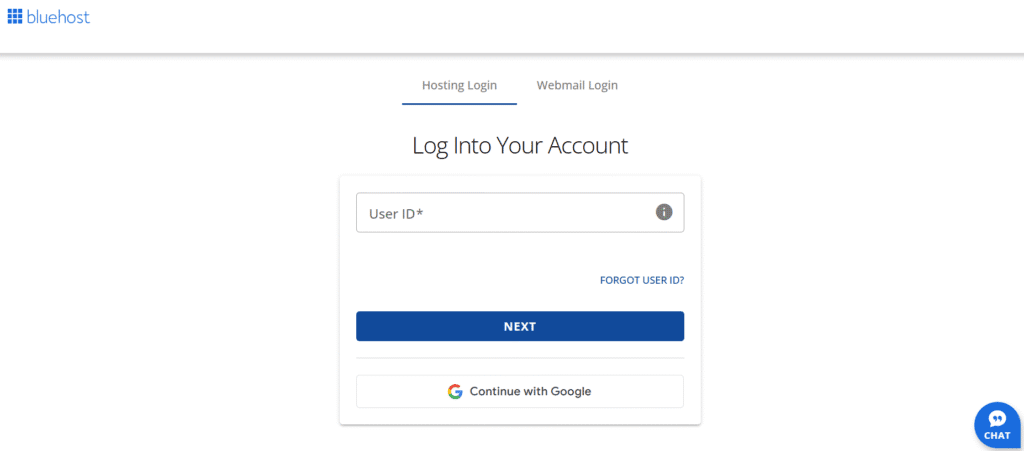
- Log in to your Bluehost Account Manager.
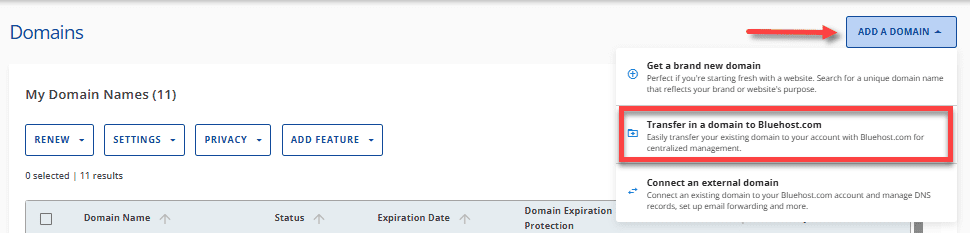
2. Go to the ‘Domains’ section. Click on ‘Add a Domain’ and select ‘Transfer in a domain to Bluehost.com’.
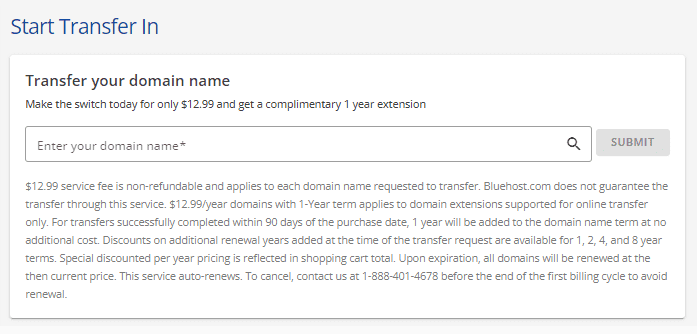
3. Enter the domain name (without www) and submit. Bluehost will check eligibility and add the transfer to your cart.
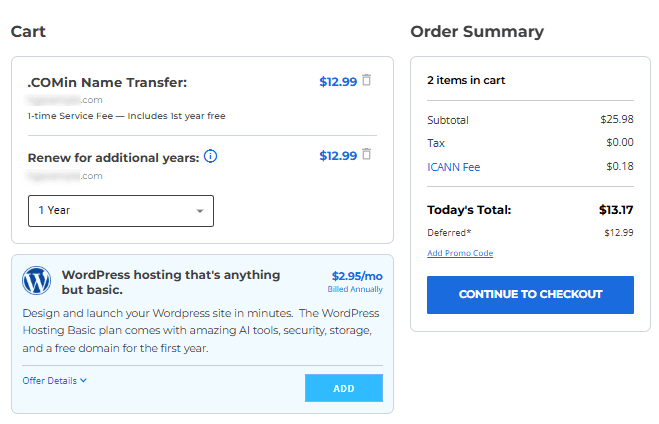
4. Review the order, confirm your payment method and complete checkout. Note the one-time Bluehost domain transfer fee shown in your Account Manager.
Submit your EPP code
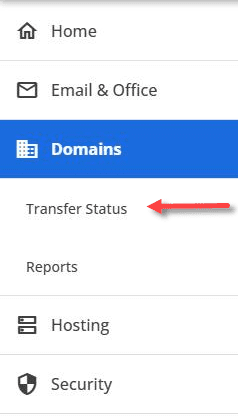
- After purchase, you can check pending transfer from ‘Transfer Status’ under ‘Domains’ section.
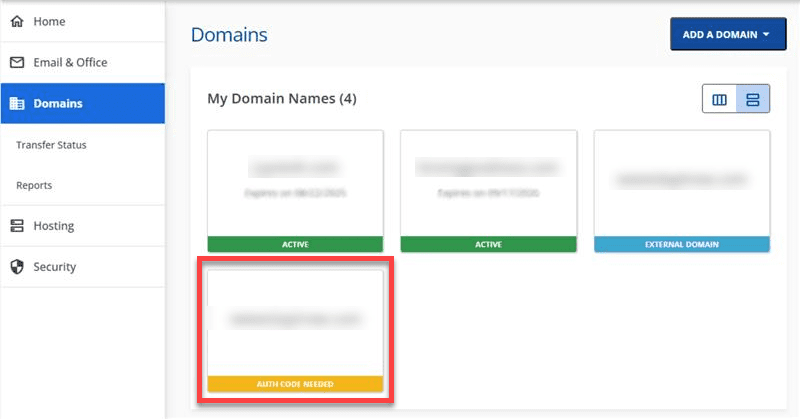
2. In Card View, click domain showing ‘AUTH CODE NEEDED’.
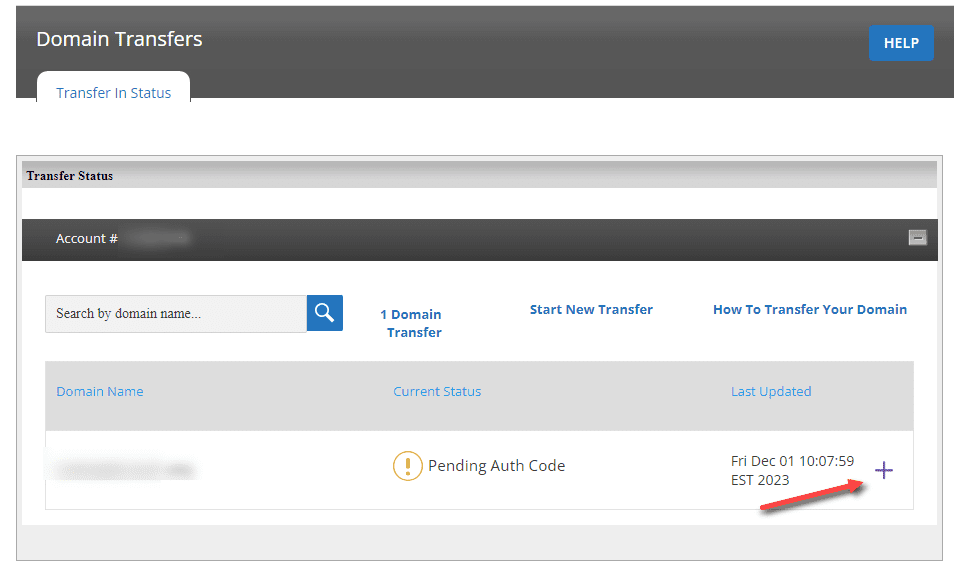
3. On the Domain Transfers page, click the + icon next to ‘Pending Auth Code’. You can choose ‘Email me the code’ (or click send code) to have the authorization key sent to your account email.
4. Enter your EPP code (authorization code) and click ‘Submit’.
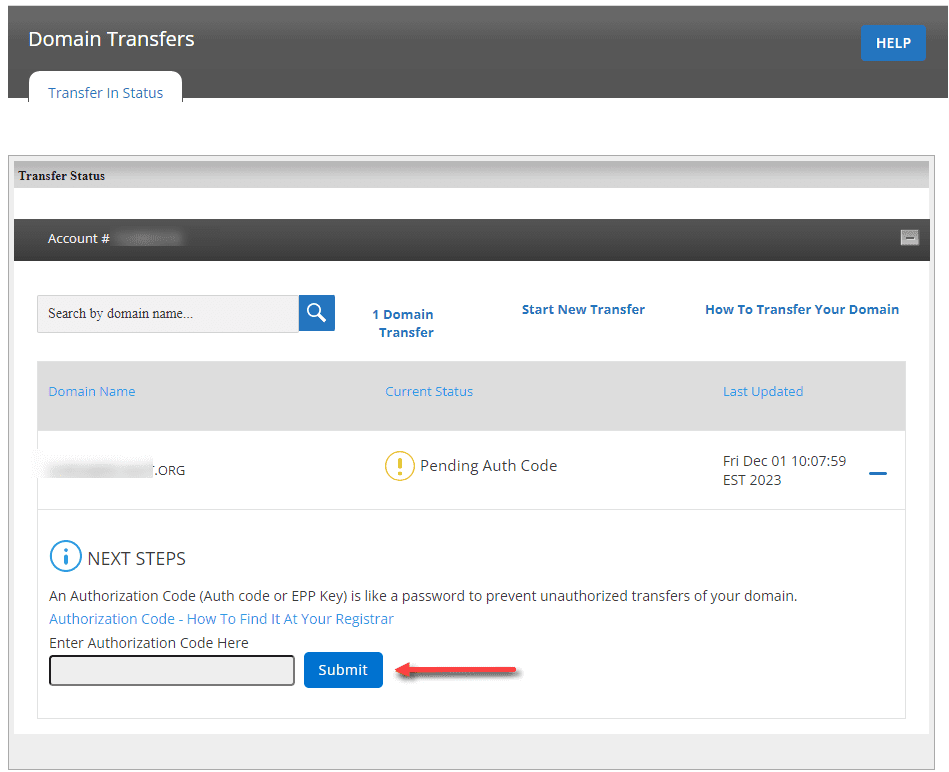
5. The system will verify the domain and EPP code. Allow time for verification; you can monitor the domain’s status in ‘Transfer Status’.
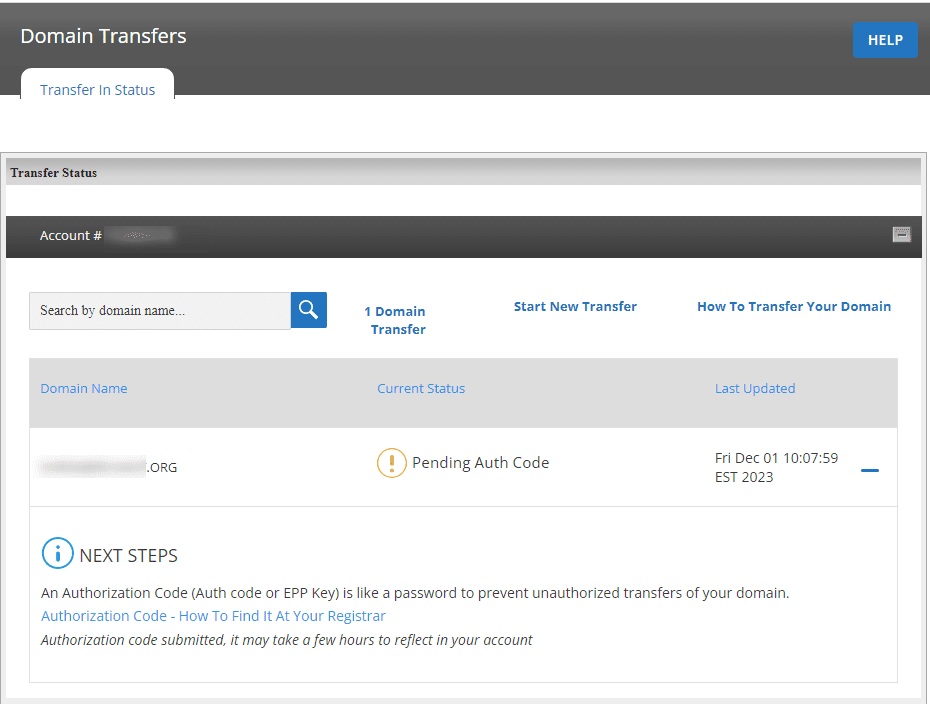
A one-time Bluehost domain transfer fee applies, but it includes a one-year renewal of your domain. Transfers can take up several days, depending on the losing registrar.
What about .uk domain extensions (IPS Tag)?
.uk domains don’t use an EPP code. Your losing registrar must update the IPS tag for domain transfers to Bluehost’s tag NSI-US. That change initiates the transfer for .uk names.
Additional tips
- Transferring your domain to Bluehost does not automatically move your domain name system settings (in domain’s DNS settings). Set them up in your Bluehost account to keep your site running.
- If your domain has expired for more than 30 days and is in redemption, it may not be transferable until renewed.
When you transfer a domain name to Bluehost and consolidate it with your hosting, you streamline management by accessing both services through one secure login, making it easier to maintain your online presence.
What’s the costs associated with a domain transfer?
When you transfer a domain, the new registrar typically charges a one-time domain transfer fee. This fee is not paid to your old registrar—instead, it goes to your new provider and usually includes a valuable benefit: a one-year extension of your domain’s registration. This means you’re not just paying for the transfer itself; you’re also extending your domain ownership for another year, adding real value to the transaction.
However, there are scenarios where additional costs may apply. If your domain has expired and entered a grace or redemption period, you’ll likely need to renew it with your current registrar before initiating the transfer. These renewal fees vary by registrar and can sometimes be higher than standard pricing. It’s important to check your domain’s status before starting the transfer process to avoid unexpected charges.
At Bluehost, the domain transfer fee is straightforward and includes that one-year extension at no extra cost. This means when you transfer your domain to Bluehost, you’re securing another full year of registration along with access to our management tools, 24/7 support and seamless integration with your hosting services. You’ll see the exact transfer fee displayed in your Account Manager during checkout, ensuring complete transparency throughout the process.
How to transfer a domain name to a different registrar?
The first step in transferring your domain is accessing your current domain registrar. From here, you can prepare to transfer your domain name to another registrar.
Step 1: Verify domain transfer eligibility before you begin
Before you start the domain transfer process, verify these components:
- Is your domain eligible for transfer?
- Is your domain expired and needs renewal?
- Was your domain renewed recently?
Step 2: Prepare your domain for transfer
- Confirm and update domain contact information before starting your domain name transfer
- Log in to your current registrar’s domain management portal.
- Ensure your contact details, especially your email address, are up to date. This is crucial for receiving important communications during the transfer. If you need to update an address, open your domain panel and click edit next to the contact email before initiating the transfer.
- Set up a backup email address: If you’ve tied your email to the domain (e.g., you@[yourdomain].com), set up an alternative email to avoid losing access during the transfer process.
- Disable domain privacy settings: Turn off WHOIS privacy protection temporarily to allow the new registrar to verify your ownership.
- Unlock your domain: Owners usually lock their domains to prevent unauthorized transfers. Disable the domain lock setting in your registrar’s control panel.
- Obtain the EPP/Auth code: Request your domain’s transfer authorization code (also known as EPP code, Auth code or transfer key) from your current registrar. You’ll need this code to authorize the transfer.
- Update Nameservers if necessary: If you’re changing hosting providers, you may choose to update your domain’s nameservers to point to your new host. You can also do it after the transfer.
Step 3: Initiate the transfer with the new registrar
- If you haven’t already, sign up for an account with your new registrar.
- Locate the domain transfer section on the new registrar’s website (often labeled “Transfer Domain” or similar).
- Provide the domain you wish to transfer.
- When prompted, enter the correct authorization code you obtained from your current registrar.
- You’ll receive confirmation emails from both registrars. Follow the instructions to approve the transfer.
- Complete any required payment. Transfer fees often include a one-year extension of your domain’s registration.
- Decide whether to enable domain privacy protection with your new registrar.
Important: When you transfer a domain name, the process typically takes up to 10 days to complete. You’ll receive email notifications throughout the domain transfer process, so be sure to save the transfer confirmation for your records. The good news is that your website will remain fully accessible and operational during the entire domain name transfer period.
How to transfer domain name to another owner?
If you want to transfer ownership of your domain to another person or organization:
- Contact your current registrar to start the ownership transfer process.
- Enter the new domain owner’s contact information during the transfer process.
- Both you and the new owner will need to approve the transfer, usually via email.
Note: Changing the registrant information may trigger a domain transfer lock period during which the domain cannot be transferred to another registrar.
How to point one domain to another when transferring domain names?
To point one domain to another, set up a 301 redirect through your hosting control panel or update DNS A records to the target IP address. When you transfer a domain name, always verify DNS propagation and test redirects to ensure seamless visitor access without errors.
Why is your domain transfer taking so long?
If your domain transfer is taking longer than the recommended amount of time, you may have encountered some domain transfer issues, such as:
1. Your new web host hasn’t received the EPP code: It can take anywhere from five to 14 days to receive the EPP code in your email. Check your domain’s registered email address if you haven’t received the code yet. If it shows the domain-associated email address, you’ll have to file a Change of Registrant request. Otherwise, if you’ve changed your email address, check your spam or trash folders.
2. Invalid EPP code: When transferring a domain name, the EPP (authorization) code is case-sensitive. If you encounter any errors during the domain transfer process, simply copy-paste the code again and make sure to remove any spaces before or after it. If it still doesn’t work, the EPP code may have expired, so you will need to request a new one from your current registrar to complete the domain name transfer successfully.
3. Domain privacy is enabled: If you’ve already received an EPP code but are still experiencing delays in domain transfer, check whether your WHOIS domain privacy settings is disabled. If your domain settings haven’t been updated, the registrar will send the domain transfer emails to a Privacy Protection inbox that isn’t easily accessible.
Once domain privacy is disabled, the WHOIS domain lookup will take up to 24 hours to be updated. Only then can the new administrator receive the domain transfer email.
If you’ve tried the fixes here but cannot find the solution to your problem, check out our domain transfer troubleshooting guide.
How to troubleshoot common domain transfer issues?
A stalled domain transfer can be frustrating, but the fix is usually straightforward. If your transfer request was rejected, start by confirming your domain is unlocked at your current registrar and that the EPP/Authorization code is correct—it is case-sensitive and may have expired. Another common hurdle is outdated contact information or active WHOIS privacy, which blocks essential verification emails needed to confirm ownership. Temporarily disable privacy and ensure your administrative email is accessible before trying again.
If your domain is stuck in a ‘pending’ status for over five days, the delay is likely with your old registrar. Contact their support team directly and ask them to manually approve the outgoing transfer. Also, remember that domains cannot be transferred within 60 days of initial registration or a previous transfer due to ICANN policy. For any of these issues, or if you need hands-on help, Bluehost’s expert 24/7 support team is always available to guide you through the process and get your transfer back on track.
Is it possible to expedite a domain transfer?
While many users wonder if they can speed up the domain transfer process, the reality is that the standard 5 to 14-day timeline is largely determined by your current (losing) registrar’s response time and industry security protocols. An instant domain transfer isn’t possible due to ICANN regulations designed to prevent unauthorized transfers and protect domain owners.
However, some registrars do offer a manual approval option that can accelerate the process. If your current registrar provides this feature, they may send you a transfer authorization email that you can approve immediately, potentially reducing the wait time from days to hours. Check your registrar’s domain management panel or contact their support team to see if they offer expedited approval for outgoing transfers.
The best way to ensure the fastest possible transfer is to prepare properly beforehand: unlock your domain, obtain your EPP authorization code, disable domain privacy and ensure your contact information is current. While you can’t bypass industry protocols entirely, being proactive with these steps helps avoid delays and keeps your transfer moving as quickly as possible.
What is the process of smooth and successful domain transfer?
To ensure a seamless domain transfer, follow this practical checklist. Planning ahead prevents common issues and minimizes downtime. It’s best to initiate the process during a low-traffic period, like a weekend, and remember that transfers typically take 5 to 14 days. This timeline allows registrars to complete all necessary security and verification steps.
- Pre-transfer preparation: Before you start, perform a full backup of your website files and databases; Bluehost offers automated backup options to simplify this. Verify your contact information is accurate with your current registrar and document your current DNS settings. For enhanced security, enable two-factor authentication on both your old and new registrar accounts.
- During the transfer: Keep your EPP code confidential and monitor your email closely for approval requests from both registrars. Avoid making any changes to your domain settings or nameservers while the transfer is in progress to prevent delays or failures.
- Post-transfer verification: Once complete, confirm your DNS has propagated correctly. Thoroughly test your website’s functionality and ensure email services are working as expected. If you encounter any issues, Bluehost’s dedicated transfer support is available to assist.
What security measures should I take before transferring a domain?
As a security measure, enable two-factor authentication on both registrars. Verify and update your contact email, disable WHOIS privacy only when required, unlock your domain briefly for the transfer and save a copy of your current DNS records before you begin.
How can I tell if my DNS settings are correctly configured after a transfer?
Verify your DNS records (A, MX, CNAME, TXT) and name servers in the domain panel. Run a DNS lookup to confirm the records propagated, check that pages load and email delivers and confirm SSL is active. If those checks pass, your DNS is correctly configured and the site is functioning correctly.
Can your registrar deny domain transfer?
Yes, your registrar may deny a domain name transfer request. Common reasons include:
- Domain age restriction before transfer: Your domain must be at least 60 days old to be eligible for transfer.
- Recent transfer or registrant change: You completed a previous transfer or changed registrant info within 60 days; the domain will be subject to transfer restrictions.
- Domain is locked: The domain’s transfer lock is still enabled.
- Evidence of fraud or dispute: There are legal issues concerning the domain.
- Unsettled payments before you transfer a domain name: Resolve any outstanding fees with your current registrar to ensure a smooth domain transfer process.
- Express written objection: The domain holder has objected to the transfer.
- Legal proceedings: The domain is involved in UDRP or court proceedings.
- expired domain name** in redemption grace period:** The domain is in a state that prevents transfer without restoration.
If your transfer is denied, your registrar should provide a reason. If you believe the denial is unjustified, contact your registrar for clarification or file a complaint with ICANN.
Additional questions about domain transfers
Can I transfer an expired domain?
Yes, you can transfer an expired domain name if it hasn’t entered the Redemption Grace Period or been flagged for deletion. Before initiating how to transfer a domain name in this state, you’ll typically need to renew the domain first, which may involve additional fees depending on your current registrar’s policies.
Is it free to transfer a domain?
No, registrars don’t offer free domain transfer. It usually involves a fee charged by the new registrar. This fee often includes a one-year extension of your domain’s registration.
I don’t know who my registrar is. What should I do?
Use the ICANN WHOIS Lookup Tool to find your registrar before you transfer a domain name. Enter your domain, and the registrar field displays the current provider.
I’ve just purchased a domain. Why can’t I transfer it?
As per the ICANN transfer policy, you have to follow the 60-day transfer restrictions after domain registration or transfer. You must wait a 60-day transfer period before transferring your domain to another registrar.
How do I get an authorization code?
To transfer a domain name, obtain your authorization code (EPP/Auth code) by logging into your current registrar’s domain management dashboard or contacting their support team directly.
What if my registrar denied my transfer request?
If your registrar denied your transfer request when attempting to transfer a domain name, verify contact information accuracy, check domain lock status, resolve outstanding fees or escalate concerns to ICANN for resolution.
What if my domain has expired? Can I still transfer it?
Yes, you can transfer it. But make sure that it isn’t deleted or entered into the Redemption Grace Period. You might need to renew it with your current registrar before transferring.
Does transferring my domain affect my website’s SEO?
No, when you properly transfer a domain name, your SEO remains unaffected. Keeping the same domain and maintaining existing content ensures search rankings and visibility stay intact throughout the registrar transfer process.
Will I lose my remaining registration time if I transfer?
No, your remaining registration time is retained. Additionally, transferring often adds an extra year to your domain’s expiration date.
Should I cancel my previous registrar’s service after the transfer?
Yes, once your domain is successfully transferred, you can cancel any services with your old registrar to avoid unnecessary charges.
Transferring your domain name doesn’t have to be complicated. By following the outlined steps and being cautious of any possible issues, you can ensure a smooth transition to your new registrar.
Whether you’re learning how to transfer a domain name or starting fresh, Bluehost makes domain registration simple with expert support and seamless setup!
When you’re ready to transfer a domain name, Bluehost makes the process smooth with domain privacy protection, around-the-clock support and seamless website customization options. Plus, our AI-powered domain selection tool helps you find the ideal name for your transfer or new domain registration.