 ChatGPT,
  Claude,
  Gemini,
  Grok — all four for
 How to Create and Remove an Addon Domain
An addon domain is an additional domain hosted under your existing hosting plan. Each addon domain typically functions as its own independent website with separate content.
For a website or email service to function correctly with an addon domain—whether the domain is registered with Bluehost or a third-party registrar—you must complete the following steps:
- Point or connect the domain to your Bluehost server
- Add the domain to your cPanel as an addon domain
- Add the domain to your Bluehost Portal as an external domain (if applicable)
- Update the domain’s DNS records
Please keep in mind that an addon domain will not work until it is registered and connected to the server hosting your website files. Your hosting plan must also support multiple domains.
This guide explains how to add your domain to both cPanel and the Bluehost Portal.
How to Add an Addon Domain
Follow the steps below to add an addon domain to your hosting account, regardless of where the domain is registered.
Step 1: Connect your Domain to your Bluehost hosting server
Domains registered with Bluehost are automatically configured to use our name servers and DNS settings.
If your domain was registered elsewhere or already owned prior to hosting with Bluehost, you must manually point it to your Bluehost server. Instructions can be found in the following article:
Step 2: Create an addon domain in your cPanel
For VPS and Dedicated Hosting: WHM users must ensure that Max Addon Domains is set higher than zero in the hosting package. The allowed number of subdomains must also be equal to or greater than the number of addon domains. Learn more here:
To add an addon domain in cPanel:
- Log in to your Bluehost Portal.
- In the left-hand menu, click Hosting, then select My Plans.
- On the hosting details page, click the cPanel button.

- Your cPanel will open in a new tab.

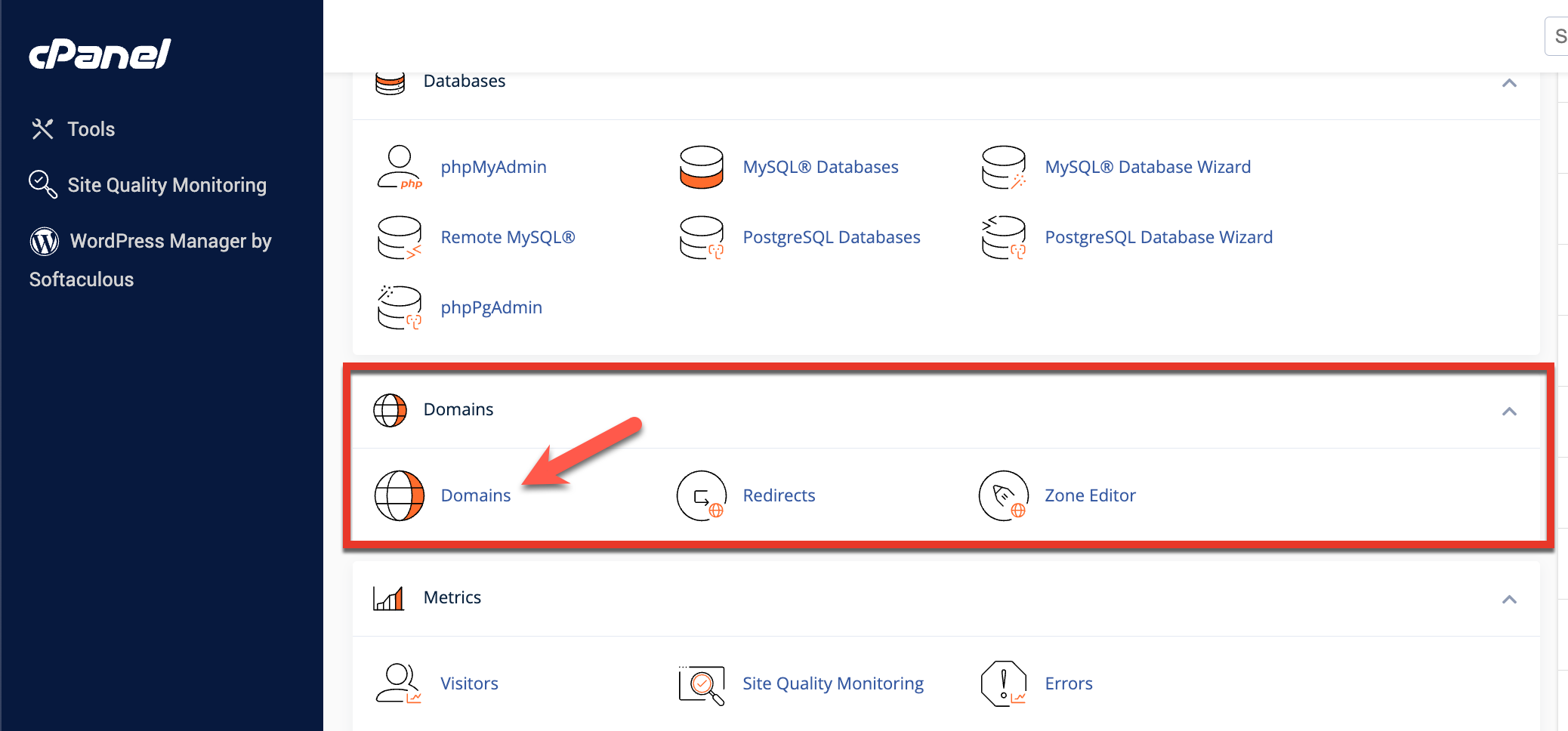
- Under Domains, click Domains.
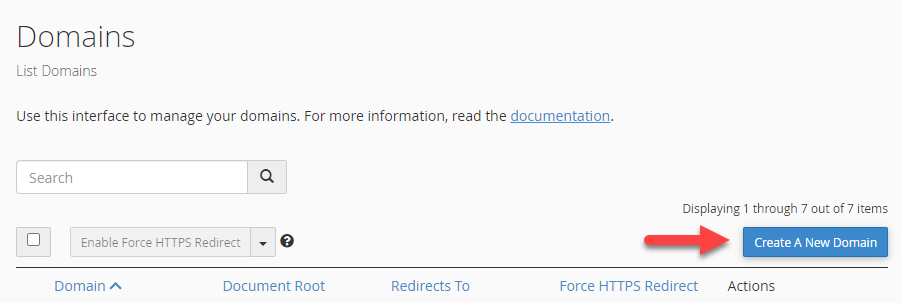
- Click Create A New Domain.
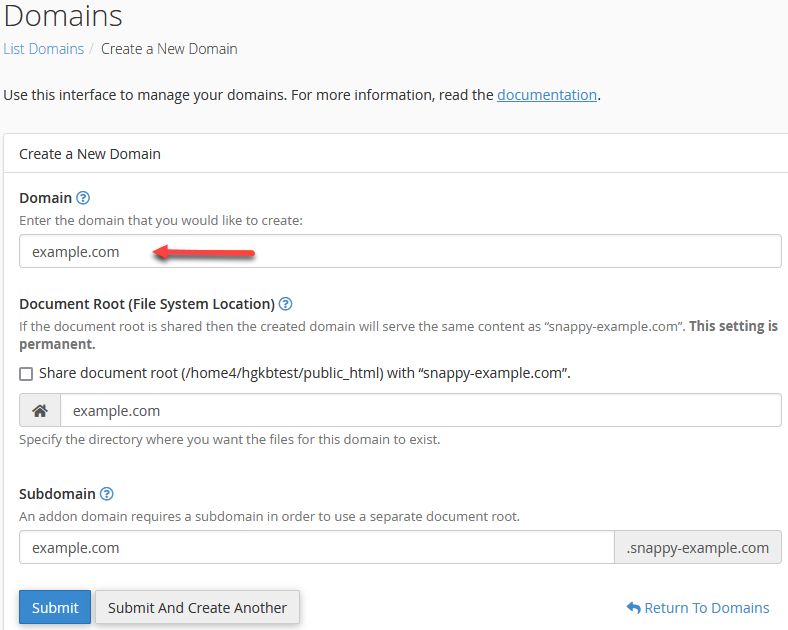
- Enter the domain name.
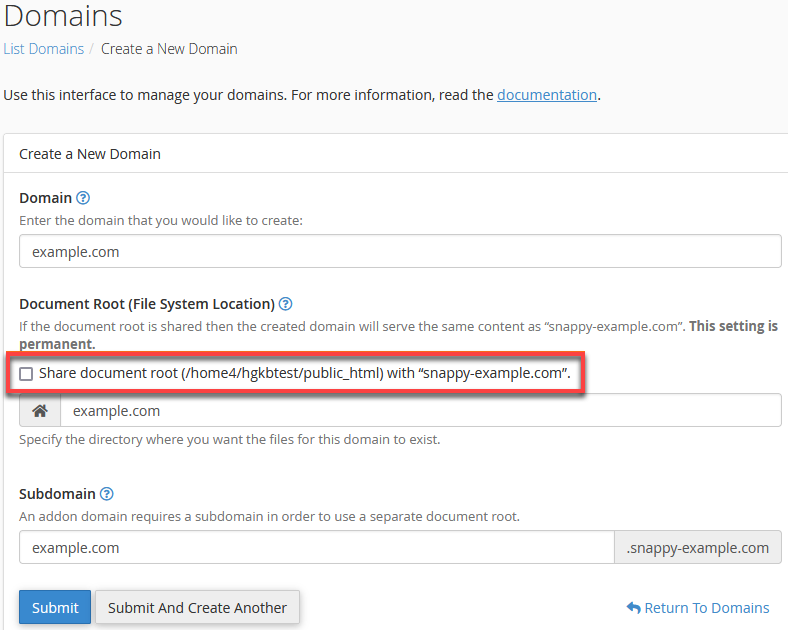
- Ensure the Share document root option is not selected.
- Specify the document root directory where the website files will be stored.
- Click Submit.
Your addon domain has now been successfully created.
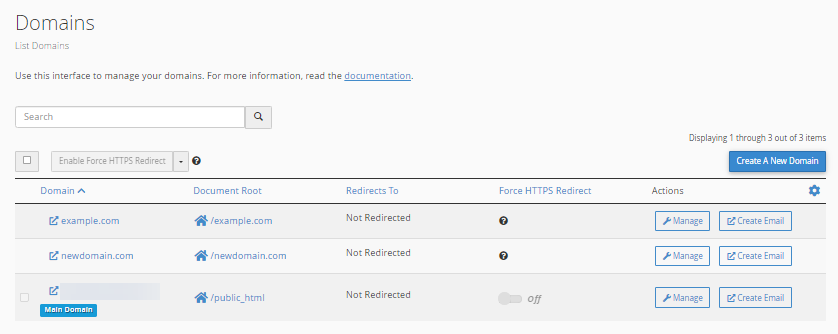
Step 3: Add the domain as an external domain to your Bluehost Portal
If you registered your domain with us, it will be automatically added to the Domains section of your Bluehost Portal. From this area, you can manage WHOIS details, name servers, and other domain-related features for Bluehost-managed domains. To learn more about domain management, refer to the article below.
If your website uses a domain that was registered with a different provider, you’ll need to manually add it to your Bluehost Portal as an external domain.
Step 4: Update the domain's DNS records
Domains purchased from us are automatically listed in your Bluehost Portal’s Domains section. DNS modifications can be made through the Advanced Tools area. For detailed instructions, see the article below.
Once your external domain has been added to your Bluehost Portal (Step 3 ⤴), you can begin managing its DNS records.
How to Remove an Addon Domain
Removing an addon domain deletes only the DNS and server-level configuration. The domain’s files and databases remain intact and accessible through the File Manager, even though the domain name itself will no longer load the content.
cPanel
Go to How to Remove a Domain Name to learn how to remove an addon domain using cPanel.
The domain will no longer appear in the Domains section of your cPanel after removing it.
Bluehost Portal
To delete an external domain from your Bluehost Portal, follow the steps provided in Removing an External Domain from the Bluehost Portal.
The domain will no longer be listed as an External Domain in your Bluehost Portal.
How to Change an Addon Domain's Folder or Directory in cPanel
If your website files already exist in a specific directory, or if you prefer to store your site’s content outside the default folder, you can specify a custom location using the Document Root field.
If the selected folder already exists, you may see a warning message. This is expected when intentionally assigning an existing directory and can be safely ignored.
For step-by-step instructions, refer to the article below:
Please note that certain directories cannot be assigned as the document root for addon domains. These include:
- The account’s root home directory (/)
- Directories outside the home directory (./ and ../)
- .cpanel
- .trash
- etc
- ssl
- tmp
- logs
- .cphorde
- spamassassin
- .htpasswds
- var
- cgi-bin
- ssh
- perl5
Summary
The content below walks through how to add, manage, and remove addon domains in cPanel and the Bluehost Portal. It explains how to connect a domain to your hosting server, set up the addon domain in cPanel, link it in the Bluehost Portal, update DNS records, and optionally change the domain’s document root. Following these steps helps ensure each addon domain works independently and runs smoothly.
If you need further assistance, Bluehost Chat Support is available 24 hours a day, 7days a week while Bluehost Phone Support is available 7 days a week from 7 am-12 midnight EST.
- Chat Support - While on our website, you should see a CHAT bubble in the bottom right-hand corner of the page. Click anywhere on the bubble to begin a chat session.
- Phone Support -
- US: 888-401-4678
- International: +1 801-765-9400
You may also refer to our Knowledge Base articles to help answer common questions and guide you through various setup, configuration, and troubleshooting steps.