


Key highlights
- Understand what WordPress core files are and why modifying them can cause major issues.
- Learn when and why to reinstall or repair WordPress like after failed updates, malware infections or file corruption.
- Explore safe reinstallation methods using WP-CLI, FTP, specialized plugins and Bluehost’s built-in repair tools.
- Discover how to reinstall WordPress core files without losing content or breaking your layout.
- Follow best practices after reinstallation, including site testing, security checks and automated backups.
Ever hit “update” on WordPress and watched your entire site go blank? It’s one of the scariest moments for any website owner. But it’s also fixable.
When errors, malware or failed updates break your site, chances are your WordPress core files need a reset. In this guide, we’ll show you how to reinstall WordPress core files safely without losing your content or spending hours debugging.
You’ll learn what to do if you fail to reinstall WordPress core files and how to prevent future breakdowns
TL;DR: How to troubleshoot WordPress core files?
If your WordPress site crashes or shows errors, your core files may be corrupted.
- Back up your site.
- Use the ‘scan & repair’ option from Bluehost account (Available on supported WordPress hosting plans).
- If it doesn’t work, reinstall WordPress via WordPress dashboard, FTP or WP-CLI.
- Don’t touch your wp-content folder or database.
- Test, secure and enable automatic backups.
That’s it, your WordPress is fixed, clean and running again.
Why shouldn’t you modify WordPress core files?
Modifying core files can:
- Data integrity issues: Changes can disrupt the platform’s functionality and complicate troubleshooting.
- Legal concerns: Unauthorized modifications may violate licensing agreements and ethical guidelines.
- Loss of evidence: Core files are crucial for diagnosing errors; changes can erase vital information needed for effective troubleshooting.
- Available debugging tools: Use logging plugins and error reporting features instead of altering core files.
- Risk of further damage: Making changes without proper knowledge can introduce more problems.
Always use plugins, themes or the functions.php file for customizations. Alternatively, consider options that suit your needs: What is WP-Content Uploads and How to Upload Files in WordPress.
Preparations before repairing or reinstalling WordPress core files
Whether you’re troubleshooting corrupted core files or fixing a failed update, follow these preparation steps to keep your website secure and make the repair process smoother.
1. Back up your full website
Always start by creating a fresh backup of your WordPress files and WordPress database. Use a trusted backup service like CodeGuard or your hosting provider’s File Manager to store a copy of your files and database safely.
This includes the wp-content folder, which contains your themes, plugins and uploads. If anything goes wrong, you can restore your WordPress website with minimal downtime.
2. Note down custom configurations
Before you repair or reinstall the core WordPress, document any changes in your wp-config.php and .htaccess files. These files include important basic settings like database credentials, SSL redirection rules and caching configurations. Having a record of them helps you reapply those settings quickly after reinstalling.
3. Verify FTP or cPanel access and database credentials
Ensure you can access your hosting account through FTP client, File Manager or cPanel. You’ll need this to upload or replace files in your WordPress root directory. Confirm that your FTP login details and database credentials in wp-config.php are accurate. Otherwise, the reinstallation might fail or disconnect your site from the database.
4. Temporarily deactivate caching and security plugins
Some security plugins or firewall settings may block WordPress from writing core files. If you use external security tools, temporarily disable them before reinstalling core files. This prevents conflicts during the wp core download or replacement and helps the system refresh core WordPress files cleanly.
5. Check available disk space and PHP version
Running out of server space or using an outdated PHP version can fail to reinstall WordPress core files. Make sure your website server meets the recommended WordPress requirements (PHP 8.0 or higher, MySQL 5.7 or higher). Also, clear unused backups or logs to ensure enough storage for the new WordPress zip file.
Quick reminder: These steps protect your existing WordPress site and reduce downtime during troubleshooting.
How to diagnose and fix WordPress core file errors?
Before you restore WordPress core files, it’s important to confirm that the issue actually lies in the core WordPress files themselves. Troubleshooting helps you avoid unnecessary reinstallations and identify whether the real problem is caused by plugins, themes or server configurations.
Follow these steps to diagnose and fix WordPress core file issues safely:
1. Identify corrupted or missing files via File Manager or FTP
Log in to your hosting account and open the File Manager (or connect through an FTP client like FileZilla). Navigate to your WordPress root directory, typically /public_html/.
Check for missing or suspiciously modified folders such as /wp-admin/, /wp-includes/ or critical files like wp-config.php. If the file sizes, timestamps or permissions seem off, your core WordPress files may be damaged.
2. Compare against a clean version of WordPress
Download the latest version of WordPress from ‘[wordpress].org/download’. Unzip the package and compare its folder structure with your current WordPress files. The directories /wp-admin/ and /wp-includes/ should match exactly. Differences in PHP files, extra scripts or unknown folders often indicate tampering or malware infection.
3. Check for malware or unauthorized code changes
Scan your WordPress installation using a security plugin like SiteLock. These tools detect hidden malware, injected scripts or modified PHP files inside your core WordPress software. If any suspicious code is found, quarantine or remove it before proceeding with repair or reinstallation.
4. Review error logs for details
In your hosting dashboard or cPanel, look for the “Errors” or “Logs” section. Error messages such as “Cannot redeclare function” or “Missing argument” may point to corrupted or duplicated core files. Keeping these error logs helps pinpoint which file triggered the issue, saving time during troubleshooting.
5. Test by deactivating plugins and themes
Sometimes what appears as a WordPress core issue is actually a conflict with an outdated or incompatible plugin. Temporarily rename your wp-content/plugins folder using FTP to disable all plugins at once. If the problem disappears, the issue isn’t with your core WordPress files, but with one of the plugins.
6. Validate file permissions and ownership
Incorrect permissions on your WordPress files or folders can prevent updates or repairs. Make sure /wp-includes/ and /wp-admin/ folder are set to 755, and files like wp-config.php are set to 644. Your website’s server should recognize you as the file owner, especially if you recently migrated hosts.
Pro tip: If you confirm that essential files like /wp-includes/ or /wp-admin/ are corrupted or missing, it’s time to reinstall or repair WordPress core files.
If your troubleshooting confirms that the issue lies in the core files, the next step is choosing the right level of repair. Depending on how severe the damage is, you can choose any of the three approaches:
- Reinstall core files: When only WordPress core is damaged.
- Full reinstallation: When the entire site is unstable or infected.
- Fix themes/plugins: When the issue comes from add-ons, not core.
The sections below walk you through each solution so you can choose the one that fits your situation best.
How to reinstall WordPress core files without losing content? (5 methods)
Reinstalling WordPress core files can be done in several ways depending on your dashboard access, hosting environment and technical comfort. Here are five methods that ensures your core files are refreshed in the easiest way:
- Method 1: Repair or reinstall using Bluehost’s one-click tools
- Method 2: Auto-reinstall from the WordPress dashboard
- Method 3: Manually replace core files via FTP
- Method 4: Reinstall using WP-CLI (command line)
- Method 5: Reinstall using a specialized WordPress plugin
Now, let’s explore each method in detail.
Method 1. Repair or reinstall with Bluehost’s one-click tools
a. Log in to your Bluehost Account Manager.
b. Go to ‘Websites’ tab from left navigation. Locate the website you want to manage, then click its ‘Manage’ button.
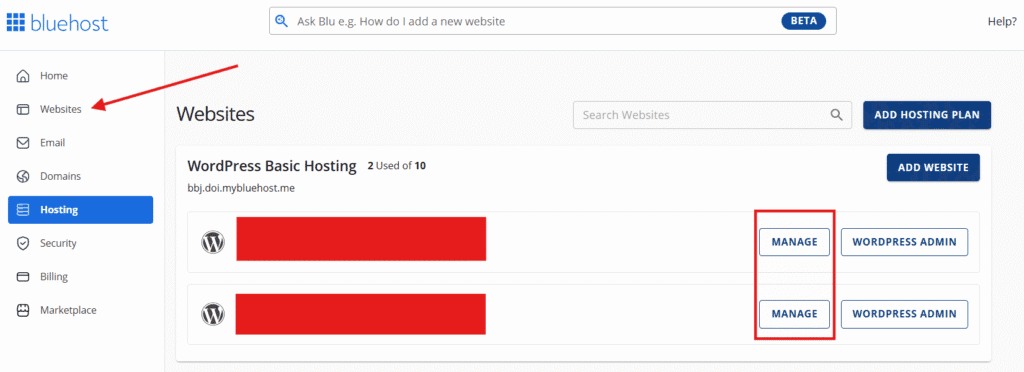
Note: If you have a single website in your account, you’ll be redirected to the website management page immediately.
c. Next, go to the ‘Security’ tab.

d. Scroll to the ‘Check Core WordPress Files’ tile and click ‘Scan Core Files’ to scan and repair WordPress core files. (This feature is available on supported WordPress hosting plans.)

- If no issue is detected, the tool shows a message confirming your core files match the official WordPress checksum.

- If issues are found, select ‘Repair’.
Method 2. Reinstall via WordPress dashboard (auto reinstall)
If your dashboard is accessible:
a. Log in to the WordPress Admin Dashboard.
b. Go to Dashboard > Updates.

c. Click Re-install version x.x. This replaces all core files without affecting your content.
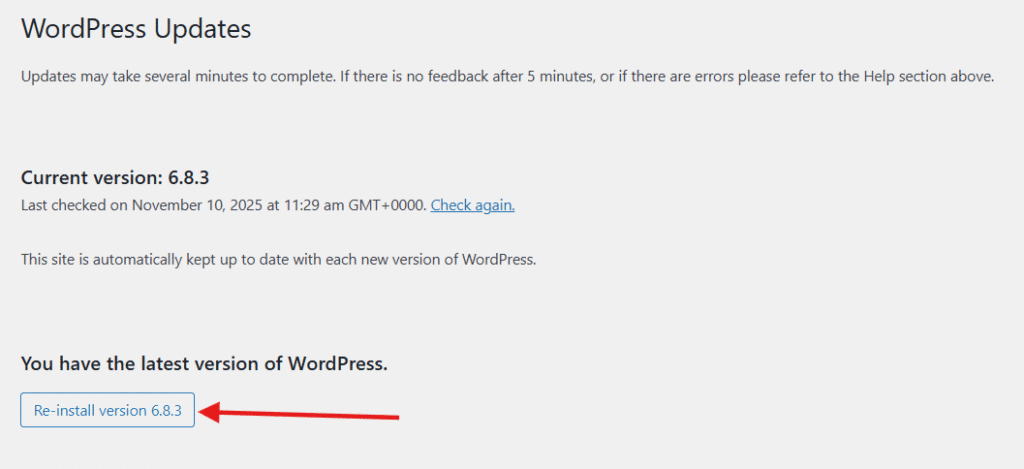
d. Wait for the update to complete.
Method 3. Replace WordPress core files manually using FTP
Follow these steps on how to how to replace WordPress core files:
Important: Do NOT delete wp-content/ or wp-config.php.
a. Download the latest WordPress version from wordpress.org.
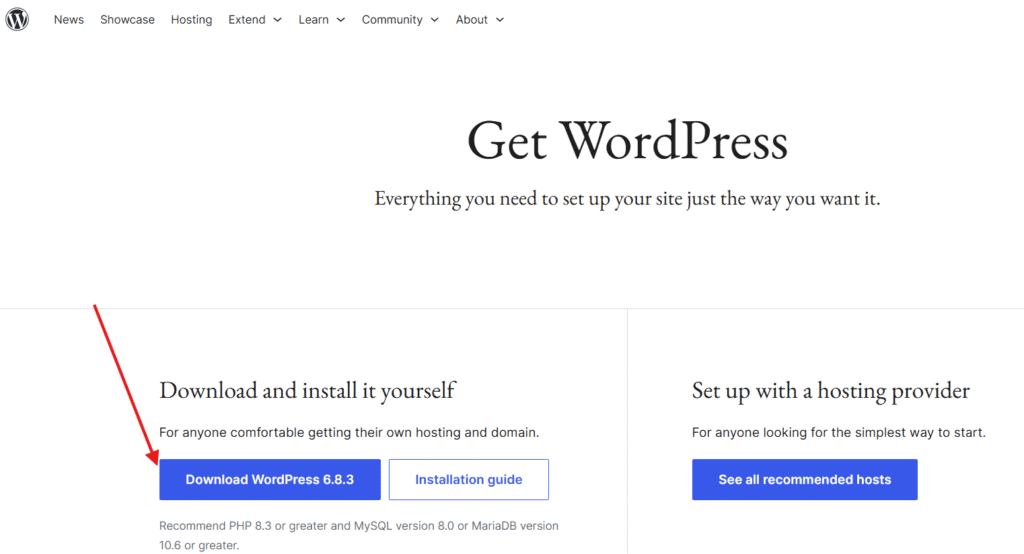
b. Extract the WordPress zip file on your computer.
c. Using FTP or File Manager, upload the following to your site’s root directory:
- /wp-admin/
- /wp-includes/
- All files in the root (except wp-content and wp-config.php)
d. Overwrite when prompted.
Method 4. Reinstall WordPress core using WP-CLI
If you’re comfortable, you can use the command line tool, WP-CLI (WordPress Command Line Interface). It offers one of the quickest and most reliable ways to reinstall WordPress core files without touching your themes, plugins or content.
This developer-friendly option ensures your WordPress installation is refreshed using verified files from the official repository.
a. Use an SSH client such as PuTTY or your terminal to connect to your hosting account. You’ll need your server’s IP address, username and password or SSH key. Navigate to the root directory of your WordPress website, usually public_html/.
b. Run the following command to confirm WP-CLI is available on your server:
wp --infoIf you see the version details, you’re good to go. If not, contact your hosting provider to enable WP-CLI or install it manually.
c. To safely reinstall the core WordPress software, execute the following command:
wp core download --skip-content --forceHere’s what each part means:
- wp core download: Downloads a clean copy of WordPress from the official source.
- –skip-content: Preserves your wp-content folder (themes, plugins and uploads).
- –force: Overwrites the existing core WordPress files.
This ensures your WordPress core is reinstalled cleanly while leaving your website content intact.
d. After reinstallation, run:
wp core versionThis confirms that your WordPress installation is running the latest version. Then, update your database structure if prompted:
wp core update-dbe. Finally, clear your cache using:
wp cache flushf. Visit your WordPress dashboard and test your site to confirm everything loads properly. Check your homepage, admin area and media library for errors.
Pro tip: Using WP-CLI is ideal when your WordPress dashboard is inaccessible or when you need a quick, scriptable way to restore WordPress core files. SSH and WP-CLI access is available on supported Bluehost plans and can be enabled from the dashboard. So, you can automate updates, reduce downtime and keep your core files secure with minimal effort.
Method 5. Reinstall WordPress core files using specialized plugin
If you prefer a visual, no-code method, using a specialized WordPress plugin is the easiest way to restore WordPress core files safely. You can install a plugin from your WordPress admin dashboard.
- Advanced WordPress Reset: resets or reinstalls your site while preserving uploads and users.
- WP Reset: offers “Reinstall WordPress Core” functionality with one click.
- Easy Updates Manager: lets you manage automatic updates and reinstall the core WordPress software securely.
The process will vary depending on which plugin you choose. These plugins are regularly updated and compatible with most versions of WordPress, ensuring a safe process. However, you will need to purchase the premium versions of these plugins to fully complete a WordPress reinstallation.
Pro tip: Always back up your site before using any reinstallation plugin.
How to perform full reinstallation of WordPress if core repair fails?
If your site failed to reinstall WordPress core files and still experiences errors, the best solution is to perform a full reinstallation of WordPress. This approach restores everything including the core WordPress software, configuration files and database to a clean, stable state.
Before starting, remember: a full reinstall differs from reinstalling only the core files. The latter replaces just /wp-admin/ and /wp-includes/. But a complete reinstall involves deleting and rebuilding the entire WordPress installation while keeping your content safe.
Step 1: Uninstall the current WordPress installation
Backup your entire website and save the files on local drive before uninstalling the current WordPress files.
- Log in to your Bluehost Account Manager.
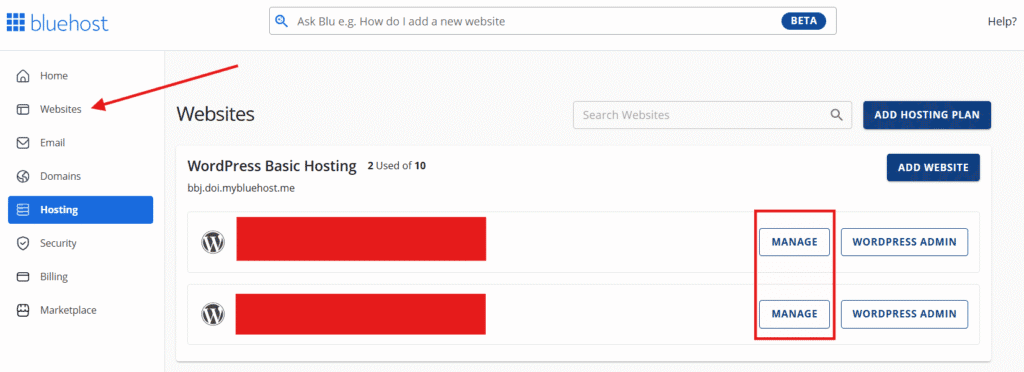
- Go to ‘Websites’ tab from the left navigation. Locate the website you want to uninstall, then click its ‘Manage’ button.
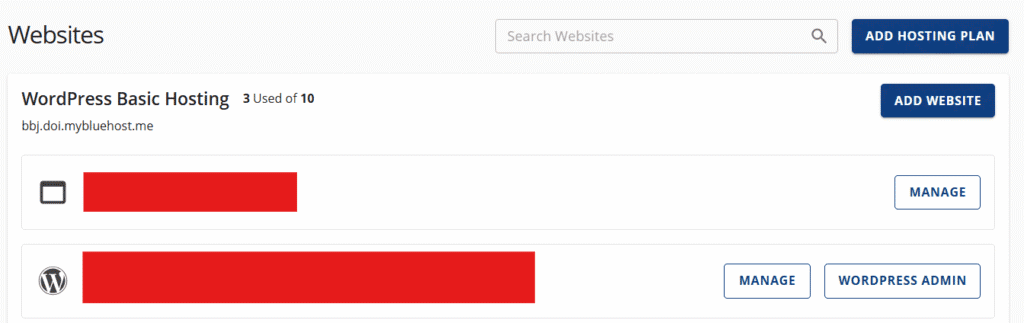
- Now select ‘Advanced’ tab.

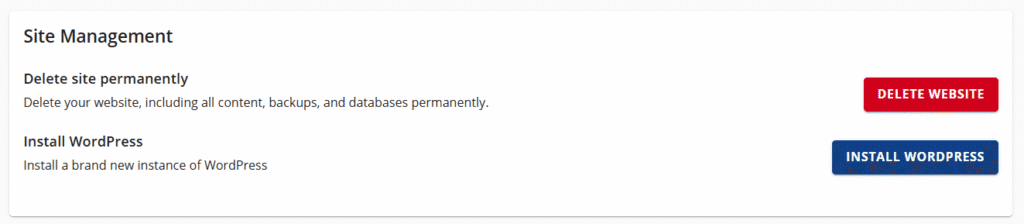
- Scroll to ‘Site Management’ section and select ‘Remove WordPress’.

This step clears any corrupted or infected data, preparing your website’s server for a fresh installation.
Step 2: Reinstall WordPress core files from cPanel or an auto-installer
- Go back to ‘Websites’ tab and select ‘Manage’ for the site where you uninstalled WordPress.
- On the ‘Advanced’ section, scroll to ‘Site Management’ section and select ‘Install WordPress’.
Alternatively, you can download WordPress manually from ‘[wordpress].org/download’ and upload the unzipped files via FTP client.
Step 3: Restore your content and database backups
Once your freshly installed copy of WordPress is active:
- Replace the newly created wp-content folder with your saved backup.
- Import your old database via phpMyAdmin or a backup plugin.
- Open your wp-config.php file and update database credentials if necessary.
Your posts, images and customizations should now appear exactly as before, running on a new, stable WordPress core foundation.
After a full reinstall, go through your WordPress dashboard to confirm that everything works as expected.
How to reinstall or repair themes and plugins?
Sometimes, what looks like an issue with your WordPress core files may actually stem from corrupted or outdated themes and plugins. These components live inside your wp-content folder and directly affect how your WordPress website looks and functions.
Reinstalling or repairing them can often fix crashes, missing layouts and PHP errors without needing to reinstall WordPress core files entirely.
Step 1: Identify faulty themes or plugins
Start by deactivating all plugins to see if your site returns to normal. You can do this in one of two ways:
- From your WordPress dashboard, go to ‘Plugins’ › ‘Installed Plugins’ and deactivate them all.
- If you can’t access the dashboard, connect through an FTP client or File Manager and rename the /wp-content/plugins folder temporarily (for example, to /plugins-disabled).
If the site works after deactivation, one of the plugins is the culprit. Reactivate them one by one to find out the problem.
For themes, temporarily switch to a default theme like Twenty Twenty-Four. If your site loads correctly afterward, the issue lies within your custom theme files.
Also read: How to Disable/Delete Themes and Plugins in WordPress
Step 2: Reinstall the affected theme or plugin
Once you’ve identified the problematic item:
- Reinstall from WordPress dashboard:
- Go to Plugins › Add New or Appearance › Themes › Add New.
- Reinstall the latest version directly from the official WordPress directory.
- Reinstall manually using FTP:
- Delete the faulty plugin or theme folder inside /wp-content/plugins or /wp-content/themes.
- Download a clean copy from the developer’s website or the WordPress repository.
- Upload the new folder to your server via an FTP client or your hosting File Manager.
This approach replaces only the damaged WordPress files while preserving your database and user settings.
Step 3: Check for compatibility and updates
Incompatible versions can often break your WordPress installation after updates. Make sure the newly installed themes and plugins support your current version of WordPress. Visit Dashboard › Updates to apply all pending updates. Keeping everything current minimizes the risk of future conflicts with the core WordPress software.
Step 4: Secure your installation
Once your plugins and themes are reinstalled, perform a quick security check:
- Scan for leftover malware using SiteLock.
- Enable automatic updates for the WordPress core, themes and plugins.
- Schedule regular CodeGuard backups to easily restore your site if issues return.
Pro tip: Avoid editing theme or plugin files directly inside the WordPress Editor. Instead, use a child theme or custom plugin to add new code. This ensures your changes won’t be overwritten or cause future WordPress core conflicts during updates.
What to do after reinstalling WordPress core files?
Once you’ve successfully reinstalled WordPress core files, it’s important to confirm that your WordPress website is running smoothly. A few quick checks and optimizations will help you verify that everything, from performance to security, is back in order and prevent similar issues in the future.
1. Test your website’s functionality
Start by opening your site in multiple browsers and devices. Navigate through pages, posts, menus and your WordPress dashboard to ensure all links and elements work properly.
- Verify that your homepage loads quickly.
- Check whether admin features like Add New Post, media uploads and plugin installations are working.
- If you’ve recently updated your core WordPress files, confirm that no layout or styling issues appear.
If you find errors, clear your browser and site cache or recheck your wp-content folder to confirm all theme and plugin files are intact.
2. Verify SSL, permalinks and media links
Reinstallation can occasionally reset certain configurations. Check these settings on your WordPress dashboard:
- Go to ‘Settings’ › ‘General’ and confirm that your WordPress Address (URL) and Site Address (URL) use HTTPS.
- Navigate to ‘Settings’ › ‘Permalinks’ and click ‘Save Changes’ to refresh your permalink structure. This fixes broken links and 404 errors.
- Visit the ‘Media’ › ‘Library’ to make sure all images and uploads appear correctly.
If URLs look mismatched, double-check your .htaccess or wp-config.php file for correct path and domain values.
3. Monitor site health and enable automatic backups
Go to ‘Tools’ › ‘Site Health’ in your dashboard to scan for any performance or security recommendations. Address issues like outdated PHP versions or inactive themes.
For long-term safety, schedule automatic backups using CodeGuard. Keeping daily or weekly backups ensures you can restore your site quickly if core WordPress software issues ever reoccur.
4. Strengthen your website security
After a major WordPress core reinstall, take extra precautions to protect your website from future attacks:
- Install SiteLock for daily malware scanning and file integrity checks.
- Limit admin access to trusted users only.
- Use strong passwords and enable two-factor authentication.
- Keep your plugins, themes and core WordPress version updated at all times.
If you want these security measures to work effortlessly in the background, Bluehost WordPress hosting brings it all together with automatic updates, built-in malware protection and free SSL. So, your site stays safe while you stay focused on growth.
Ready to start? Get your Bluehost WordPress hosting today!
Pro tip: Post-reinstallation is the perfect time to clean up your site. Remove unused plugins, compress large images and optimize your database for faster performance. A tidy site not only runs smoother but also keeps your WordPress core files safer from potential errors.
Common issues and fixes after installing WordPress core files
Even after carefully following all steps to reinstall WordPress core files, you might encounter a few errors or unexpected behaviors. These issues are typically easy to resolve once you know what’s causing them. Below are the most common post-reinstallation problems and how to fix them safely.
1. White Screen of Death (WSoD)
What happens: You see a blank white page instead of your website or WordPress dashboard.
Why it occurs: This usually results from PHP errors, incompatible themes or corrupted core files.
How to fix:
- Enable WordPress debug mode by adding this line to your wp-config.php file:
define( 'WP_DEBUG', true );This helps you identify the problematic file.- Rename your /wp-content/plugins/ folder via FTP program to disable all plugins.
- Switch to a default theme like Twenty Twenty-Four. If the site loads after that, reactivate your plugins one by one to find the conflict.
2. 500 Internal Server Error
What happens: You get a “500 Internal Server Error” after reinstalling.
Why it occurs: Incorrect .htaccess rules, PHP misconfiguration or incomplete core WordPress updates.
How to fix:
- Delete or rename your .htaccess file from the site’s root directory and visit ‘Settings’ › ‘Permalinks’ › ‘Save Changes’ in your WordPress dashboard to generate a new one.
- Make sure your PHP version meets WordPress requirements (PHP 8.0 or higher).
- If needed, reinstall WordPress core files again using the wp core download –force command in WP-CLI.
3. Missing themes or plugins
What happens: Your website loads without styling or WordPress functionality.
Why it occurs: The wp-content folder wasn’t restored properly, or individual theme/plugin files were corrupted.
How to fix:
- Check your /wp-content/themes/ and /wp-content/plugins/ directories via FTP or File Manager.
- Reupload your specific theme and plugin folders from a fresh backup.
- Ensure all WordPress files have correct permissions (755 for folders, 644 for files).
Also read: How to Fix Issues with WordPress Themes and Plugins
4. Broken links or permalink issues
What happens: Pages return 404 errors even though they exist.
Why it occurs: The reinstallation may have reset or removed your permalink structure.
How to fix:
- Go to ‘Settings’ › ‘Permalinks’ in your WordPress dashboard.
- Click ‘Save Changes’ without editing anything. This automatically rewrites your .htaccess file and restores clean URLs.
5. Website stuck in maintenance mode
What happens: You see the message “Briefly unavailable for scheduled maintenance.”
Why it occurs: The update process was interrupted, leaving behind a temporary .maintenance file in your root folder.
How to fix:
- Access your File Manager or connect via FTP.
- Delete .maintenance file located in /public_html/.
- Your website should immediately return to normal.
Pro tip: If errors persist after applying these fixes, perform another quick scan using SiteLock or your hosting provider’s malware tool. In rare cases, lingering infections can reintroduce corrupted code to your core WordPress software, undoing your reinstallation efforts.
Final thoughts
Reinstalling or repairing WordPress core files may sound intimidating, but it’s one of the most effective ways to restore a healthy, secure website when errors or malware strike. By following each step on how to reinstall WordPress core files carefully, you can get your site running smoothly again without losing valuable content.
Remember, the key to avoiding future issues is maintenance. Keep your WordPress core software, themes and plugins updated regularly. With Bluehost WordPress hosting, you get completely free SSL, automatic WordPress updates and daily backups. So, you can focus on growing your business while our experts handle the technical side.
Do you want peace of mind with expert support and automated tools? Switch to Bluehost WordPress hosting today!
FAQs
WordPress core files are the essential system files that power WordPress. They include /wp-admin/, /wp-includes/, and main files like index.php, functions.php and wp-config.php. These files control how WordPress runs, loads content and interacts with your database.
Go to Dashboard → Updates → Reinstall Now. Or via WP-CLI use:
wp core download –skip-content –force
This replaces WordPress core files while keeping wp-content and your database untouched.
You can repair corrupted WordPress files by running a SiteLock Security scan for file integrity checks. Or, manually replace corrupted files with a fresh WordPress copy from [wordpress].org/download. Always back up your WordPress site first.
No. Reinstalling WordPress core does not delete your content, themes or plugins if you keep your /wp-content/ folder and database intact. Only a full reinstall that wipes your WordPress site files and database will remove everything.
If you can’t access your dashboard, connect to your site using FTP or File Manager. Replace the core WordPress files with a fresh download. If the issue persists, restore your site from a recent backup or contact your host’s support team for recovery assistance.
Deactivate all plugins and switch to a default WordPress theme like Twenty Twenty-Four. If the problem disappears, reactivate plugins one by one to identify the faulty one. This step helps isolate plugin or theme conflicts without affecting core WordPress files.
Before reinstalling WordPress, always back up your website files and database, save key settings from wp-config and .htaccess, check if FTP and cPanel are working and temporarily disable caching or security plugins. These precautions protect your data and prevent reinstallation errors.
Bluehost simplifies WordPress repair with built-in automation. From your dashboard, you can scan and repair modified core files with one click and reinstall WordPress instantly using the One-Click Installer. We also help keep your WordPress site protected with malware scans and backups.
Yes. During a repair or reinstallation, WordPress can automatically download all the files required for a clean WordPress install, replacing any missing or corrupted target file. Even with over a decade of WordPress experience, it’s best to let the system handle these updates to avoid overwriting other files or settings.
Common causes include failed updates, malware infections, incorrect file permissions, partial uploads, server crashes and unauthorized edits to core PHP files.
Yes. Many hosts provide a one-click “Install WordPress” option in cPanel or the host dashboard, which reinstalls core files without deleting content.
Never delete /wp-content/ or wp-config.php unless you’re performing a full reinstall.
Yes. If your site is stuck in maintenance mode, removing .maintenance restores access.
It removes infected core files but won’t fix malware inside themes or plugins. Always scan your site afterward.
Yes, but only via manual replacement or WP-CLI using –version=6.x.x. Only advanced users should downgrade.


Write A Comment