 ChatGPT,
 Claude,
 Gemini,
 Grok — all four for



Key highlights
- Discover how to install WordPress on Bluehost quickly and easily to launch your website with confidence.
- Explore Bluehost WordPress hosting features to optimize your site’s performance and security.
- Compare Bluehost vs WordPress hosting options to choose the best platform for your needs.
- Understand what is Bluehost and why it is a recommended hosting provider for beginners and professionals alike.
- Leverage Bluehost’s user-friendly interface to manage your WordPress site efficiently and grow your online presence.
Bluehost is a top web hosting provider, powering millions of websites worldwide. We have been a recommended WordPress hosting provider because of our reliability and expertise in WordPress.
So, how do you get your website on Bluehost? This article will answer the most frequently asked questions that users ask about creating a WordPress website on Bluehost.
What is Bluehost?
Bluehost is a trusted web hosting service offering a range of hosting plans including shared, VPS, dedicated servers, agency and managed WordPress hosting. Our platform delivers reliable performance, a user-friendly interface, free SSL certificates and automatic daily backups.
Whether you’re starting out or managing an established site, Bluehost makes it easy to create and manage your WordPress website. We include a free domain for the first year and provide 24/7 customer support.
Is WordPress free on Bluehost?
Yes! Setting up a WordPress website on Bluehost requires no additional costs. You only have to pay the hosting fee when creating your Bluehost account.
Is Bluehost good for WordPress websites?
Bluehost is a web hosting provider commonly chosen by small business owners, bloggers, and content creators who need reliable WordPress hosting. The platform offers WordPress-ready setup with straightforward installation, a beginner-friendly dashboard, essential security features including free SSL certificates, and 24/7 customer support through phone and chat.
Before purchasing, evaluate your site type and traffic expectations. A personal blog or small business site typically works well on shared hosting, while sites anticipating growth or higher traffic may require VPS or dedicated hosting. Consider your budget carefully—introductory pricing is lower than renewal rates, and optional add-ons like enhanced security, premium backups, or professional email increase your total costs. Review current pricing in your account dashboard before committing.
Key considerations:
- Designed for WordPress users at all skill levels
- Includes free domain (first year), SSL certificate, and automated daily backups
- Dashboard handles WordPress updates and maintenance automatically
- Support available 24/7 for hosting and technical questions
- Plans scale from shared to dedicated as your needs grow
For next steps, review the sections below on installing WordPress, choosing the right hosting type for your traffic, and understanding pricing details.
How to install WordPress on Bluehost?
Once you’ve added a website to your Bluehost account, getting a WordPress website on Bluehost is straightforward with a simple installation process. Complete the WordPress setup in just a few clicks by following our step-by-step guide to installing WordPress. You’ll need to log in to your Bluehost account manager to begin setting up your WordPress site.
How to install WordPress on a live server?
Installing WordPress on your live production server requires careful preparation to ensure a smooth launch. Start by confirming you have an active Bluehost hosting plan with your registered domain (not a temporary URL if possible) and verify your SSL certificate is ready for activation. Follow our WordPress installation guide to complete the core setup through your Bluehost account manager, paying special attention to your site’s URL configuration.
During the live server installation, create secure admin credentials using a unique username (never “admin”) and a strong password. Verify that both your site address and WordPress address are set to https://[yourbrand].com to ensure SSL is active from the start. Before making your site publicly accessible, install only essential plugins to maintain optimal performance and immediately update WordPress core, themes and plugins to patch any security vulnerabilities.
Complete your go-live checklist by testing your site’s front-end at [yourbrand].com, logging into your WordPress admin dashboard, configuring custom permalinks under Settings > Permalinks, and ensuring “Discourage search engines from indexing this site” is unchecked under Settings > Reading. Activate your free SSL certificate through the Bluehost dashboard to secure all data transmission and boost your search engine rankings.
What to do once you install WordPress on Bluehost?
Once WordPress is installed on your Bluehost account, start by confirming your site URL displays correctly at [yourbrand].com and set up custom permalinks under Settings > Permalinks for better SEO. Update WordPress core, themes, and plugins to their latest versions immediately for security. Create a strong admin password and consider adding a new admin user with a secure username instead of the default “admin.” Enable the free SSL certificate through your Bluehost dashboard to secure your site with HTTPS.
Install essential plugins for security, SEO, performance, and contact forms—but keep it minimal to avoid slowing your site. Choose and customize a professional theme that reflects your brand, then create your core pages: Home, About, Contact, and Privacy Policy. Add your logo, brand colors, and basic site information to establish your online presence.
Before going live, check your site’s visibility settings under Settings > Reading to ensure search engines can find you (uncheck “Discourage search engines”). Test your website on mobile devices to confirm it displays properly across different screen sizes. Finally, set up automated backups through your Bluehost dashboard and verify your site loads quickly on both desktop and mobile.
What is the difference between Bluehost and WordPress?
Bluehost is a web hosting provider, while WordPress is a content management system (CMS). When comparing Bluehost vs WordPress, Bluehost provides the hosting infrastructure and WordPress powers the website’s design and content management.
Bluehost vs. WordPress: overview
Understanding the difference between Bluehost and WordPress is essential when planning your website. Bluehost is a web hosting provider that offers the server infrastructure and technical foundation where your website files live, while WordPress is a content management system (CMS) that powers your site’s design, content, and functionality. Think of Bluehost as your website’s home and WordPress as the tools you use to build and manage it. As an official WordPress.org recommendation, Bluehost provides optimized hosting specifically designed for WordPress sites.
Many users confuse WordPress.org (self-hosted) with WordPress.com (hosted platform). If you want full control and the best hosting for WordPress sites, you’ll choose WordPress.org software with Bluehost web hosting and domains for WordPress. This gives you complete ownership and flexibility. Your decision path depends on your current situation: if you already have a domain, you can proceed directly to install WordPress on your chosen hosting plan. If you need a domain, Bluehost includes a free domain for the first year with hosting plans.
Based on your technical comfort level and goals, your next step varies. Beginners can use the AI Site Creator for guided setup, while those wanting hands-on control can manually install WordPress. If you’re unsure which WordPress hosting providers are top-rated by users or need help choosing between shared, VPS, or dedicated hosting types, contact our support team for personalized guidance on getting a WordPress website on Bluehost.
Bluehost vs WordPress performance
When evaluating WordPress performance, it’s essential to understand the distinction between hosting infrastructure (Bluehost’s responsibility) and site optimization (your control). Bluehost provides the foundation through server resources, SSD storage, CDN, and network infrastructure that ensures reliable uptime and fast data transfer. However, your WordPress site’s speed also depends on optimization choices you make during setup and maintenance.
You control several performance factors: image optimization and compression, caching plugin configuration, plugin hygiene (removing unused plugins), theme selection, and keeping WordPress core and plugins updated. Meanwhile, hosting influences server resources, automatic scaling capabilities, uptime reliability, and network speed. The combination of both elements determines your overall site performance.
If your WordPress site is slow, start with these steps: check for outdated plugins and themes, optimize large images, install a caching plugin, and remove unnecessary plugins. If issues persist, consider your hosting plan’s resource allocation. High-traffic sites may need VPS or dedicated hosting for better performance, while cloud hosting offers automatic scaling for traffic spikes. Review the hosting types section above to determine if an upgrade would address your performance needs.
Bluehost vs WordPress: Ease of use
Ease of use separates into two dashboards. In your Bluehost account, you manage hosting infrastructure: domain setup, SSL certificates, backups, billing, and support. In your WordPress dashboard, you handle site building: themes, plugins, content, and design. This separation helps small business owners and content creators focus on growth—Bluehost manages technical hosting while you build your site.
Common confusion points clarified:
- WordPress.org vs WordPress.com: You’re using self-hosted WordPress.org software on Bluehost, giving you full ownership and control
- Updates: WordPress software updates happen in your WordPress dashboard; Bluehost handles server and infrastructure updates
- Plugin installation: Always install plugins through your WordPress dashboard, not your Bluehost control panel
- Billing and domains: Manage hosting fees, domain renewals, and add-ons in your Bluehost account
- Support: Contact Bluehost for hosting and server issues; use WordPress forums for software questions
Alternatives to Bluehost and WordPress
If you’re exploring alternatives to Bluehost and WordPress, several options exist depending on your needs. Hosted website builder platforms offer all-in-one simplicity with drag-and-drop tools and minimal maintenance—ideal if convenience matters more than customization. Other self-hosted content management systems provide similar control and flexibility to WordPress but with different interfaces and learning curves. Static site generators work well for developers prioritizing speed and security on content-focused sites. Alternatively, hiring a professional or agency removes technical complexity entirely, letting you focus on your business.
Your decision depends on key factors:
- Ownership and control: Full access to your files and database versus managed simplicity
- Maintenance preferences: Comfortable handling updates yourself or prefer automated management
- Budget considerations: Lower hosting costs with time investment versus bundled pricing
- Technical skill level: Self-hosted requires more expertise; hosted platforms minimize technical work
- Growth plans: Scalability needs for traffic spikes and feature expansion
Keep in mind: if you want full ownership and maximum flexibility, self-hosted WordPress with a hosting provider remains the most popular choice for millions of websites. If minimizing technical maintenance is your priority, a fully hosted platform solution may better serve your goals. Both paths can deliver professional results when matched to your specific requirements.
Bluehost vs WordPress pricing
Understanding what you pay for when using WordPress with Bluehost starts with one important distinction: WordPress software itself is completely free. WordPress is open-source software that powers your site—you never pay for it. What you do pay for is Bluehost hosting, which provides the server space, bandwidth and technical infrastructure where your WordPress site lives.
Beyond your hosting plan, typical cost components include:
- Web hosting plan fee (varies by type: shared, WordPress, VPS, dedicated or cloud)
- Domain name (free for the first year, then annual renewal)
- Professional email service (optional add-on)
- Automated backups and security tools (optional add-ons)
- Premium themes or plugins for added functionality (optional)
When you sign up, you’ll see introductory pricing for your initial term that offers a discounted rate to help you get started. After this period, your plan renews at the standard rate. To estimate your total cost, consider your site type and expected traffic: personal blogs typically work well with basic shared hosting, business sites benefit from WordPress hosting with added security features, and online stores often need VPS or dedicated hosting to handle transactions and higher visitor volumes.
Bluehost vs WordPress: Our recommendation
Your choice depends on your technical comfort and goals. For complete control and flexibility, choose self-hosted WordPress with Bluehost hosting—you manage themes, plugins and site design while Bluehost handles server infrastructure, automated backups and 24/7 support. For simplified setup with minimal maintenance, Bluehost’s guided installation (including AI site creation) and managed WordPress options reduce technical complexity.
Decision factors:
- Time: Comfortable with hands-on setup or prefer turnkey simplicity?
- Budget: Shared/WordPress hosting for affordability; VPS/dedicated for growth
- Maintenance comfort: Manual control or automated updates?
- Performance needs: Shared suits standard traffic; VPS, dedicated or cloud handle high volumes
- Growth plans: Choose hosting that scales with your business
Review the hosting type sections above (shared, WordPress, VPS, dedicated, cloud) for detailed comparisons, or contact our support team for personalized recommendations.
Which is cheaper, Bluehost or WordPress?
WordPress software is free, while Bluehost provides paid hosting that includes a free domain for the first year depending on your plan. Your costs include hosting fees, renewal rates and optional add-ons like professional email or automated backups. WordPress itself costs nothing, but you need hosting to run your site. Shared hosting offers the lowest entry cost for [yourbrand].com, while VPS or dedicated hosting provides better performance value as your traffic grows. Review WordPress hosting plans and renewal pricing to match your budget and goals.
Do I need both Bluehost and WordPress to run a website?
Yes. Bluehost provides the hosting service where your website files live, while WordPress is the content management system (CMS) that lets you design, publish and manage your site. Together, they make it easy to build and run a fully functional website.
How to create a new site from the Bluehost dashboard?
Creating a new WordPress site from your Bluehost dashboard involves just a few clicks through our streamlined process.
- Log into your Bluehost account
- Navigate to the My Sites section
- Click the Create Site button
- Choose your setup method:
- Select your domain name
- Choose to install WordPress immediately
- Configure basic settings:
- Your WordPress site will be automatically configured and ready within minutes
How can I build a WordPress website on Bluehost?
Getting a WordPress website on Bluehost is seamless. You can easily start building a website on Bluehost within 5 minutes.
- Buy a domain and hosting plan: Choose and purchase a domain name and Cloud or WordPress hosting plan. All our plans include a domain name free for 1 year.
- Install WordPress: Install WordPress and set up your account.
- Create your website: You can create your website using themes, or AI site creator, or get assistance from our experts.
- Publish your website: Customize your website with themes and plugins as needed and launch it.
You can also check out our detailed guide on how to start an online store for more information.
How do I move my WordPress website to Bluehost?
At Bluehost, many of our customers use cloud and WordPress hosting for their sites. So here is a step-by-step guide to moving your WordPress site from another host to Bluehost with almost no downtime.
There are many steps in this process, but if you follow them one after the other, you should be able to transfer your website quickly.
- To start, log into your current host and use the provided program (such as phpMyAdmin) to export your site’s database.
- Use your preferred FTP program (such as Filezilla or Cyberduck) to download and save your wp-content folder (a.k.a. the files that make up your WordPress site.)
- Log in to your Bluehost control panel.
- Install WordPress using SimpleScripts, a one-click install tool.
- Create an FTP account in your Bluehost control panel to upload your files to your new WordPress site folder. When creating your FTP account, remember that you might want to change its designated directory to something easily identifiable.
- Launch your preferred FTP program and open a new connection. Log in with your new FTP account info.
- Overwrite the existing wp-content folder with the one you downloaded from your previous host.
- Select the database to which you want to import your data. You may need to look up this information. (To do so, go to the File Manager in your control panel and open your public_html folder. Then scroll down to find the wp-config file, right-click the icon, select “Code Edit,” and then “Edit.” In the code edit window, scroll down to identify the database you should use.
- Once you’ve selected the correct database in your phpMyAdmin window, you will see a list of tables. Before you import your new data, you can drop these tables by selecting the “Check All” option at the bottom of the list and then selecting “Drop.”
- Now it’s time to import! Go to the “Import” tab in phpMyAdmin. Choose “Browse your computer” and find the SQL database file you exported from your previous site. (It should be named something similar to “bluepm1_wor2.sql”.) Make sure the SQL format is selected and click “Go.”
- Here is an important step after you import your database. After your database is imported, check to learn the new table names. If your table names begin with ‘wp_,’ you don’t need to make any changes. However, sometimes your tables will import with a name like ‘wrp-‘ Go to your file manager and open the wp-config file in your public_html folder.
- Right-click on wp-config, select “Code Edit,” and then select “Edit.”
- Scroll down until you find the line “Stable Prefix” line. Edit it to read ‘wp_.’
- Now that you have your database and site files, it’s time to put everything on your temporary URL. This is how you move your site without any downtime.* First, in your phpMyAdmin site, select wp-options from the menu on the left of the screen. Then, select “Edit” on the “site URL” line. (This will typically be line 1.) Next, paste in the temporary URL provided to you when you create your Bluehost account and click “Go.” (Tip: if you’re unsure what it is, it can be found in your Bluehost welcome e-mail.) *Note: all of these previous steps can help anyone move their WordPress site. The following steps are for those who want to move their WordPress site without downtime.
- Repeat step 11 for your “Home” line in wp-options. (This is typically line 36.)
- Now it’s time to see if your work has paid off. Enter the temporary URL into your internet browser and check if your site is there. If so, you’re nearly done!
- Log into your WordPress admin site to save your Permalinks. Go to “Permalinks” under the “Settings” tab of the dashboard and click “Save Changes.”
- Before you can move from the temporary URL to your permanent one, you must change the nameservers associated with your domain to point to Bluehost. This can be done in the domain manager of your domain registrar, whether it be with Bluehost or another registrar. For example, use the following: NS1.BLUEHOST.COM and NS2.BLUEHOST.COM. (This indicates that your site is hosted at Bluehost.com. The DNS change can propagate anywhere from a few hours to several days. Once it is finished, you can use your domain on your new site.)
- Once the DNS change is complete, log into your WordPress admin site and go to “General” under the “Settings” tab. Then, enter your domain into the “WordPress Address” and “Site Address” fields, and click “Save Changes.”
- The last step is to enter your domain URL into your internet browser to check if your site is live. If so, then congratulations! You have successfully moved your WordPress site to Bluehost.
Can I install WooCommerce on Bluehost?
Of course, WooCommerce is a WordPress plugin. That means it can be installed on any WordPress website. If you’re looking to install WooCommerce on your WordPress site, we have this step-by-step guide on how to set up an online store.
Can I run an online store on Bluehost?
Totally! We even have a WooCommerce hosting plan that was created specifically for online store owners. In addition, we help make things easier for you by including many top features in your WordPress installation.
These features include WooCommerce installation, store analytics, customer discount codes, wish lists, appointments and bookings, gift cards, shipping, payment processing, and more.
Can I disable the plugins that come with your WordPress installation?
Absolutely! You can deactivate any plugin in your WordPress dashboard. To do this:
- Log in to your WordPress dashboard.
- Go to the Plugin tab on your left navigation bar and then, click on Installed plugins.
On the new page, you can see all the plugins that have been installed on your website. Here, you can deactivate and delete any installed plugin.
Can I host multiple websites on Bluehost?
Yes, you can host multiple websites on Bluehost. Starting from 10 websites on our Basic shared hosting plan, the number of websites increases as you switch to Plus, Choice Plus, or Pro plan.
What is the AI Site Creator?
The AI Site Creator is a powerful tool that helps you build a professional website quickly using artificial intelligence. It provides personalized templates and design suggestions based on your industry and preferences. Plus, the AI tool simplifies WordPress management, making the entire process easier and more efficient.
How do I use the AI Site Creator?
Using the AI Site Creator tool is simple.
- Select AI website creator from Bluehost.
- Connect a Facebook account.
- Upload website Logo.
- Select the AI Generated website version.
- Customize your website.
- Edit with Wonder Blocks.
Can I use Bluehost’s AI tools to enhance my existing website?
Yes, Bluehost’s AI tools can be used to enhance any existing website. You can use the AI Site Creator to redesign your site or incorporate AI-driven features to improve the user experience.
Does Bluehost offer any eCommerce solutions with these new features?
Yes, Bluehost offers comprehensive eCommerce solutions, including WooCommerce hosting and integrations with AI tools to optimize your online store. These solutions include features like product recommendations, personalized shopping experiences, and advanced analytics.
What are the benefits of using Bluehost’s AI Site Creator for my business website?
The AI Site Creator offers several benefits:
- Quick and easy setup
- Personalized design suggestions
- Optimized for mobile and desktop
- No technical skills required
- Continuous improvements through AI learning
Can I customize the templates provided by the AI Site Creator?
Yes, the templates provided by the AI Site Creator are fully customizable. You can adjust layouts, colors, fonts, and content to fit your brand’s needs.
What is the best hosting for WordPress?
The best hosting for WordPress depends on your specific needs, but top-rated providers typically offer features like one-click WordPress installation, automatic updates, reliable uptime, and WordPress-specific support. When evaluating hosting companies for WordPress sites, look for providers that include essential features such as automatic backups, SSL certificates, and optimized server configurations designed specifically for WordPress performance. Bluehost stands out among WordPress hosting providers because it’s officially recommended by WordPress.org and offers specialized WordPress hosting plans with built-in tools like staging environments and enhanced security. Additionally, the best WordPress hosting services should provide scalable solutions that can grow with your website, whether you’re running a simple blog or a complex WooCommerce store. Consider factors like customer support quality, server response times, and included features when choosing between hosting providers for your WordPress site.
Is Bluehost secure?
In addition to traffic encryption via our free SSL Certificate, our web hosting platform includes brute force protection on WordPress Logins, Bad Bot Detection/Deflection, and advanced Mod Security rules, all dynamic and designed to keep your website or blog safe!
Does Bluehost automatically back up my website for me?
Yes, we do offer complimentary backups for our customers on a daily, weekly, and monthly basis. These backups are not guaranteed in any way.
We highly recommend that all Bluehost customers create and manage their backups. You can refer to this article to learn how to back up a WordPress website. For more information, please refer to our manual backup policy.
Can Bluehost handle large traffic?
Yes, Bluehost servers can handle large traffic. However, we recommend using VPS, dedicated hosting, or agency hosting for high-traffic websites.
Is Bluehost fast enough?
Yes, Bluehost is fast and reliable, which is why many customers choose us. Our VPS hosting offers higher storage and bandwidth for significant traffic. Dedicated hosting provides maximum speed and security for high-traffic sites. Our VPS and Dedicated hosting plans also come with NVMe SSD storage that offers higher data transfer speeds and lower latency.
As a result, your website loads faster while handling more simultaneous requests, and improves the overall user experience. Agency hosting spreads resources across multiple servers, ensuring high availability and handling traffic spikes without downtime. You can trust Bluehost for a speedy and dependable hosting experience.
How do I log in to my Bluehost account?
- Go to Bluehost.com.
- Click on Login in the top right corner.
- Enter your domain name or email address as the username. It can be any domain assigned to your account.
- Enter your main account password.
- Click the login button.
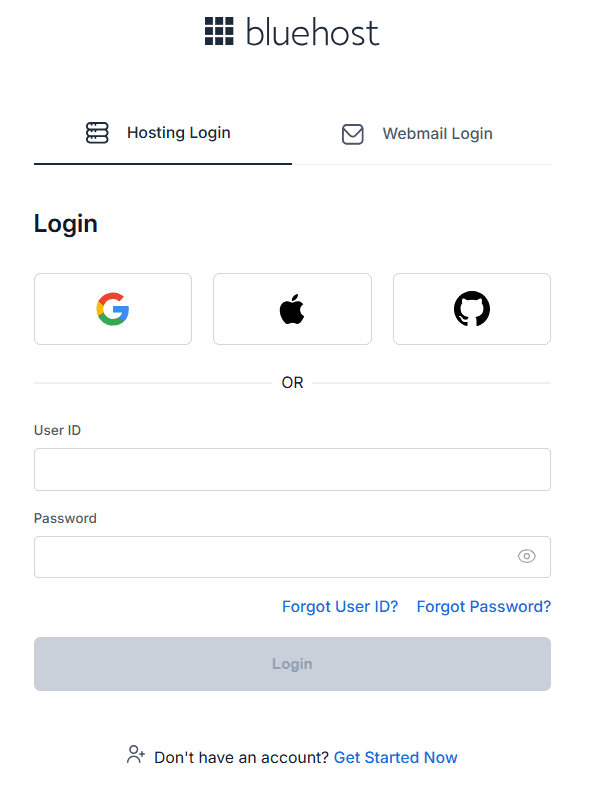
This is the simplest method for logging into your Bluehost hosting account. For a detailed guide, check out our help article.
How do I navigate the Bluehost control panel?
For a detailed guide, check out our article on how to navigate the Bluehost dashboard.
What is a staging site, and how do I create one?
A staging site is a copy of your website where you can make changes that don’t alter your live website until you deploy them. Staging sites help you catch errors, so you don’t end up breaking your live website. We have this step-by-step guide to creating a staging site.
What are the differences between shared, VPS, dedicated, agency, and WordPress hosting?
Shared hosting
Shared hosting means sharing a server with other website owners who also host their sites on the same server. You will use the same database, bandwidth, and storage. It’s the cheapest, most accessible type of hosting.
Features of our shared hosting:
- Performance and hardware: Though resources are shared, our servers are equipped with reliable hardware, ensuring a stable and consistent performance for all websites hosted. This setup is ideal for personal blogs, small businesses, or websites that don’t require the extensive power of dedicated resources.
- Resource allocation: Resources such as CPU, RAM, and storage are distributed among all users on the server. While not exclusively yours, our optimized allocation strategies ensure that your website performs well within its capacity.
- Network and bandwidth: Our shared hosting plans come with ample bandwidth to support standard web traffic. Though bandwidth is shared, we manage it to minimize the risk of congestion, ensuring smooth operation for all hosted sites.
For individuals and small businesses looking for a cost-effective hosting solution that meets basic needs without sacrificing reliability, our shared hosting plans provide a balanced approach to performance, affordability, and ease of use.
Dedicated hosting
Dedicated hosting provides you access to server resources (CPU, RAM and storage) that are exclusively yours. It means unparalleled flexibility, speed, and security because no other users are sharing your resources. While this is the most premium hosting option, it justifies its cost with the range of advanced features it offers.
Features of our dedicated servers:
- Performance and hardware: Our servers are equipped with the latest generation hardware, including AMD EPYC 9534 CPU Chips and ultra-fast NVMe SSD storage drives, supported by PCIe 5.0 for rapid data transfers. This setup is perfect for handling high-traffic websites and demanding applications with ease.
- Dedicated resources: We ensure that CPU, RAM, and storage are exclusively allocated to your server, providing a 1:1 mapping that enhances performance and reliability.
- Network and bandwidth: With a 10 Gbps network and unmetered bandwidth, our servers can handle immense data transfer without any bottlenecks, making them ideal for bandwidth-intensive operations.
For businesses that require the highest levels of performance, security, and control, our dedicated servers offer a comprehensive solution that meets these needs and more, ensuring that your hosting environment is as robust and capable as your business demands.
VPS hosting
VPS hosting, or Virtual Private Server hosting, strikes a perfect balance between shared hosting and dedicated server hosting. While you technically share a server with other users, VPS hosting allocates a dedicated portion of the server’s resources exclusively to you. This setup offers significantly enhanced storage space, bandwidth, and access to advanced features, making it ideal for medium to large websites that require more power and control.
Features of our VPS servers:
- Performance and hardware: Our VPS servers are powered by the latest generation hardware, including AMD EPYC 9534 CPU chips and ultra-fast NVMe SSD storage drives, supported by PCIe 5.0 for high-speed data transfer. This ensures optimal performance for high-traffic websites and resource-intensive applications.
- Network and bandwidth: Each VPS comes with a 10 Gbps network and unmetered bandwidth, allowing for high-speed connectivity and the ability to handle significant data transfer without bandwidth throttling.
- Reliability and availability: We guarantee 99.9% uptime, supported by our Tier 3 data center that provides high availability and robust infrastructure, minimizing downtime and keeping your site running smoothly.
VPS hosting is an excellent choice for businesses that need more than what shared hosting offers but aren’t ready for a dedicated server. It provides the necessary resources and flexibility for growing businesses, ensuring that your website can handle increased traffic and more demanding applications efficiently.
Agency hosting
Agency hosting utilizes multiple servers to host your site, offering scalability, flexibility, and reliability. It distributes resources across several servers, ensuring high availability and performance. It’s ideal for sites with variable or high traffic, as it can easily handle traffic spikes without downtime.
Features of our agency hosting:
- Performance and hardware: Our agency hosting infrastructure is built on the latest generation hardware, including powerful processors and ultra-fast SSD storage. This ensures that your website can handle variable traffic loads with ease, delivering consistent and reliable performance even during peak times.
- Resource distribution: Unlike traditional hosting, agency hosting distributes CPU, RAM, and storage resources across several servers. This not only enhances performance but also provides automatic scaling, allowing your site to grow and adapt to traffic demands without interruption.
- Network and bandwidth: With a network optimized for speed and redundancy, our agency hosting platform ensures that your website remains online and responsive, even in the face of sudden traffic spikes. The flexible bandwidth allocation adapts to your needs, minimizing the risk of bottlenecks and downtime.
For businesses that require a dynamic, scalable hosting solution, our agency hosting offers the perfect balance of performance, adaptability, and cost-effectiveness, ensuring that your online presence remains strong and responsive as your business evolves.
WordPress hosting
WordPress hosting is specifically optimized for WordPress sites, providing enhanced performance, security, and ease of use. It includes features like automatic updates, pre-installed themes, and plugins, as well as specialized support, ensuring a smooth and efficient WordPress experience.
Features of our WordPress hosting:
- Performance and hardware: Our WordPress hosting is powered by the latest generation hardware, including high-performance CPUs and SSD storage, ensuring that your WordPress site runs smoothly and loads quickly, even under heavy traffic. The infrastructure is finely tuned to maximize the efficiency and speed of WordPress, making it perfect for websites of all sizes.
- WordPress optimization: We provide an environment specifically configured for WordPress, including features like automatic updates, pre-installed themes, and plugins. These optimizations ensure that your site is always running the latest and most secure version of WordPress, with everything you need to get started right out of the box.
- Security and support: With advanced security measures tailored to WordPress, including daily backups, malware scanning, and a Web Application Firewall (WAF), your site is well-protected against threats. Also, our specialized WordPress support team is available 24/7 via chat to assist with issues, ensuring your site remains secure and operational.
For WordPress users who require a hosting environment that delivers superior performance, security, and user-friendly features, our WordPress hosting provides a comprehensive solution that enhances your WordPress experience, making site management effortless and efficient.
What’s your primary need for WordPress hosting?
Finding the best hosting for WordPress sites starts with understanding your specific needs. Use this quick guide to match your primary goal with the right hosting solution covered on this page.
- Launching your first blog or personal website: Shared hosting provides an affordable, beginner-friendly foundation. Review the shared hosting section for features and capacity details.
- Building a small business or professional site: WordPress hosting offers optimized performance with automatic updates tailored for business needs. See the section on choosing the best WordPress hosting for complete guidance.
- Opening an online store: WooCommerce hosting includes pre-installed tools and secure payment processing for eCommerce. Check the WooCommerce installation questions for setup details.
- Managing high-traffic or resource-intensive websites: VPS or dedicated hosting delivers guaranteed resources and enhanced control. Compare options in the hosting type differences section above.
- Testing changes without affecting your live site: A staging site lets you preview updates safely before publishing. Learn how to create one in the staging site section.
- Handling seasonal traffic spikes or growth: Cloud hosting scales automatically to accommodate sudden surges without downtime. Review the cloud hosting and performance sections for traffic handling details.
How to choose the best WordPress hosting?
Selecting the best hosting for WordPress sites depends on your specific website needs, budget, and growth plans. Consider these key factors to make an informed decision that supports your site’s success.
Start by evaluating your site type and expected traffic. If you’re launching a personal blog or small business site with under 25,000 monthly visitors, consider shared hosting for its affordability and ease of use. If you run a business website expecting moderate growth or need enhanced performance, WordPress hosting offers optimized features like automatic updates and built-in security. If you’re building an eCommerce store, prioritize solutions with staging capabilities, robust security, and scalability – VPS or dedicated hosting work well for high-traffic online stores.
Budget and support expectations also matter significantly. If you need reliable performance on a limited budget, shared or WordPress hosting provide excellent value. If your business depends on maximum uptime and you need dedicated resources, consider VPS or dedicated hosting. If you anticipate traffic spikes or seasonal fluctuations, cloud hosting offers the flexibility to scale resources automatically. Remember to factor in your technical comfort level – beginners benefit from managed WordPress hosting, while developers may prefer the control of VPS or dedicated servers.
Why WordPress hosting performance rankings matter?
Performance for WordPress hosting means three core elements: how fast your site loads for visitors, how reliably it stays online, and how well it handles traffic spikes without slowing down or crashing. When evaluating your hosting performance, check your uptime percentage (target 99.9% or higher), measure page load times (aim for under three seconds), confirm your storage uses SSD rather than older hard drives, and verify that support responds quickly when issues arise. These metrics directly impact your visitor experience and search engine rankings.
Your hosting infrastructure controls server resources, network speed, and automatic scaling capabilities, while you control WordPress optimization through image compression, caching plugins, theme selection, and plugin hygiene. If you’re experiencing slow load times, start by optimizing images and removing unused plugins before assuming you need a hosting upgrade. However, if your site consistently handles high traffic volumes or you notice performance dips during peak hours, it’s time to consider moving from shared or WordPress hosting to VPS hosting for dedicated resources or cloud hosting for automatic traffic scaling.
For most personal blogs and small business sites on [yourbrand].com, standard WordPress or shared hosting delivers solid performance. As your traffic grows beyond 25,000 monthly visitors or you add resource-intensive features like membership systems or large product catalogs, upgrading ensures your site maintains speed and stability. Review the hosting type comparison sections above to determine which level matches your current and projected needs.
When do you need premium managed WordPress hosting from Bluehost?
Premium managed WordPress hosting from Bluehost streamlines the technical side of running a WordPress site, letting you focus on content and business growth. Unlike standard shared hosting, managed plans handle essential maintenance automatically—including WordPress core updates, security monitoring, and daily backups—so you spend less time troubleshooting and more time building your presence. You control your site’s design, content, and plugins through your WordPress dashboard, while Bluehost manages server optimization, uptime monitoring, and performance enhancements.
This hosting tier suits busy small business owners and creators who need reliable performance without becoming WordPress experts. Your managed plan includes streamlined onboarding with WordPress pre-installed, curated tools for speed and security, and priority access to WordPress-trained support specialists available 24/7. Security features like free SSL certificates and automated threat detection protect your site, while scheduled backups keep your content safe.
Is premium managed WordPress hosting right for you? Consider it if you’re:
- Launching your first business site and want expert guidance from day one
- Growing an established blog and need better performance without technical complexity
- Scaling a content platform and require reliable uptime during traffic spikes
- Running an online store and need secure, optimized hosting for transactions
- Managing multiple projects and want to minimize maintenance time
To explore your WordPress hosting options, log in to your Bluehost account dashboard or contact our support team for personalized recommendations.
Should I choose the basic plan or the pro plan for shared hosting?
There are different benefits of using different Shared hosting plans. With Basic plan, you get basic features such as 10 websites and 10 GB SSD storage, which is ideal for about 40k visits per month.
But you get more advanced features with the Pro plan such as 100 websites and 100GB SSD, ideal for 400k visits per month. For more information, check out all Bluehost shared hosting plans.
What is Bluehost for Agencies?
Bluehost for Agencies offers enhanced performance, reliability, and security for your website. By hosting your site on multiple servers, we ensure that it remains online and fast, even during traffic spikes. Plus, as a part of the Bluehost Partner Program, eligible partners can enjoy one year of free agency hosting, along with other perks like priority support and exclusive discounts.
How does Agency hosting improve my website’s performance?
Agency hosting improves performance by distributing your website’s data across multiple servers. This ensures faster load times, increased reliability, and better handling of traffic surges.
How do I set up Agency hosting on Bluehost?
Setting up Agency hosting is straightforward:
- Go to Bluehost for Agencies page and select a Agency hosting plan you prefer.
- Click on Continue to Checkout.
- On the new page, provide your contact information and complete the payment process.
- Log in to your Bluehost account and navigate to “Cloud Sites” in the hosting section.
- Click “Create Site,” choose a domain, and customize your site using the website builder.
- Enable CDN, caching, activate SSL certificate, and set up daily backups.
- Review settings, publish your site, and use the control panel for ongoing management and support.
How secure is Bluehost’s for Agencies?
Bluehost for Agencies includes advanced security features such as:
- Automatic failover
- Data mirroring
- Daily backups
- SSL certificates
Does Bluehost offer a free trial?
We have a 30-day money-back guarantee policy. If you cancel within 30 days, you will receive a full refund on your hosting service. Please note that our money-back guarantee only applies to hosting plans. It does not apply to add-on products, like domains, given the unique nature of their costs.
How much does Bluehost WordPress hosting cost?
Bluehost pricing is based on the hosting plan term you select at purchase. When you sign up, you receive introductory pricing for your initial term, providing a lower rate to help you get started. After this term ends, your plan automatically renews at the standard renewal rate, which reflects the ongoing cost of hosting and support. Both introductory and renewal pricing are clearly displayed on Bluehost product pages and in your account dashboard.
Your total cost depends on several factors: the hosting type you choose (shared, WordPress, VPS, dedicated, or cloud), your commitment length, and any add-on services like domain registration, professional email, automated backups, or security features. Longer-term commitments typically offer better per-month rates. Bluehost’s 30-day money-back guarantee applies to hosting plan fees if you cancel within 30 days of your initial purchase. However, the guarantee does not cover add-on products such as domains, as these involve third-party costs.
You can review your billing details, renewal dates, and pricing anytime from your Bluehost account dashboard. For questions about your specific costs or plan adjustments, contact support via chat or phone at 888-401-4678.
Does Bluehost offer free domains when I purchase a hosting plan?
Yes, every new Bluehost account includes a free new domain registration for one year.
Can I change my domain name after registration?
Yes, you can. You will need to contact us by phone or chat, and we’ll help you with that. But before you decide to change your domain name, there are certain things you need to consider. Please refer to this help article for more information on changing domains.
Can I change my domain but keep the same content with Bluehost?
Yes, you can. Here’s a guide on manually changing your domain.
How is Bluehost’s customer support?
Excellent customer support is what we’re known for! Our team of experts is available 24/7 to help answer questions and solve your problems. Just chat or reach us at 888-401-4678.
Does Bluehost provide any support service for my WordPress website?
Yes, you can add WP Live support to your Bluehost WordPress hosting account for a monthly fee. WP Live is our team of experts who help you build and grow your website and improve your skills in WordPress. We can even build a website from scratch if you need us.
Can I change my hosting plan afterward?
You can always upgrade or even downgrade your plan from your Bluehost dashboard. Or you can contact our customer support team, and we will help you. For more information, please visit our help article about renewing your hosting. Please note that if you change your hosting plan, you will not get the discounted pricing for the plan you want to change to.
Chat or call us if you want to know more about Managed WordPress hosting, buying a domain, or any other website services. We’re here 24/7 to answer all your questions and offer advice to help you get started!
Ready to Get Your WordPress Website on Bluehost?
Setting up your WordPress website on Bluehost is easier than you think. With one-click WordPress installation, 24/7 expert support and reliable hosting infrastructure, you can launch your website in minutes. Get started with Bluehost WordPress hosting today and bring your online presence to life.


Write A Comment